
SCAN DUAL IV - Scanner KONICA MINOLTA - Notice d'utilisation et mode d'emploi gratuit
Retrouvez gratuitement la notice de l'appareil SCAN DUAL IV KONICA MINOLTA au format PDF.


| Type de produit | Scanner pour films 35 mm et APS |
| Marque | Konica Minolta |
| Modèle | DiMAGE Scan Dual IV |
| Format de film | 35 mm (avec ou sans monture) et APS (avec adaptateur AD-10 en option) |
| Type de film | Négatif et positif, couleur et noir et blanc |
| Résolution optique | 3200 dpi |
| Capteur | CCD à 3 lignes, 5340 pixels/ligne |
| Profondeur de couleur | 16 bits par canal (8 ou 16 bits par canal en sortie) |
| Plage dynamique | 3.6 |
| Source lumineuse | Tube fluorescent à cathode froide 3 longueurs d'onde |
| Mise au point | Autofocus, mise au point manuelle et par zone |
| Interface | USB 2.0 (compatible USB 1.1) |
| Alimentation | Adaptateur secteur (selon région : AC-U22, AC-U23, AC-U24 ou AC-U25) |
| Consommation électrique | 30 W max. |
| Dimensions (L × H × P) | 145 × 100 × 326 mm |
| Poids | 1,5 kg |
| Température d'utilisation | 10 °C à 35 °C |
| Humidité d'utilisation | 15 à 80 % (sans condensation) |
| Accessoires fournis | Support pour diapositives SH-U1, support pour films 35 mm FH-U2, câble USB UC-2, adaptateur secteur, CD-ROM logiciels, guide de référence rapide, certificat de garantie |
| Fonctions principales | Scan Easy (automatique), Scan Dual (manuel), traitement d'image avancé (courbes de ton, histogramme, balance des couleurs, suppression de la poussière, réduction du grain), numérisation par lots, correction des couleurs |
| Entretien et nettoyage | Débrancher l'appareil avant nettoyage ; utiliser un chiffon doux sec ; éviter solvants inflammables ; garder le film exempt de poussière |
| Sécurité | Utiliser uniquement l'adaptateur spécifié ; ne pas démonter ; éviter l'humidité ; débrancher en cas de dysfonctionnement ; ne pas obstruer les ouvertures |
| Pièces détachées et réparabilité | Contacter un centre de service agréé Konica Minolta pour les réparations |
| Informations générales | Certifié Energy Star, CE, FCC classe B ; conforme à la directive DEEE |
FOIRE AUX QUESTIONS - SCAN DUAL IV KONICA MINOLTA
Questions des utilisateurs sur SCAN DUAL IV KONICA MINOLTA
0 question sur cet appareil. Repondez a celles que vous connaissez ou posez la votre.
Poser une nouvelle question sur cet appareil
Téléchargez la notice de votre Scanner au format PDF gratuitement ! Retrouvez votre notice SCAN DUAL IV - KONICA MINOLTA et reprennez votre appareil électronique en main. Sur cette page sont publiés tous les documents nécessaires à l'utilisation de votre appareil SCAN DUAL IV de la marque KONICA MINOLTA.
MODE D'EMPLOI SCAN DUAL IV KONICA MINOLTA
DiMAGE Scan Dual IV

INSTRUCTION MANUAL
Tone-curve corrections
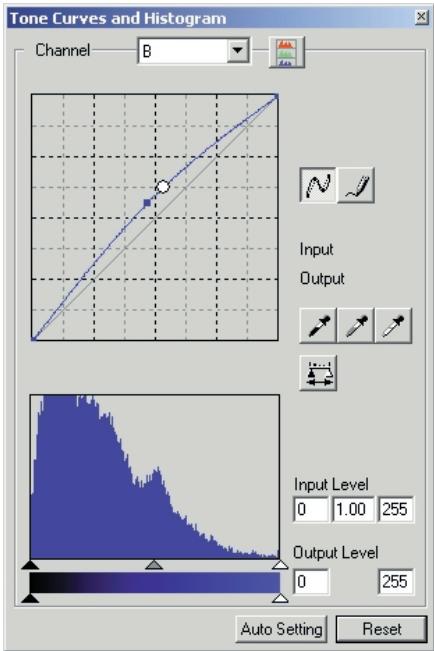
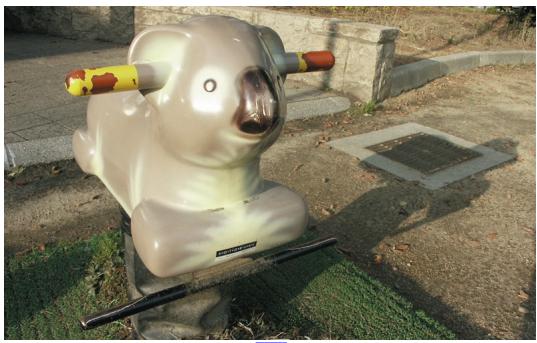
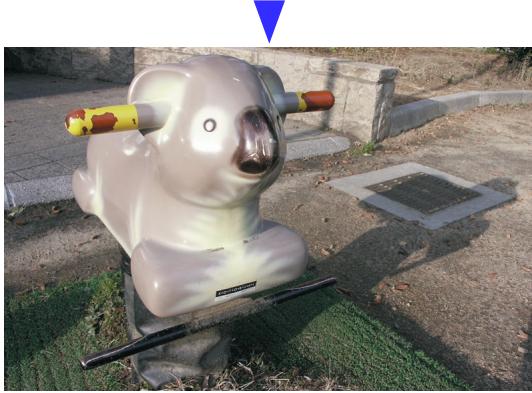
By selecting individual color channels on the tone curve, adjustments to the overall color of an image can be made. In this example, the image is too yellow. By moving the blue curve up, the image looks more neutral. For more on tone curve corrections, see page 60.
Selective-color palette
In the original image, the colors were muted making the whole scene flat. By subtracting cyan from the red channel, the bridge and faint details in the clouds could be accentuated. The cloud detail was further enhanced by subtracting yellow from the blue channel. For more on the selective-color palette, see page 71.
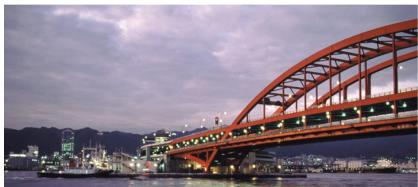
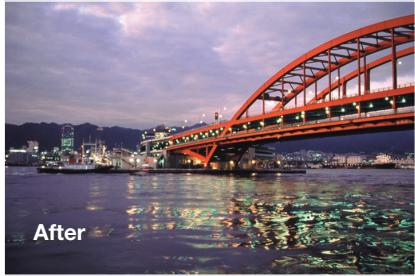
Before
Before you begin
Thank you for purchasing this Kona Minolta product. Please take the time to read through this instruction manual so you can enjoy all the features of your new scanner.
Check the packing list before using this product. If any items are missing, immediately contact your dealer.
DiIMAGE Scan Dual IV scanner
Slide Mount Holder SH-U1
35mm Film Holder FH-U2
USB Cable UC-2
AC Adapter
DiAGE Scan Utility CD-ROM
Adobe Photoshop Elements 2.0 CD-ROM
DiAGE Instruction Manuals CD-ROM
Quick Reference Guide
International Warranty Certificate
The AC adapter unit varies with region. AC-U25 is for use in North America, Taiwan, and Japan. AC-U22 is for use in continental Europe, Oceania, and Asia (except China and Hong Kong). AC-U23 is for use in the United Kingdom and Hong Kong. AC-U24 is for China.
If the operating system's display controls are set to a large font size, the text in the DiIMAGE Scan applications will not be displayed correctly. Use the computer's initial display text size.
This instruction manual does not provide instruction in the basic operation of the personal computers, nor the basic operation of Windows or Macintosh operating systems; refer to the manuals supplied with the computer.
The examples in this manual use Windows software. The appearance of the screens may differ from the examples when using Macintosh or other Windows operating systems.
Every precaution has been taken to ensure the accuracy of this material. Specifications in this manual are based on the latest information available at the time of printing and are subject to change without notice. Konica Minolta is not responsible for any loss or damage caused by the use of this software. This instruction manual may not be copied either in part or in its entirety without the prior permission of Konica Minolta.
For proper and safe use
Read and understand all warnings and cautions before using this product.
WARNING
-
Use only within the voltage range specified on the unit. Inappropriate current may cause damage or injury through fire or electric shock.
-
Use only the specified AC adapter within the voltage range indicated on the adapter unit. An inappropriate adapter or current may cause damage or injury through fire or electric shock.
-
Do not disassemble this product. Electric shock may cause injury if a high-voltage circuit inside the product is touched. Take the product to a Minolta Service Facility when repairs are required.
-
Immediately unplug the unit and discontinue use if the product is dropped or subjected to an impact in which the interior is exposed. The continued use of a damaged product may cause injuries or fire.
-
Store this product out of reach of children. Be careful when around children not to harm them with the product or parts.
-
Do not operate this product or handle the power cord with wet hands. Do not place a container with liquid near the product. If liquid comes in contact with the product, immediately unplug the unit. The continued use of a product exposed to a liquid may cause damage or injury through fire or electric shock.
-
Do not insert hands, inflammable objects, or metal objects such as paper clips or staples into this product. It may cause damage or injury through fire or electric shock. Discontinue use if an object enters the product.
-
Do not use the product near inflammable gases or liquids such as gasoline, benzine, or paint thinner. Do not use inflammable products such as alcohol, benzine, or paint thinner to clean the product. The use of inflammable cleaners and solvents may cause an explosion or fire.
-
When unplugging the unit, do not pull on the power cord. Hold the adapter unit when removing it from an outlet.
-
Do not damage, twist, modify, heat, or place heavy objects on the power cord. A damaged cord may cause damage or injury through fire or electric shock.
-
If the product emits a strange odor, heat, or smoke, discontinue use. Immediately unplug the product. The continued use of a damaged product or part may cause injuries or fire.
-
Take the product to a Konica Minolta service facility when repairs are required.
CAUTION
- Damage or injury through fire or electric shock may result if the product is used or stored in the following conditions:
In humid or dusty environments
In direct sunlight or hot environments
In smoky or oily areas
In unventilated areas
On unstable or unlevel surfaces
- This product should only be operated in the upright position. Inappropriate placement may result in fire.
- Insert the plug securely into the electrical outlet.
- Do not use if the cord is damaged.
- Do not connect the ground to a gas pipe, telephone ground, or water pipe. Improper grounding can result in injury from electric shock.
- Do not cover the AC adapter. A fire may result.
- Do not obstruct access to the AC adapter; this can hinder the unplugging of the unit in emergencies.
- Unplug the product when cleaning or when the unit is not in use for long periods.
- Periodically check that the power cord is not damaged and the plug is clean. Dust and dirt that may collect between the prongs of the plugs may result in fire.

As an Energy Star® Partner, Konica Minolta has determined that this product meets the Energy Star® guidelines for energy efficiency.

This mark certifies that this product meets the requirements of the EU (European Union) concerning interference causing equipment regulations. CE stands for Conformité Européenne.
FCC Compliance Statement Declaration on Conformity
Responsible Party: Konica Minolta Photo Imaging U.S.A. Inc.
Address: 725 Darlington Avenue, Mahwah, NJ 07430
Film Scanner: DiIMAGE Scan Dual IV

Tested to comply with FCC standards.
FOR HOME OR OFFICE USE
This device complies with Part 15 of the FCC Rules. Operation is subject to the following two conditions: (1) This device may not cause harmful interference, and (2) this device must accept any interference received, including interference that may cause undesired operation. Changes or modifications not approved by the party responsible for compliance could void the user's authority to operate the equipment. This equipment has been tested and found to comply with the limits for a Class B digital device, pursuant to Part 15 of the FCC Rules. These limits are designed to provide reasonable protection against harmful interference in a residential installation.
This equipment generates, uses and can radiate radio frequency energy and, if not installed and used in accordance with the instructions, may cause harmful interference to radio communications. However, there is no guarantee that interference will not occur in a particular installation. If this equipment does cause harmful interference to radio or television reception, which can be determined by turning the equipment off and on, the user is encouraged to try to correct the interference by one or more of the following measures:
Reorient or relocate the receiving antenna.
- Increase the separation between the equipment and the receiver.
- Connect the equipment to an outlet on a circuit different from that to which the receiver is connected.
- Consult the dealer or an experienced radio/TV technician for help.
Do not remove the ferrite cores from the cables.
This Class B digital apparatus complies with Canadian ICES-003.
The sound pressure level is less than 70dB according to ISO 3744 or ISO 7779.
Table of contents
Color examples 2
Before you begin 3
For proper and safe use 4
Names of parts. 9
Installation 9
Before installing the DiIMAGE Scan Utility 9
DiAGE Scan system requirements. 10
Additional system requirements 11
Adobe Photoshop Elements 11
Windows 12
Macintosh 14
Scanner setup 16
Before connecting the scanner to a computer 16
Connecting the USB cable. 16
Connecting the AC adapter 17
Turning on the scanner 17
Disconnecting the scanner. 17
Loading the film holders. 18
Handling film 18
Where is the emulsion? 18
Loading 35mm film strips 18
Loading mounted slides. 19
Loading a film holder into the scanner 19
Using the APS Adapter AD-10 (sold separately). 20
Ejecting a film holder 21
DiMAGE Scan Launcher 22
Easy Scan Utility 23
Launching the Easy Scan Utility. 23
Using the Easy Scan Utility 24
Basic scanning 28
Launching the DiIMAGE Scan Utility 28
Scanning basics 28
Scanner setup 29
Main window and index scan tab. 29
Making an index scan 30
Selecting index thumbnails 30
Flip and rotate images 31
Fit-to-window button 32
Main window and prescan tab. 32
Making a prescan 32
Grab tool. 33
Magnifying tool 33
Auto cropping 33
CHP button (APS film) 33
Making the final scan. 34
Basic image processing 36
Main window and image-correction tab 36
Pixel Polish 37
Auto Dust Brush 38
Auto Dust Brush retouching level 38
Variation palette. 39
Brightness, contrast, and color-balance palette 40
An introduction to color 41
Comparing pre and post-correction images 42
Undoing and redoing image corrections. 42
Quitting the DiIMAGE Scan Utility 43
Advanced scanning 44
Setting scanner preferences 44
Exposure control tab 46
Saving exposure settings 47
Loading exposure settings 47
More index scan functions 48
Reverse frame order 48
Saving the index thumbnails 49
Saving an index file. 49
Loading an index file. 49
More prescan functions 50
Point AF (Autofocus) 50
Manual focus 51
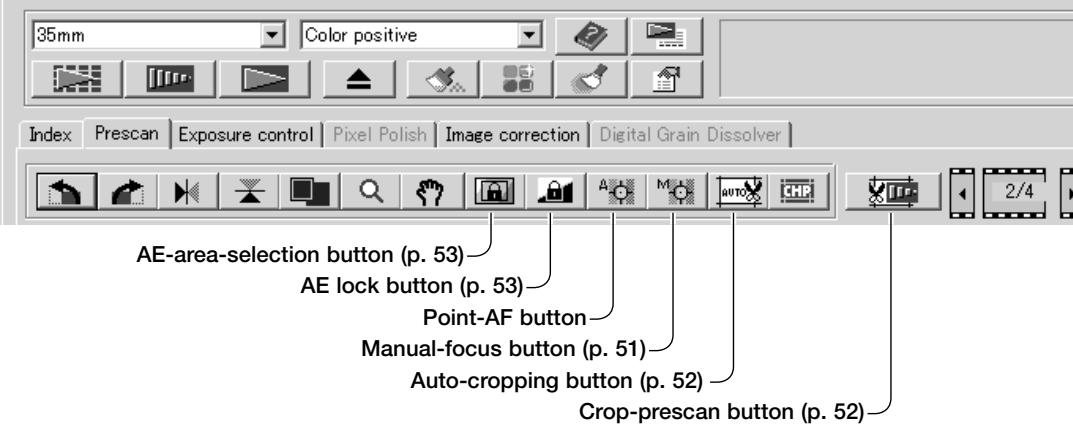
Manual cropping. 52
Autoexposure 53
AE area selection 53
AE lock. 53
Inputting scan settings manually 54
About resolution and output size 55
Scan setting examples. 56
Saving scan settings as a Job 57
Deleting a Job 57
Advanced image processing. 58
More image-processing tools. 58
Digital Grain Dissolver 59
Tone curve / histogram palette. 60
Using tone curves 60
Drawing tone curves by freehand. 61
A short guide to tone-curve corrections 62
Histogram corrections 64
Tone-curve / histogram auto setting. 65
A short guide to histogram corrections 66
White, black, and gray-point corrections 68
Setting the white and black-point values 69
Tracking image corrections - snapshot button 69
Hue, saturation, and lightness palette 70
Selective-color palette 71
About RGB and CMY 71
Unsharp mask 72
Saving image corrections. 73
Loading image-correction Jobs 73
Custom Wizard. 74
Batch Scan Utility. 76
Advanced Batch Scan setup 78
Color matching. 80
Setting the output color space. 80
Output color spaces 81
Setting the monitor ICC profile. 82
Scanner color profiles 82
Color matching recommendations 83
Auto Dust Brush plug-in 84
Before installing the plug-in 84
Installation - Windows 84
Installation - Macintosh 86
Using the Auto Dust Brush plug-in. 87
Appendix 89
Glossary of common terms 89
Uninstalling the DiIMAGE Scan software. 90
Installed file and folders 91
Job file list. 92
Troubleshooting 94
Checking software installation - Windows. 95
Technical specifications 96
Technical support 97
Warranty and product registration 97
Record keeping 97
Image Data Sheet 98
Color examples 99
Konica Minolta is a trademark of Konica Minolta Holdings, Inc. DiIMAGE is a trademark of Konica
Minolta Camera, Inc. Microsoft, Windows, Windows 98, Windows Me, Windows 2000
Professional, and Windows XP are registered trademarks of the Microsoft Corporation.
Macintosh, Apple, and Power Macintosh are registered trademarks of Apple Computer, Inc.
Adobe and Photoshop are registered trademarks of Adobe Systems Incorporated.
CorelPhotoPaint is a trademark of the Corel Corporation. Paint Shop Pro is the copyright of
Met's Corporation. All other brand and product names are trademarks or registered trademarks
of their respective owners.
Names of parts
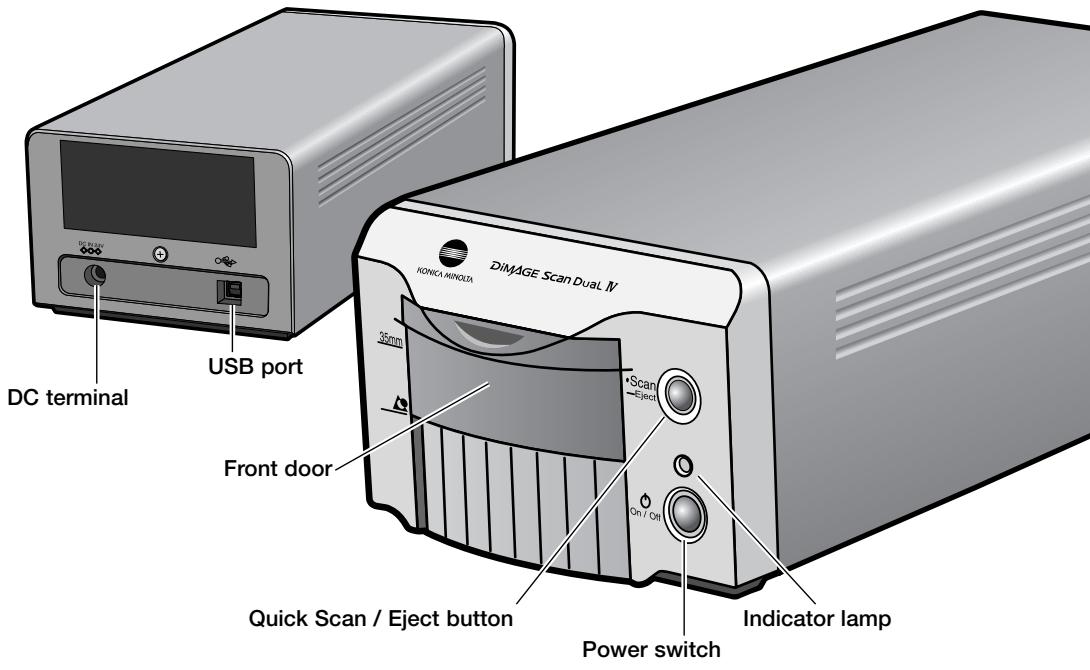
Installation

Before installing the DiIMAGE Scan Utility
RAM-stationed programs such as anti-virus or installation-monitoring software may cause the installer to fail. Remove or disable these programs before installing the DiIMAGE Scan Utility. Reinstall or enable the software when the installation is complete.
Do NOT connect the scanner to a computer before installing the DiIMAGE Scan Utility software.
DiIMAGE Scan system requirements
The computer and the operating system must be guaranteed by the manufacturer to support USB interface. To use the scanner, your computer system must meet the following requirements:
| Pentium 166 Mhz or later processor. Pentium III or later recommended. | PowerPC G3 or later. PowerPC G4 or later recommended. |
| Windows 98, 98 Second Edition, 2000 Professional, Me, or XP (Home/Professional). | Mac OS 8.6 ~ 9.2.2 Mac OS X 10.1.3 ~ 10.1.5, 10.2.1 ~ 10.2.8, 10.3 ~ 10.3.1 |
| 64MB of RAM. | 64MB of RAM in addition to the require- ments for the Mac OS and applications. |
| Hard-disk space: 3 to 10 times the file size of the scanned image. | |
| 800 X 600 monitor capable of displaying High Color (16 bit) is required. 1024 x 768 monitor is recommended. | 800 X 600 monitor capable of displaying at least 32,000 colors is required. 1024 x 768 monitor is recommended. |
| USB (ver. 2.0 or 1.1) interface | |
| Recommended USB boards Adaptec USB2connect 3100, Adaptec USB2connect 5100, Adaptec DuoConnect, Belkin Hi-speed USB 2.0 5-Port PCI, Belkin Hi-speed USB 2.0 2-Port PCI, or port sup- plied with the computer. | Apple USB port |
| TWIN driver compatible with Photoshop 6.0.1, and 7.0.1, Photoshop Elements 2.0, Paint Shop Pro 8, CorelPhotoPaint 11.0. | Plug-in compatible with Photoshop 6.0.1, and 7.0.1, Photoshop Elements 2.0, |
Remark: Computer Systems with USB 1.1 may not reach the given scan times. Use USB 2 controllers to archive maximum speed.
This software can be downloaded free of charge from the apple web site at http://www.apple.com.
Check the Minolta web site for the latest compatibility information: North America: http://www.konicaminolta.us/ Europe: http://www.konicaminolta.sourceforge.com
Additional memory requirements
| When scanning with: | PC / AT compatible computers | |
| 16-bit color depth | 64MB of RAM. 128MB recommended. | 400MB hard disk space 800MB recommended. |
| Auto Dust Brush | 128MB of RAM. 256MB recommended. | 600MB hard disk space 1.2GB recommended. |
| Pixel Polish | 128MB of RAM. 256MB recommended. | 600MB hard disk space 1.2GB recommended. |
| Auto Dust Brush with 16-bit color depth | 128MB of RAM. 256MB recommended. | 1.0GB hard disk space 2.0GB recommended. |
| When scanning with: | Macintosh computers | |
| 16-bit color depth | 128MB of RAM. 256MB recommended. | 400MB hard disk space 800MB recommended. |
| Auto Dust Brush | 128MB of RAM. 256MB recommended. | 600MB hard disk space 1.2GB recommended. |
| Pixel Polish | 128MB of RAM. 256MB recommended. | 600MB hard disk space 1.2GB recommended. |
| Auto Dust Brush with 16-bit color深度 | 128MB of RAM. 256MB recommended. | 1.0GB hard disk space 2.0GB recommended. |
Mac OS 8.6 - 9.2.2: allocate the RAM requirements above to the Easy Scan Utility or DiIMAGE Scan Dual 4 Utility when used alone. When using the DiIMAGE Scan Utility through an image-processing application, add the memory requirements to the host software.
With Mac OS 8.6 ~ 9.2.2, to use Pixel Polish when the utility is opened through an image-processing application, the largest unused block of memory for the OS must be more than 128 MB. With the image-processing application open, check the amount of unused memory before launching the the scanner utility. If the block of memory is less than 128 MB, close all other open applications.
Adobe Photoshop Elements 2.0
Take time to register your copy of Photoshop Elements 2.0 with Adobe. You can register online, by fax, or by mail. The software can be registered online during installation by following the instructions on the installer screens. To register by fax or mail, read the instructions in the registration folder located in the technical-information folder on the Adobe Photoshop Elements 2.0 CD-ROM.
| PC / AT compatible computers | Macintosh computers |
| Pentium processor | PowerPC processor |
| Windows 98, 98 Second Edition, Me, 2000, or XP. | Mac OS 9.1, 9.2.x, or Mac OS X 10.1.3 to 10.1.5. |
| Internet Explorer 5.0, 5.5, or 6.0. | 128 MB of RAM (with virtual memory on) |
| 128 MB of RAM | |
| 150 MB of available hard disk space | 350 MB of available hard disk space |
| Color monitor capable of displaying thousands of colors at a resolution of 800 X 600 or greater. | |
Windows
In the example below, the hard disk is drive C, and the CD-ROM drive is drive D. The letters designating the drives will vary between computers.
Turn on the computer to start up the Windows operating system. Windows XP and 2000 users should logon as an administrator.
Insert the DiIMAGE Scan Utility CD-ROM into the CD-ROM drive. The DiIMAGE Scan Dual IV setup screen will open.
Click the "Starting up the DiIMAGE Scan Dual4 installer" button. The program decompression screen will briefly appear. The Install Shield Wizard will start automatically.
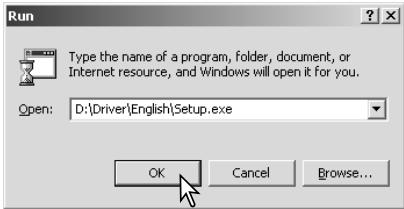
If the Install Shield Wizard does not start up automatically, execute the following procedure:
- Initiate the run routine on the start menu.
- Click the browse button in the run dialog box.
- Select the CD-ROM drive from the look-in box in the browse window.
- Open the driver folder.
- Open the English folder.
- Click on the Setup.exe file. It will be displayed with its location in the run dialog box:
D:\Driver\English\Setup.exe. Click OK.
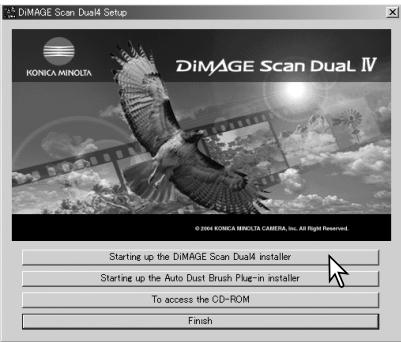
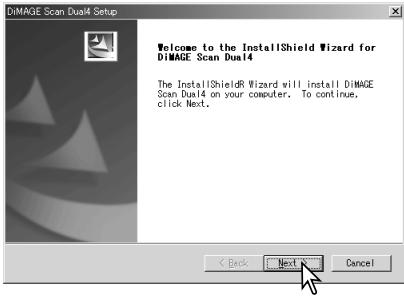
The opening screen of the InstallShield Wizard will appear. Click the Next button to continue.
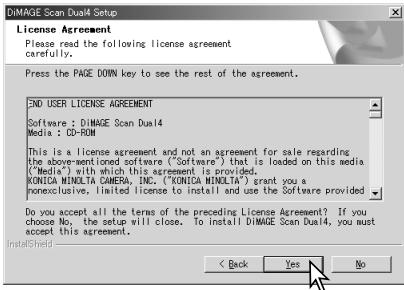
Click the Yes button to accept the agreement and continue. Read the entire agreement carefully before continuing. If you do not agree to the terms of the license agreement, click the no button to exit the setup program.
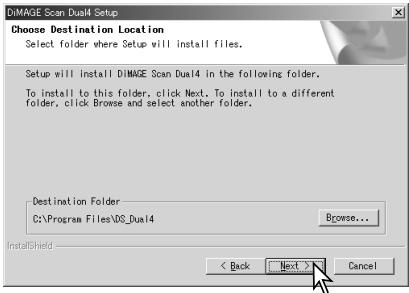
To install the software in the default folder (C:\Program Files\DiMAGEScan), click Next.
To install the software in another folder, click the Browse button to display the folder selection window. Specify the directory in which to install the software, then click OK.
Select the components to be installed, then click the Next button. Normally, the TWAIN data source should be installed. The descriptions in this manual assume the utility was installed with the TWAIN data source.
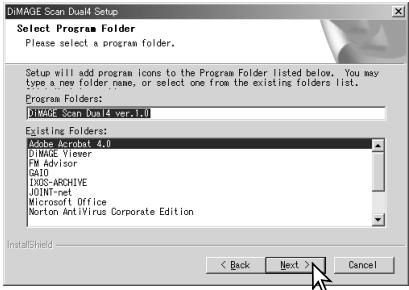
The name of the default program folder is displayed. To install the software in this folder, click Next.
To install the software to another existing folder, select one of the folders listed in the existingFolders box below. Click the Next button to begin installation.
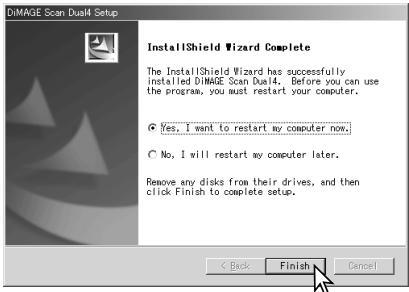
The InstallShield Wizard will indicate that installation was successful. Select the restart-computer option and then click Finish. When the computer restarts, the scanner driver software will be ready to use. Print out a copy of the Read Me file for reference.
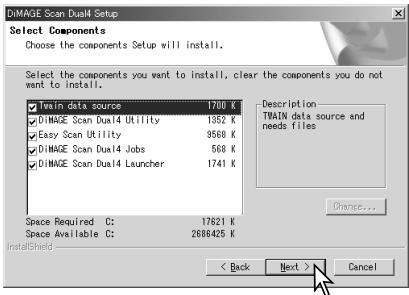
The scanner software can be launched directly from most image-processing applications. Although the TWAIN driver cannot be seen, it allows the utility to be launched from an image-processing application using the import option as well as allowing the computer and scanner to communicate.
Macintosh
Turn on the computer to start the Mac OS. Insert the DiIMAGE Scan Utility CD-ROM into the CD-ROM drive. The Dimage Scan Utility CD-ROM icon appears on the desktop. Double-click on the icon; the driver, manual, and acrobat reader folders are displayed.
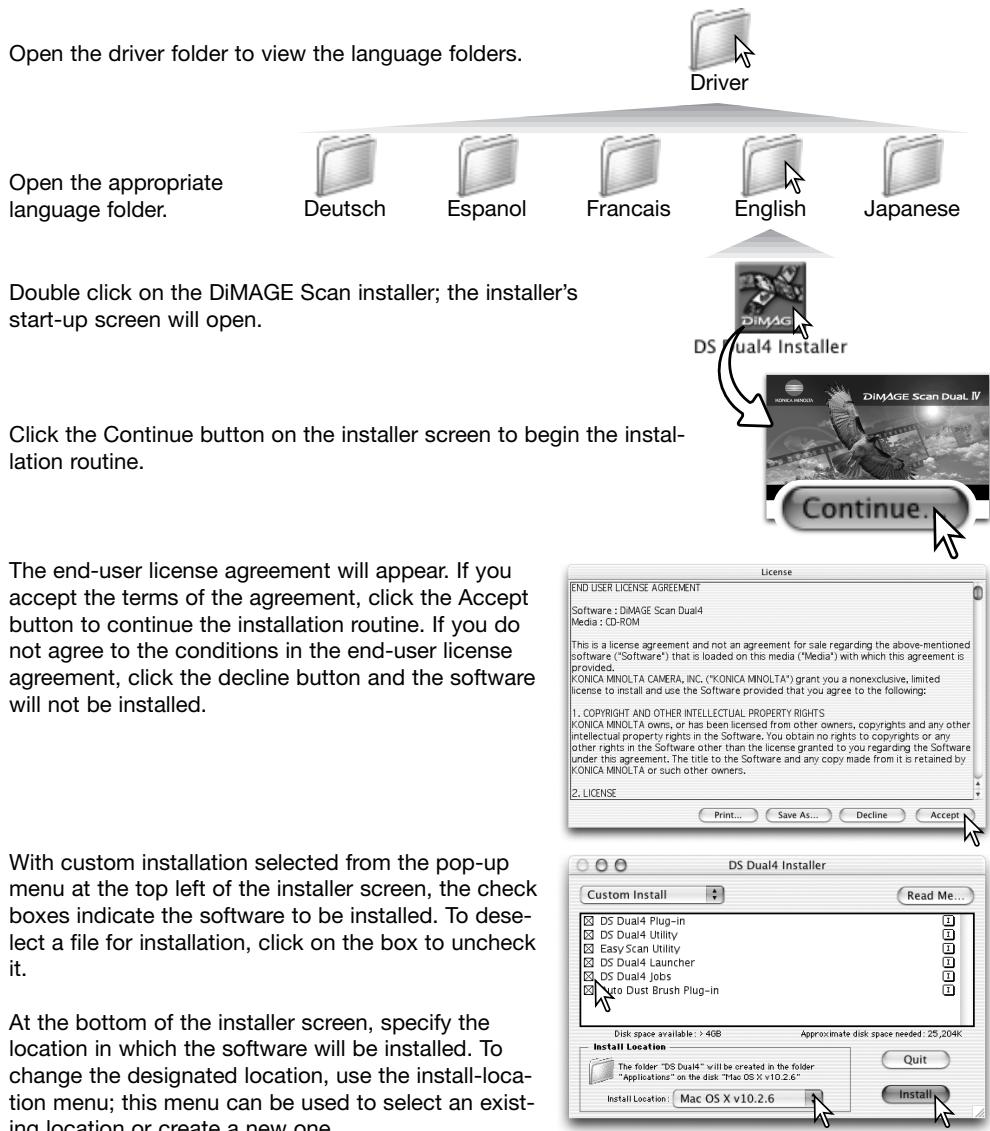
Click the Install button to begin installation.
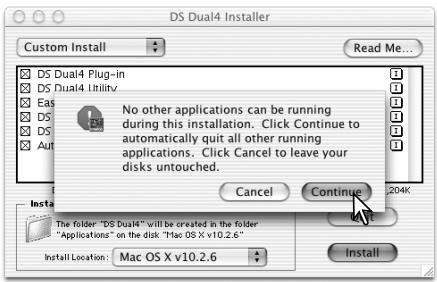
Any software that is running must be closed before the DiIMAGE Scan Utility can be installed. Click the Continue button to shut down any active applications and continue the installation routine. The Cancel option will end the installation routine.
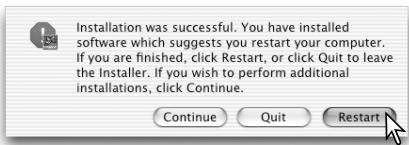
A screen confirming the successful installation of the software will appear. Click the Restart button to exit the installation program and restart the computer. The Quit button exits the installer without restarting the computer. To make additional installations, click the Continue button.
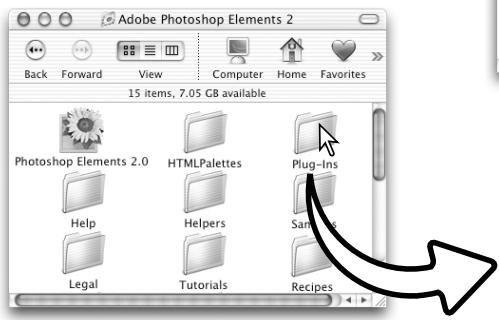
After the computer restarts, confirm the selected DiIMAGE Scan applications are installed in the designated location. Print out a copy of the Read Me file for reference.
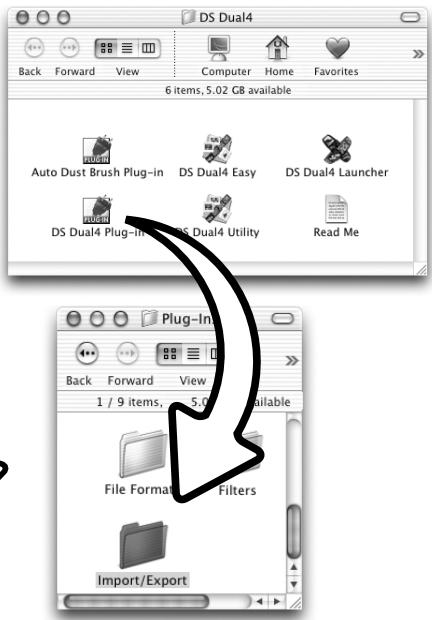
If the DS Dual4 plug-in was installed, simply drag and drop the plug-in file into an image-processing application's import folder. This will allow the DiIMAGE Scan Utility to be launched directly from that application.
Scanner setup
Before connecting the scanner to a computer

Before connecting the scanner to a computer, the DiMAGE Scan Utility must first be installed. See pages 9 through 15 for the installation procedure.
The scanner should be placed on a level surface free from vibrations. It should be located away from direct sunlight and in a clean, dry, well-ventilated area. Never connect the scanner cable while data is being transferred between the computer and peripheral devices.
Connecting the USB cable
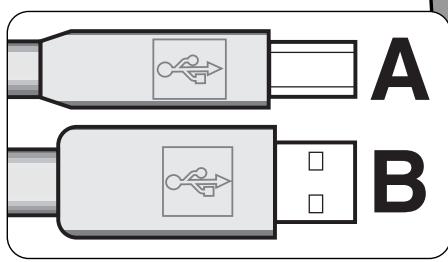
Securely plug the A connector of the USB cable into the scanner's USB port and the B connector into the computer's USB port.
The scanner should be connected directly to the computer. Attaching the scanner to a USB hub may prevent proper operation.
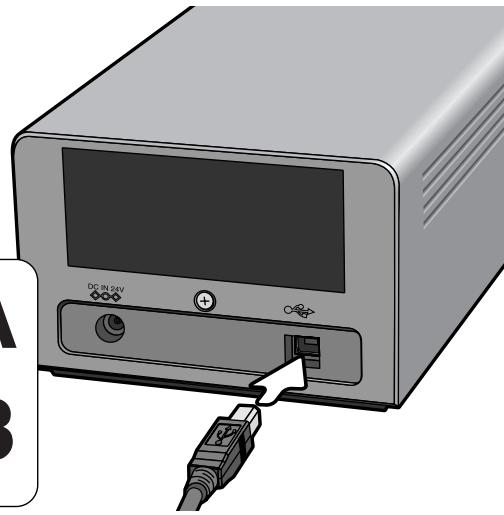
When the scanner is initially connected to a computer with a Windows 98, 98SE, or 2000 Professional operating system, the found-new-hardware wizard will appear briefly. No action is required. With Windows 2000, the "Digital Signature Not Found..." message may appear. Click the yes button to complete the scanner installation.
When the scanner is initially connected to a computer with a Windows XP operating system, the found-new-hardware wizard will appear. Click the next button. The "not passed Windows Logo testing" message appears. Click the continue-Anyway button to complete the scanner installation.
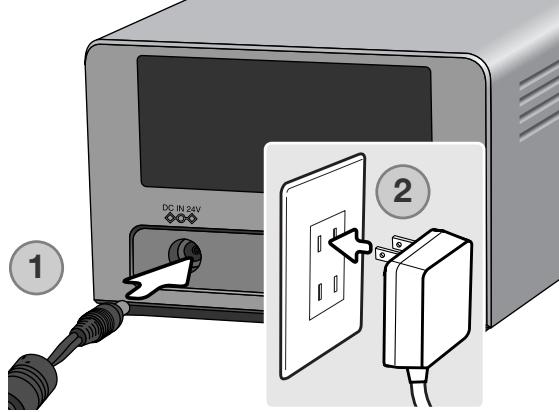
Connecting the AC adapter
- Connect the output plug of the AC adapter to the scanner's DC terminal.
- Plug the AC adapter into a standard household outlet.
Turning on the scanner
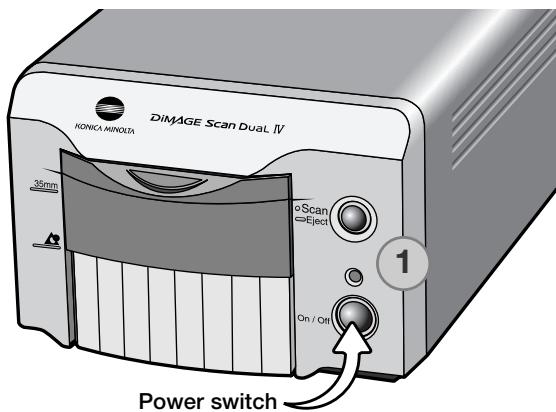
Confirm the front door of the scanner is closed; the scanner is unable to initialize if the door is open. Turn on the scanner with the power switch. Start up the computer.
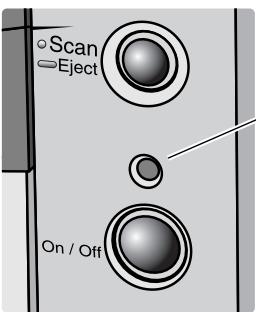
When launching the DiIMAGE Scan Utility, the indicator lamp (1) blinks when the scanner is initializing. Once the indicator lamp glows steadily, the scanner can be used.
Disconnecting the scanner

Never disconnect the scanner when the indicator lamp is blinking.
Quit the DiIMAGE Scan Utility. Confirm that the scanner indicator lamp is not blinking. Turn the scanner off and then disconnect the cable.
Loading the film holders
Handling film
To achieve the best possible reproduction from the scanner, the film and film holder should be free from dust and dirt. Always work with processed film in a clean, dust-free environment. Handle film by the edges or mount to prevent fingerprints and dirt marring the image area. Special lint free gloves are available from photographic equipment retailers for film handling as well as anti-static cloths, brushes, and blowers for removing dust. Film cleaner can be used to remove oil, grease, or dirt from film; carefully follow the manufacturer's instructions and precautions for the film cleaning solvent.
Where is the emulsion?
When film is scanned, the emulsion side of the film should be down. When viewing the film image, if the image is orientated correctly rather than a mirror image, the emulsion side is facing down. If the image is abstract or symmetrical so its orientation is difficult to determine, the emulsion is down if the frame numbers and edge markings can be read correctly. The dull side of any film is the emulsion side.
Loading 35mm film strips
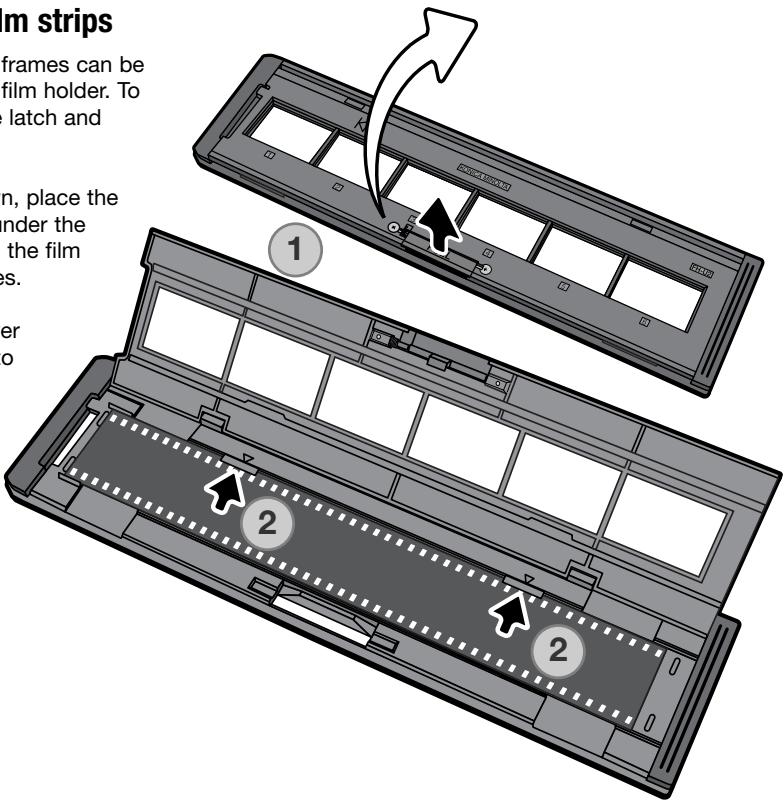
Film strips of up to six frames can be loaded into the FH-U2 film holder. To open the holder, lift the latch and open the cover (1).
With the emulsion down, place the film in the holder and under the retaining tabs (2). Align the film with the frame apertures.
Carefully lower the cover until the latch clicks into place. Take care not to move the film during this operation.
Loading mounted slides
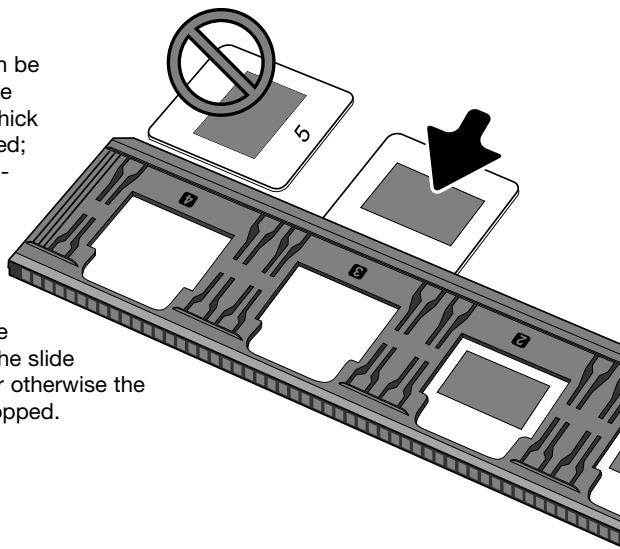
Up to four mounted 35mm or APS slides can be inserted into the slide mount holder. The slide mounts must be between 1 mm and 2 mm thick to fit the holder. Glass mounts cannot be used; the glass refracts the light resulting in distorted and unevenly illuminated scans. Do not leave slide mounts in the holder.
Hold the slide mount holder so that the slots are to the top and the frame numbers are upside-down and face up. Insert the slides into the holder emulsion side down. The slide must be parallel with the length of the holder otherwise the top and bottom of the image area will be cropped.
Loading a film holder into the scanner
Before using the scanner, install the DiIMAGE Scan Utility. Confirm the front door of the scanner is closed and then turn on the scanner. Launch the DiIMAGE Scan Utility before inserting the film holder. Do not insert the film holder into the scanner while the utility software is launching or the scanner is initializing; the indicator lamp blinks during this period.
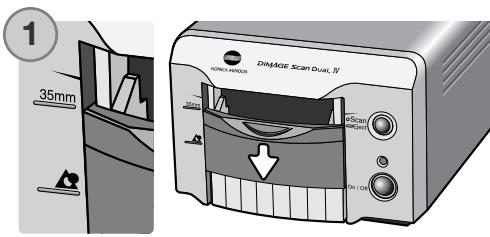
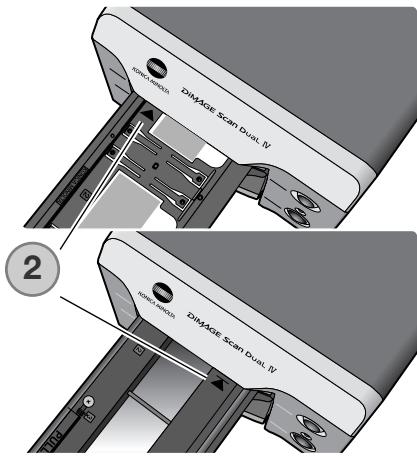
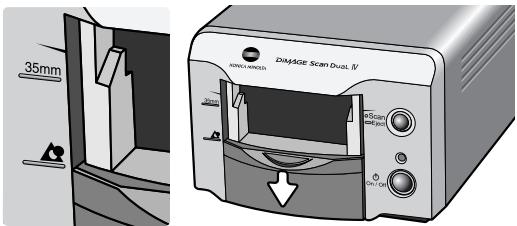
When the indicator lamp glows steadily, open the front door until the top is aligned with the 35mm film-holder mark (1).
Insert the film holder into the scanner in the direction indicated by the arrow. Hold the holder straight and level with the orientation indicator up (2).
Carefully push the holder into the scanner until the arrow mark (2) is aligned with the scanner door; the holder will be automatically fed into the scanner from that point. Never touch or hinder the holder when it is in the scanner.
Using the APS Adapter AD-10 (sold separately)
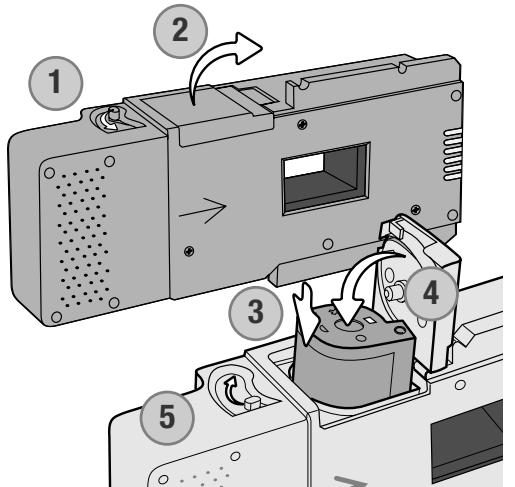
APS (Advanced Photo System) cassette film can be scanned using the APS Adapter AD-10. The cassette must contain processed film; the square number 4 mark at the end of the cassette should be highlighted in white. Do not load unprocessed film.
To load an APS cassette, slide the film-chamber release (1) towards the top of the adapter unit until the chamber door opens (2). The film-chamber release will not return to its original position until the door is closed.
Insert the cassette into the film chamber as shown (3). Close the chamber door (4); the film-chamber release will return to its original position (5).
When the indicator lamp glows steadily, open the front door until the top of the door is aligned with the APS film-holder mark.
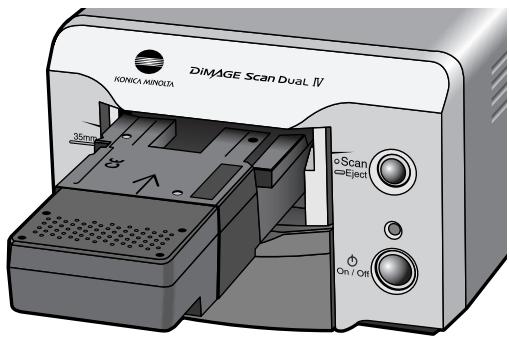
With the scanner contacts face up, insert the adapter into the scanner until it stops. The scanner detects the holder and automatically loads the film. Do not remove the holder until the film has been rewound, see page 21.
When using the APS adapter, if the scanner makes a strange sound or the film-advance warning appears, eject the APS adapter immediately (p. 21) and do not reinsert it. Contact a Konica Minolta service facility.
Ejecting a film holder
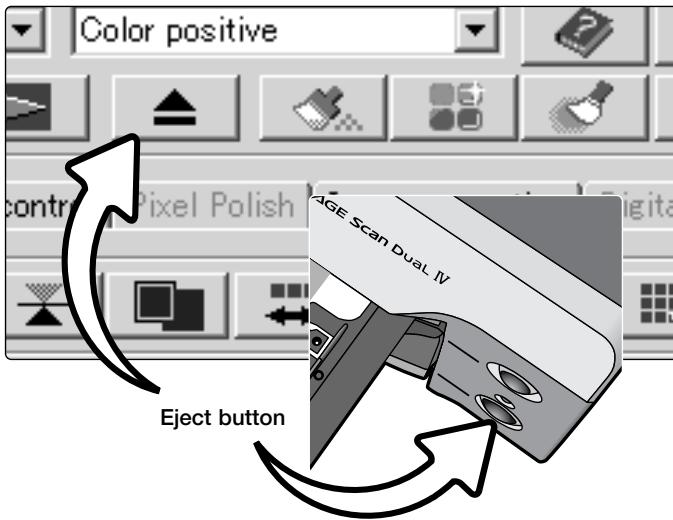
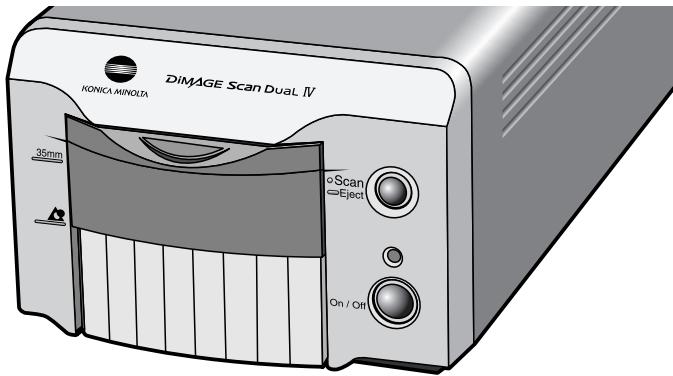
Click the eject button in the DiIMAGE Scan Utility window or press and hold the Quick Scan / eject button on the scanner to remove the holder; the scanner automatically ejects the holder to its initial insertion position. Do not touch or hinder the holder while it is moving. If the scanner is turned off before the holder is ejected, turn on the scanner; the holder is automatically ejected.
When using the optional APS adapter, the scanner automatically rewrites the film when the eject button is pressed. Do not remove the adapter until the rewind motor has stopped.
Close the front door when the scanner is not in use.
DiIMAGE Scan Launcher
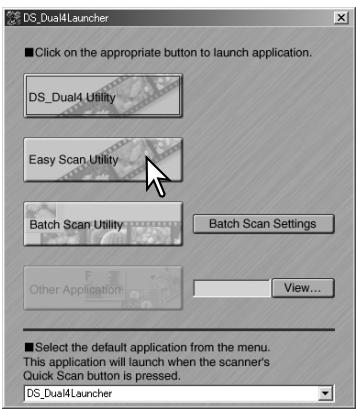
The Quick Scan button launches the DiIMAGE Scan applications. When the button is pressed, the launcher is displayed; the button is disabled when a scanner application is open. Simply click on one of the launcher buttons to start the appropriate application. There should be no holder in the scanner. Refer to the following sections for more information on the use of the applications:
DS Dual4 Utility - page 28
Easy Scan Utility - page 23
Batch Scan Utility - page 76
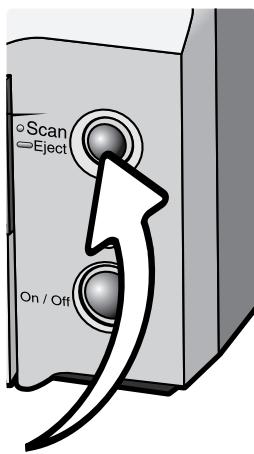
Quick Scan button
The launcher can be used to directly open an image-processing application with which the scanner will be used.
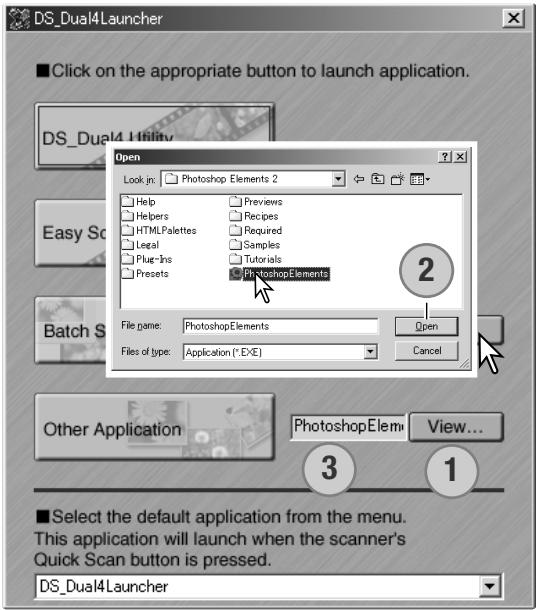
To specify the application, click the view button (1); the open dialog box will be displayed. Locate and click on the application to highlight it. Click the open button (2) to complete the procedure; the name of the application will be displayed in the launcher (3).
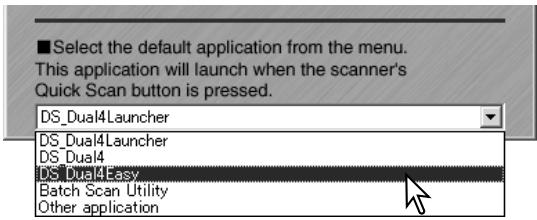
The Quick Scan button can be used to launch a single application directly. Simply select the application from the drop-down menu at the bottom of the launcher; each time the Quick Scan button is pressed, that application will open along with the launcher.
Easy scan utility
The DiIMAGE Scan Easy Scan Utility is a simple, automatic scanning application for trouble-free scans. The utility works as a stand-alone program, and cannot be launched through another application.
The following settings are automatically made when using the Easy Scan Utility:
- Autofocusing with each 35mm frame, or with the first APS frame only.
35mm Index scan priority: speed setting (p. 45).
Color depth: 8 bit. - No multi-sample scanning.
Automatic cropping to inside edge (p. 33).
sRGB output color space when color matching is on. (p. 80) - Autoexposure with all films except black and white slides.
Launching the Easy Scan Utility
Do not launch the utility with a film holder in the scanner. The scanner door must be closed.
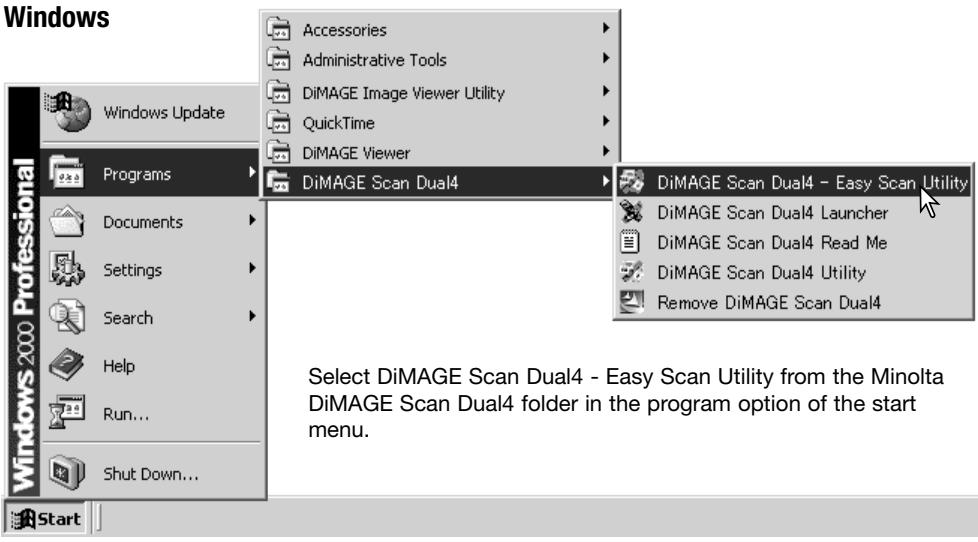
Macintosh
Open the DS Dual4 folder. Double click the DiIMAGE Scan Dual4 Easy icon.
Using the Easy Scan Utility
When the Easy Scan Utility is launched, the Easy Scan Wizard opens. Simply follow the instructions on the Wizard to scan images.
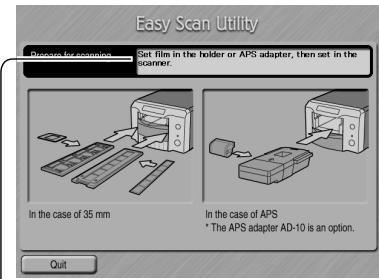
A screen requesting a film holder appears. Load and insert the holder following the instructions in the loading a film holder section of the hardware manual.
If the optional APS adapter is used, an index scan will be made and the next window is skipped. The APS auto-detect function automatically sets the film type between color and black and white, and positive and negative.
- The status bar at the top of each window gives instructions or describes the function on which the mouse pointer is located.
To exit the Easy Scan Utility at any point, click the quit button in the bottom left corner of the window. The film holder will be ejected automatically.
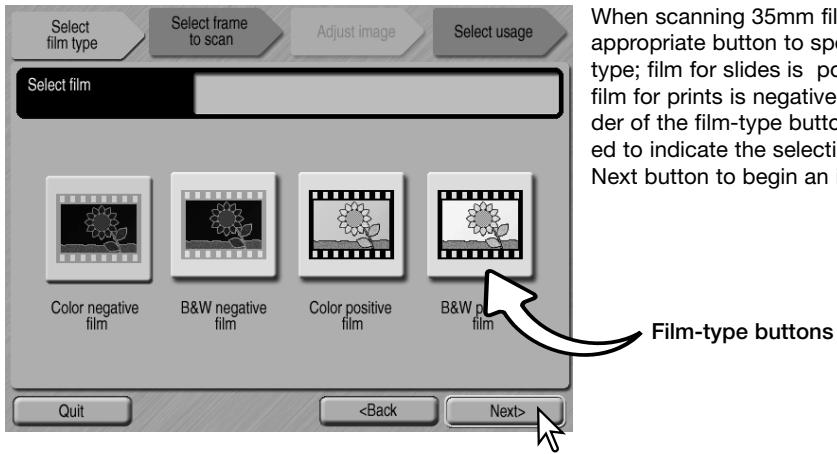
Scanner Notes (Macintosh)
To cancel an index scan, prescan, or final scan once it has started, click and hold the mouse on the cancel button in the progress dialog box or press and hold the command and period () keys until the cancel button appears to depress.
When the index scan is complete, thumbnails of all the images in the holder are displayed. Click the image to be scanned. The border is highlighted to indicate selection. Only one image can be selected. When using the optional APS adapter, the thumbnail frame numbers correspond to the film frame numbers.
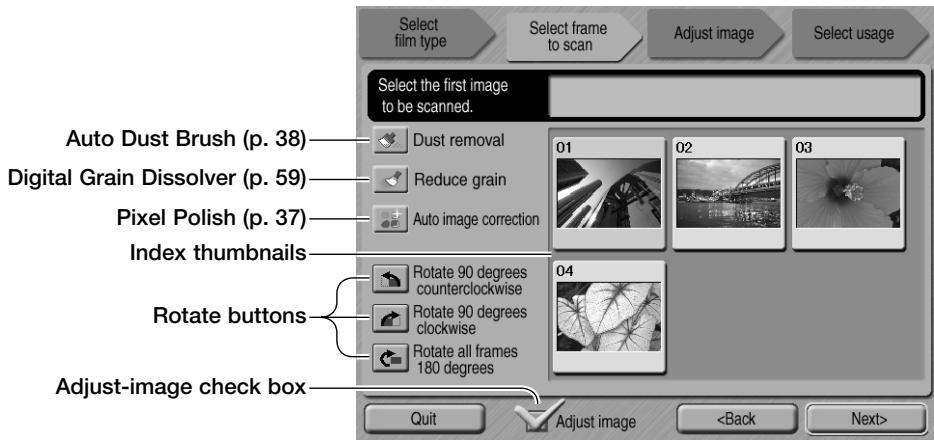
Select the image to be scanned. When scanning with the optional APS adapter, more thumbnails will be created than can be displayed. Scroll buttons will appear at the side of the window. The single-arrow button scrolls one line at a time, the double-arrow button scrolls two lines.
Select image processing or rotate the image as necessary. Once an image-processing function is selected, it remains in effect until canceled.
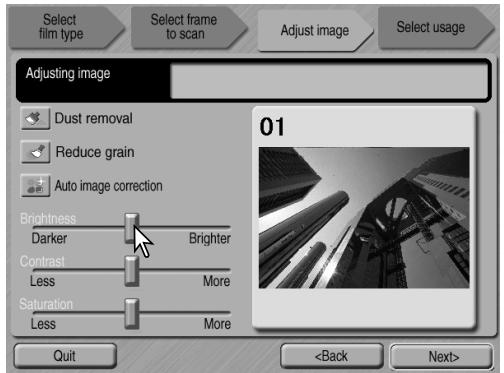
Click the adjust-image check box to access the adjust-image screen to control image brightness, contrast, and saturation. Uncheck the box to go directly to the select-usage screen.
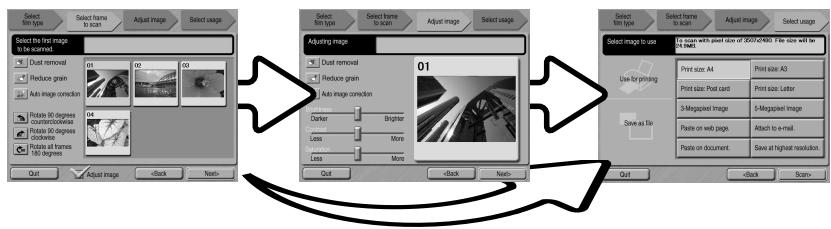
Click the next button to continue.
If the adjust-image option was checked in the previous screen, the adjust-image screen is displayed. The same automatic image-processing functions shown in the previous screen are also displayed here.
Click and drag the brightness, contrast, and saturation sliders to adjust the image; change are reflected in the display. Any changes made remain in effect until reset or the utility is closed. Returning to the previous screen and unchecking the adjust-image box will not reset these settings.
After making adjustments to the image, click the next button.
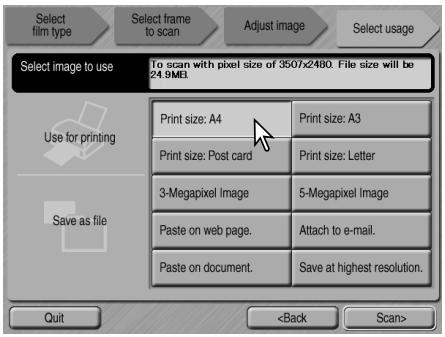
Select the option which best describes the final use of the scanned image. Only one choice can be made. Click the scan button to continue; the save-as screen will open. If an image has multiple uses, repeat the Easy Scan procedure for each use of the image.
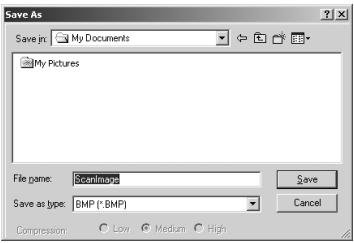
On the save-as screen, specify the file name, file format, and destination of the image data. Images can be saved in BMP, JPEG, TIFF, or PICT file formats. See page 35 for more about these formats. When saving JPEG files, the compression ratio can be specified. Click the save button to complete the final scan.
When using a USB storage device on the same bus as the scanner, save the data on the computer's hard disk first before transferring it to the storage device. Saving the scanned data directly to the device may corrupt the image data.
If the image was scanned for printing, the print preview dialog box opens to allow the data to be printed. The number of prints can be specified in the copies text box. If the print size set with the Easy Scan Utility is not compatible with the printer, the page size is automatically reset and highlighted in red.
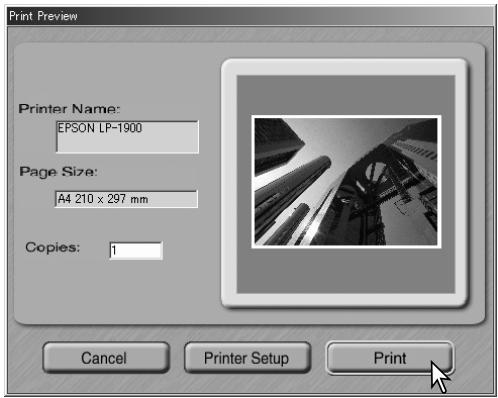
To change the printer settings so that the image is printed correctly, click the printer-setup button. The operating system's print setup dialog box is displayed. Refer to the operating system's help to make settings. Any changes made are displayed in the print preview display.
When using Mac OS 8.6 ~ 9.2.2, the printer name is not displayed and the number of copies cannot be selected. Click the printer-setup button and specify the printer and number of copies with operating the system's print setup dialog box.
Click the print button to print the image. Click the cancel button to cancel the print operation; the image data has been saved and can be printed at any time.
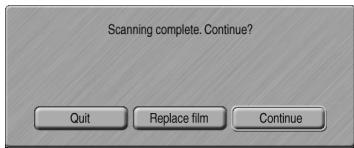
After the scanning is completed, the image is ready to use. Click the appropriate button to continue or close the utility. The quit button closes the Easy Scan Utility and ejects the film holder. The replace-film button ejects the holder so the film can be changed. The continue button allows other images in the film holder to be scanned. Turn off the scanner and close the front door when not in use.
Basic scanning
Launching the DiIMAGE Scan Utility
Do not launch the utility with a film holder in the scanner and confirm the front door is closed. The utility can also be launched from an image-processing application. See the Windows and Macintosh installation section.
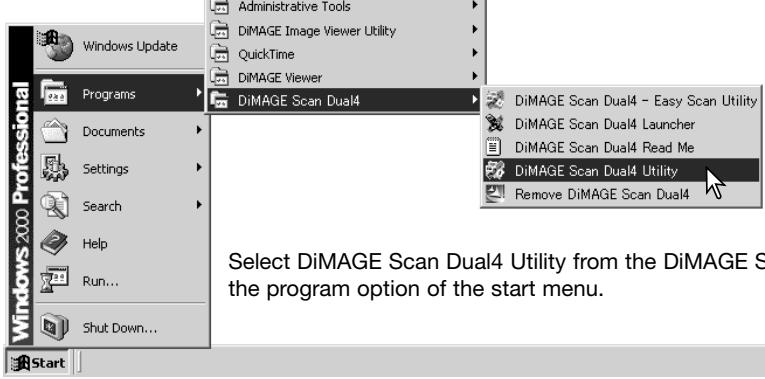
Windows
Select DiIMAGE Scan Dual4 Utility from the DiIMAGE Scan Dual4 folder in the program option of the start menu.
Macintosh
Open the DS Dual4 folder, and double click the DiIMAGE Scan Dual4 Utility icon.
Scanning basics
Please read the basic scanning section in its entirety before moving on. Before any scan is made, the film holder must be loaded and inserted into the scanner. Refer to the scanner hardware manual for instructions as well as film handling tips.
Three types of scans can be made singly or in combination depending on the workflow and degree of processing:
| Index scan | To display thumbnails of each image in the 35mm or APS film holder. An index scan is useful when scanning multiple frames on one film strip or for selecting a specific frame among similar images. |
| Prescan | To display a preview of a specific image. A prescan allows an image to be cropped or corrected using the scanner's image-processing tools. |
| Scan | To save and export an image. Image size, resolution, and file format are specified with this scan. |
Scanner setup
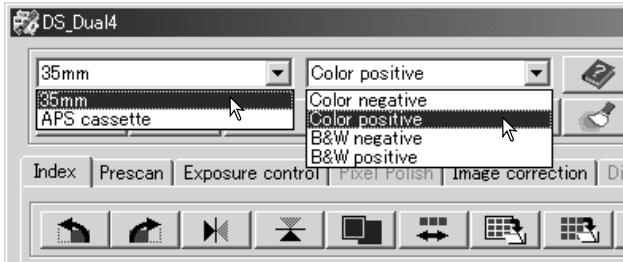
Before making a scan, the film format and type must be specified. Film type can be selected between color and black and white, positive and negative film. Film for prints is negative film. Slide film is positive film. APS has an additional film-type option, auto detect. This automatically sets the film between color and black and white, and positive and negative.
Film format and type are selected from the drop-down menus in the top left corner of the main window. If the holder and selected film format do not match, a warning will be displayed and the scan will not be made.
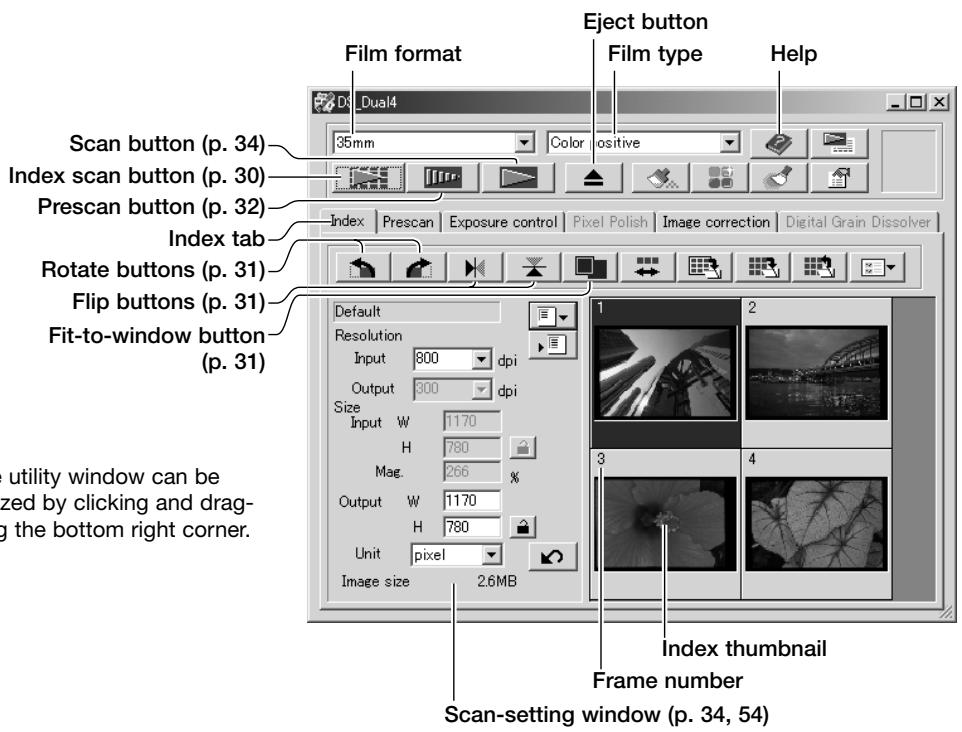
Main window and index scan tab
Making an index scan
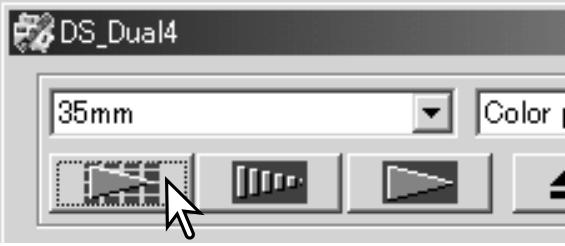
With a loaded film holder in the scanner, click the index-scan button in the main window to start the scan. All the frames in the film holder will be scanned. The frame number of the index scan corresponds to the frame number in the film holder. Images can be prescanned or scanned without making an index scan.
To cancel the index scan, click the cancel button in the small dialog box that appears during
the scan, or press the escape key (Windows), or press the command key and period (.at the same time (Macintosh).
Index thumbnails remain in the display until another index scan is made or the film format and type are changed. To initialize the index display and remove the current thumbnails press the control key (Windows) or command key (Macintosh) together with the shift and R keys.
Selecting index thumbnails
The thumbnail display allows the selection of single or multiple images for prescanning or scanning. Selected images can also be affected by the scanner software functions such as the rotate buttons.
Simply click on a thumbnail to select it; the border will darken to indicate selection.
To select multiple images, press and hold the control key (Windows) or command key (Macintosh) and then click on each image to be scanned; the selected frames will have a dark border. To deselect an image, click on the thumbnail a second time while holding the control key (Windows) or command key (Macintosh). To select consecutive images, press and hold the shift key and then click on the first and last images of the series. Press the control key (Windows) or command key (Macintosh) and A key at the same time to select all frames.
Flip and rotate images
The orientation of the index thumbnails and prescan images can be changed with the flip and rotate buttons on the tool bar.



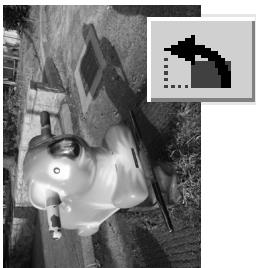
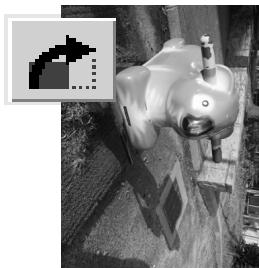
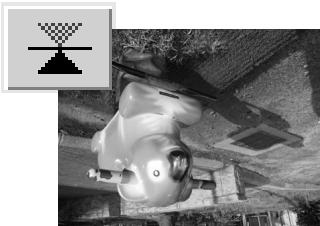
Rotate - the rotate-right button rotates the thumbnail 90^ clockwise and the rotate-left button rotates the image 90^ counterclockwise each time the buttons are clicked.
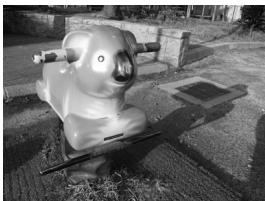
Original image
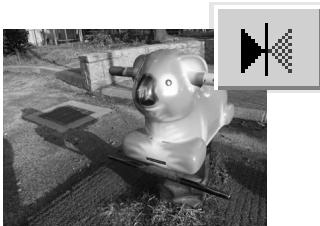
Flip - when an image is flipped, it will create a mirror image.
Fit-to-window button
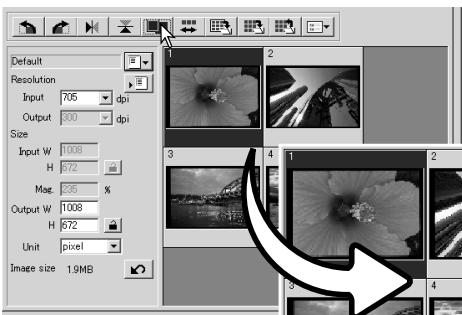
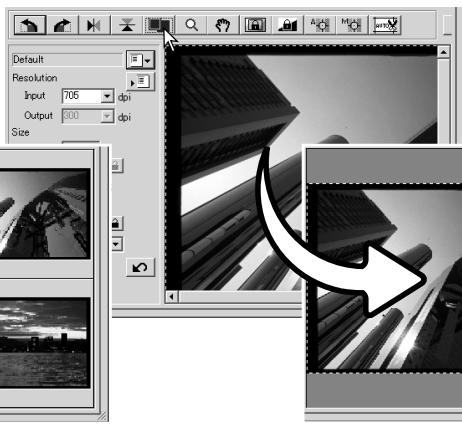
Normally, index thumbnails and prescan images are displayed based on their size and resolution. When the number of thumbnails or the size of the prescan is too large or small for the display area, clicking the fit-to-window button automatically resize the images to fit the display area. Clicking the button again displays the images at their original size. The prescan grab and zoom tools cannot be used with the fit-to-window function.
Main window and prescan tab
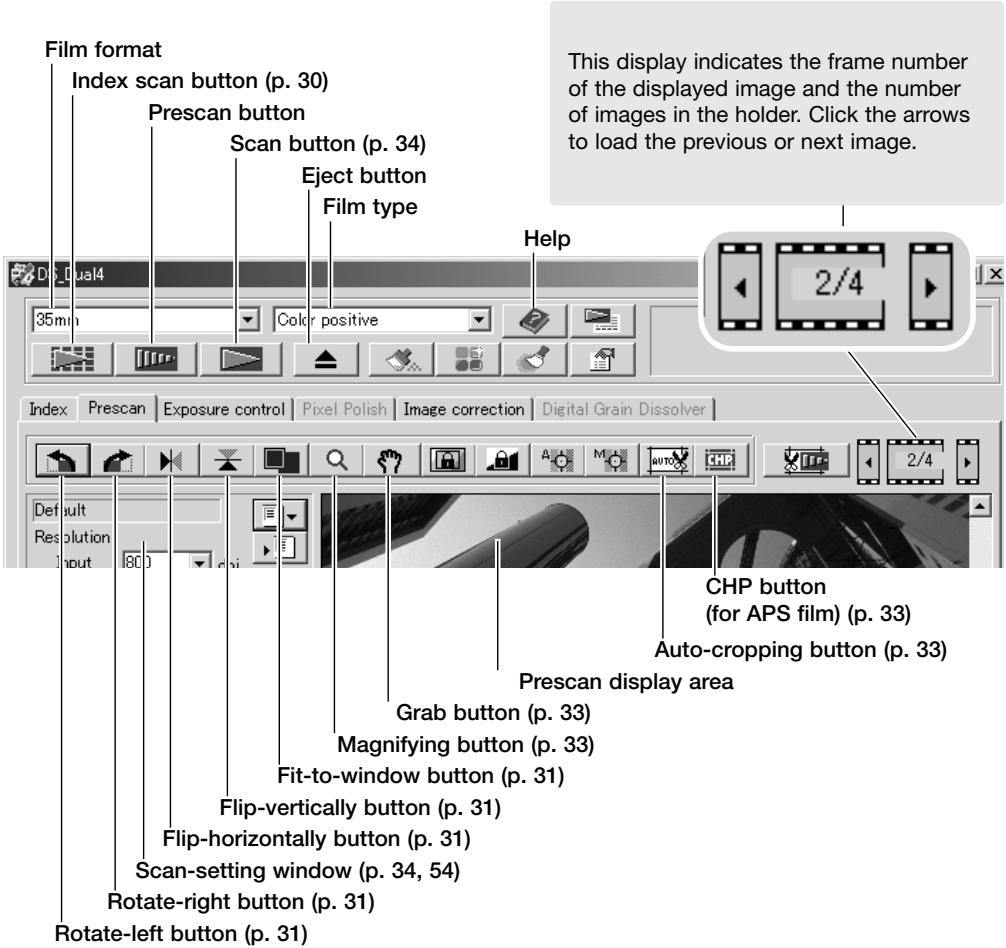
Making a prescan
When using an index scan, select the index frame to be prescanned. Click the prescan button in the main window. Double clicking on the index frame also activates the prescan even if no thumbnail is displayed in the frame; the prescan window is displayed automatically.
Grab tool
When an image is larger than the display area, the grab tool can be used to scroll the image. Click the grab button on the tool bar. Click and drag on the image to scroll. This tool cannot be used with the fit-to-window function (p. 31).
Magnifying tool
The display image can be enlarged or reduced. Click the magnifying button on the tool bar. Click on the image to enlarge. To reduce, hold down the control (Windows) or option key (Macintosh) and click on the image. When the image has reached the magnification limit, the plus or minus sign in the magnifying tool disappears. This tool cannot be used with the fit-to-window function (p. 31).
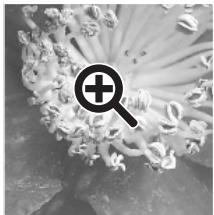
Enlarge
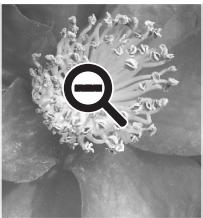
Reduce
Auto cropping
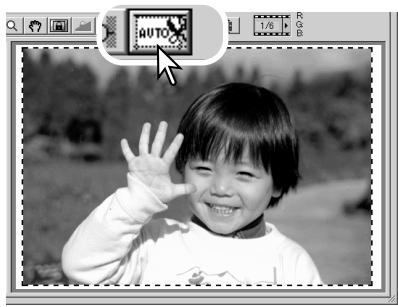
Auto cropping eliminates the blank space around the image area. Clicking the auto-cropping button cycles through its three positions: crop to outside edge of the image area, crop to inside edge of the image area, and entire scan area. The cropping frame is indicated by a marquee (dotted line). The cropping area can also be adjusted manually (p. 52). When using the image-correction tools, only the cropped area is displayed.
CHP button (APS film)
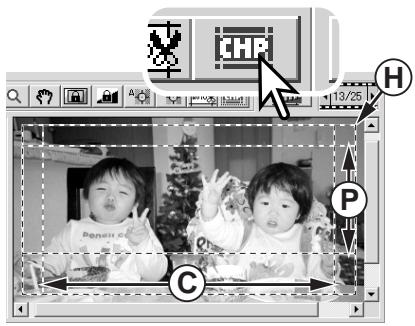
When using the optional APS adapter, the CHP button crops an image to one of the APS formats. Clicking the CHP button cycles the cropping frame through the C, H, and P APS framing formats. The cropping area can be moved by placing the mouse pointer within the marquee (dotted line) and then clicking and dragging. The cropping area can also be adjusted manually (p. 52). When using the image-correction tools, only the cropped area is displayed.
Making the final scan
Before making the final scan, the input and output parameters must be specified. While it is possible to input the scan settings yourself, DiIMAGE Scan Utility gives you an easier choice - the Job function. This function automatically loads the scan settings based on the final use of the image. The scan-setting dialog box is located on the left of both the index scan and prescan windows.
The Standard Scan Utility contains over 100 Job files to cover a wide range of image use. To create your own Job files or to input the scan settings manually, see page 54. For a list of Job parameters, see page 92.
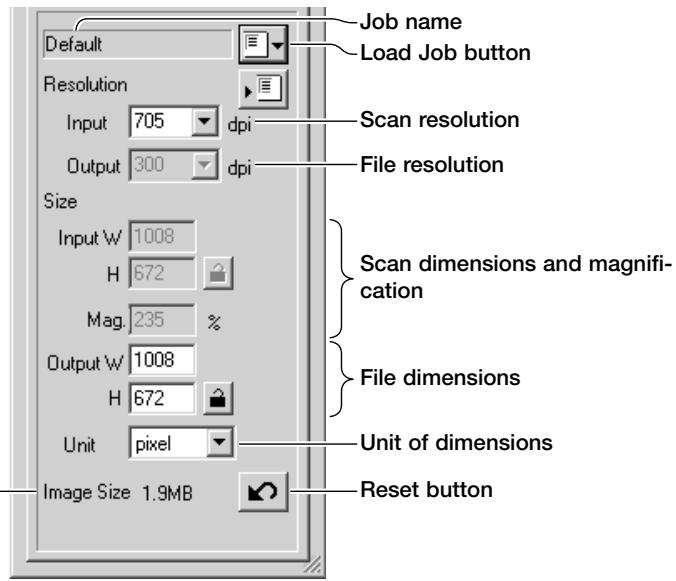
-Size is based on the total number of pixels in the image and can be different from the size of the saved data depending on the file format selected.
Click the load Job button. The Job-selection dialog box will open.
Select a Job category from the drop-down list.
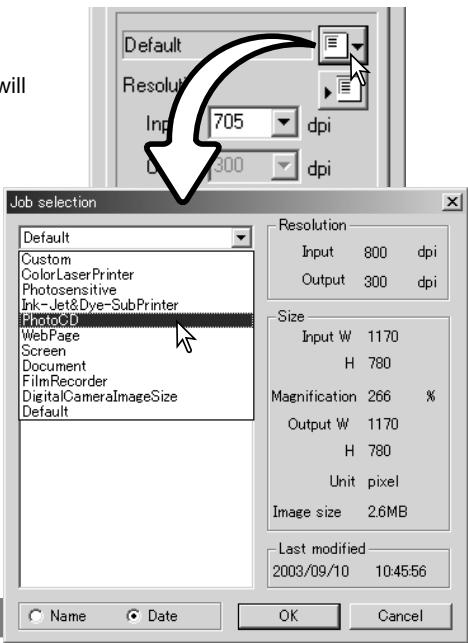
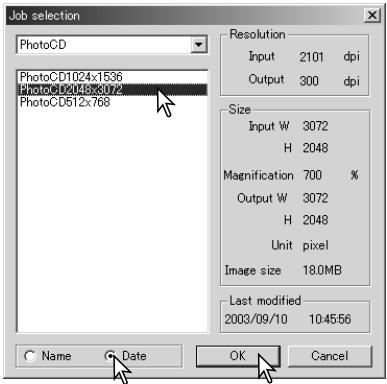
Click a Job file name to select it. The Job names can be sorted chronologically or alphabetically by clicking the name or date radio buttons at the bottom of the dialog box.
The scan settings of the selected Job file are displayed on the right side of the window. The Job settings vary with the film format. Click the OK button to apply the Job settings.
When the Job file is loaded, a cropping frame will appear on the image. The frame is proportional to the output use specified with the Job. The frame can be resized, but the proportions will remain the same; the input and output values are automatically adjusted to match the change to the cropping frame.
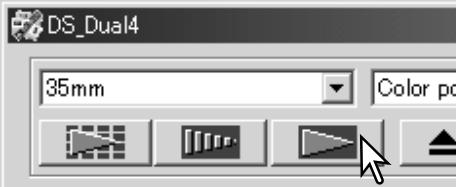
Click the scan button in the main window to start the final scan. If the DiIMAGE Scan Utility was opened in an image-processing application, the scanned image will be opened in that application. If the utility is used by itself, the save as dialog box will open.
On the save-as dialog box, enter the file name, and select the file destination and file format for the image data. If multiple images are scanned, a serial number can be added to the file name automatically; click the add-number check box and then enter the first number of the series. When saving JPEG files, the compression ratio must be specified. Click the save button to make the final scan.
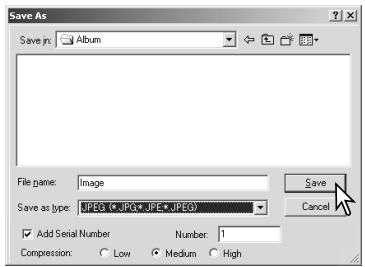
| JPEG | This file can be compressed to reduce the file size. The compression ratio can be selected when saving. The higher the compression ratio, the smaller the file size, and more loss to image quality. |
| TIFF | A high-resolution bitmap that can be opened on any computer platform. The color depth can be specified in the preference window (p. 45). |
| BMP | A file type used in Windows. This file type can be opened in the paint software installed in the Windows operating system. |
| PICT | A file type used in Macintosh. This file can be opened in the Simple Text application installed with Macintosh operating systems. The file cannot have a width greater than 4096 pixels. |
Basic image processing
Main window and image-correction tab
This section contains details on the basic image-processing tools. For descriptions of the advanced tools, see pages 58 though 73. The prescan image or a selected index image can be displayed in the image correction window by simple clicking the tab. If the image has not been prescanned, a prescan will be made automatically.
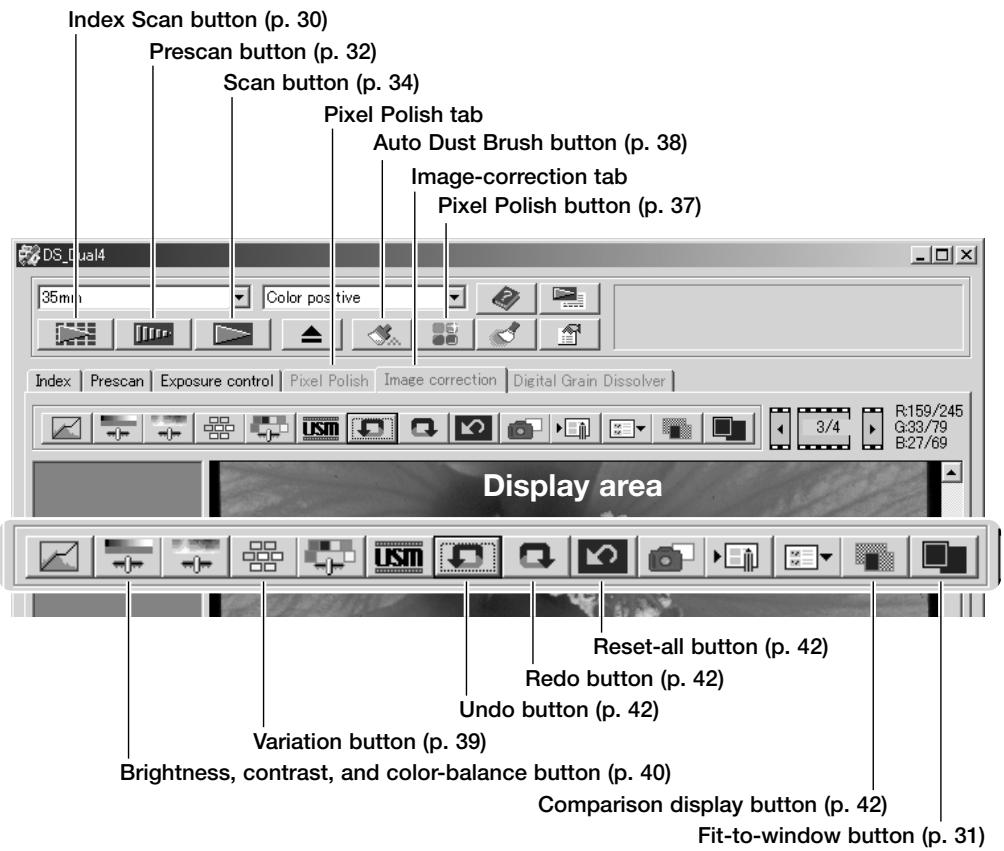
The utility window can be resized by clicking and dragging the bottom right corner. If the fit-to-window function is active, the displayed image will automatically adjust to fit the display area. If any changes are made to the image using Pixel Polish or the image-correction tab, the tab will turn red (Windows) or an asterisk will be displayed (Macintosh).
Pixel Polish makes automatic or custom image corrections. See page 11 for memory requirements. Pixel Polish cannot be used with black and white film, 16-bit or 16-bit linear color depth (p. 45). Scanning time increases. The effect of Pixel Polish is based on the prescan image area. If the image is cropped after applying Pixel Polish, click the crop-prescan button (p. 52) to view the results.
Click the Pixel Polish button in the main window to automatically correct the images in the film holder; previous corrections are canceled. The correction is applied to the prescan image.
Pixel Polish remains in effect until canceled; to cancel click the Pixel Polish button again. To reapply image corrections made before using Pixel Polish, open the image in the image-correction tab and click the undo button.
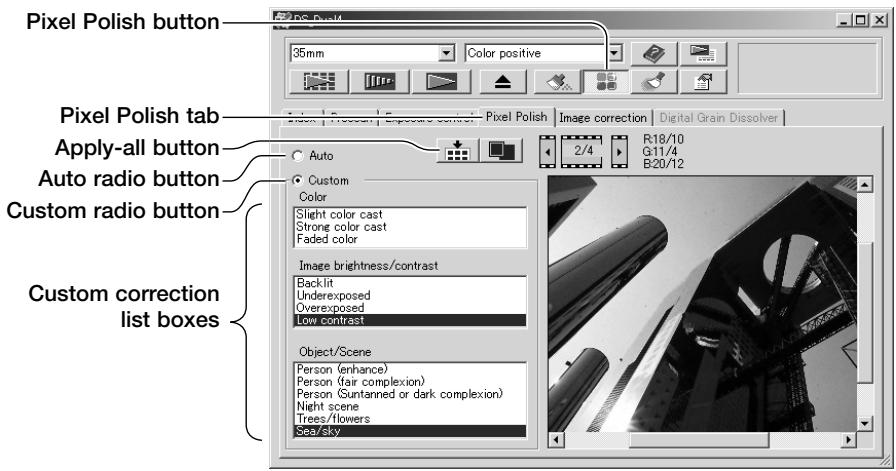
To make custom corrections, click the Pixel Polish tab. If a prescan has not been made, the scanner will make one automatically.
Click the custom radio button. Click on the descriptions in the list boxes which best describes the image. To deselect a description, click on it again (Windows) or press the command key and click on it (Macintosh).
The apply-all button applies the custom settings to all images in the film holder. To reset the images to the auto correction setting, click the auto radio button and then the apply-all button.
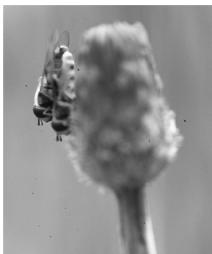
The Auto Dust Brush reduces the visibility of fine dust particles on the film surface that cannot be removed with a brush or blower; all visible dust should be removed from the film. See handling film on page 18. The scanning time increases with the use of the Auto Dust Brush. This function cannot be used with 16-bit linear color depth. See page 11 for memory requirements.
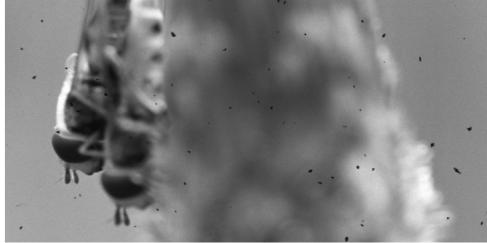
Original image
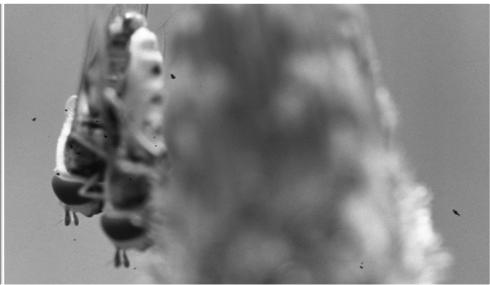
With Auto Dust Brush processing
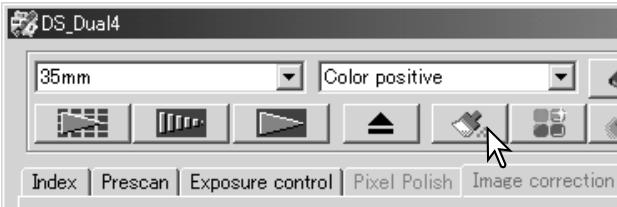
Click the Auto Dust Brush button to activate the function; the dust removal processing is done at the final scan and is not applied to the prescan image. To cancel the Auto Dust Brush, click the Auto Dust Brush button again.
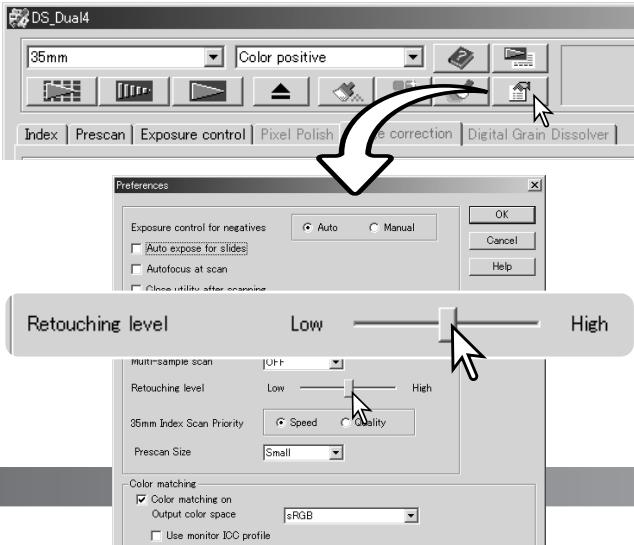
The Auto Dust Brush effect varies with the images and exposure control settings. The dust-removal effect is greater at high input resolutions. The retouching level can be changed in the preferences dialog box, see below. The Auto Dust Brush plug-in allows more control over a scanned image, see page 84.
Auto Dust Brush retouching level
The degree of retouching applied with the Auto Dust Brush can be adjusted.
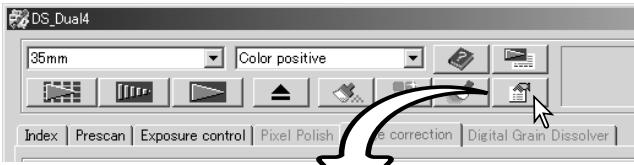
Click the preferences button in the main window to open the preferences dialog box.
Adjust the retouching level slider and click OK to set the level.
Scan the image to confirm the level of processing.
Variation palette
The variation palette allows an image to be corrected by comparing it to other slightly corrected images surrounding it. This is an easy method to correct images for individuals who are inexperienced in image processing or photofinishing.
Click the variation button to display the palette.

Click the arrow next to the variation list box (1) to select the image quality to be corrected: color balance, brightness and contrast, or saturation. Each variation palette shows the current image in the center with corrected samples displayed around it.
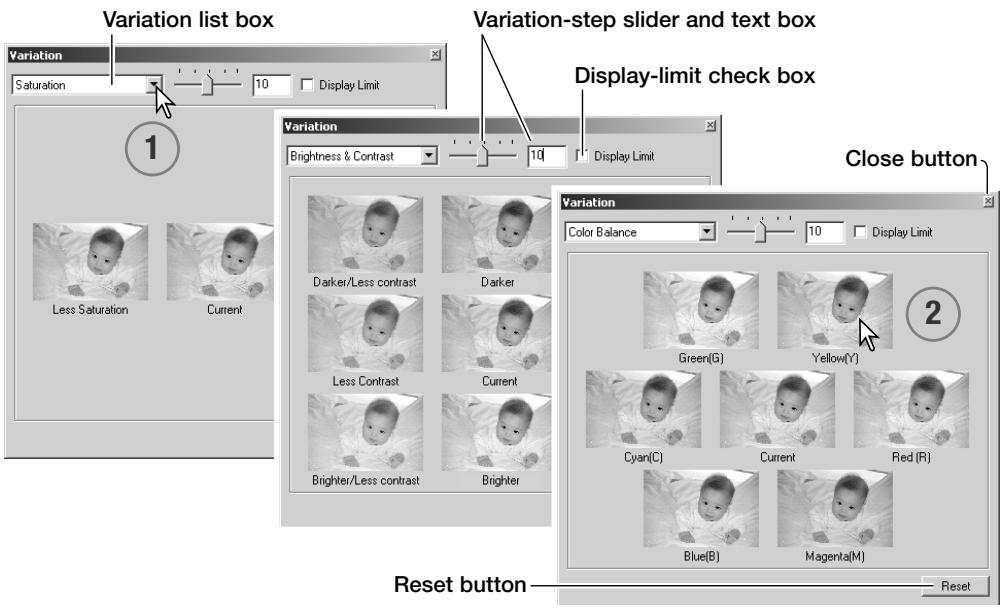
Click the best image among the frames (2). The selected image becomes the new center surrounded by a set of new images and the change is applied to the prescan image. This procedure can be repeated until the desired correction is obtained. Click the reset button to cancel all changes.
The difference between the samples can be changed. Drag the variation-step slider, or enter a value into the text box to set the degree of correction. The initial setting is 10. The correction step can be set between 1 and 20.
Checking the display-limit check box will indicate when any of the image values exceed 0 (black limit) or 255 (white limit) with the complementary color. For example, if the blue area of the image exceeds those values, the limit is displayed with the complementary color, yellow.
Click the close button to close the palette and apply any image corrections.
Brightness, contrast, and color balance palette
Click the brightness, contrast, color-balance button to display the palette.

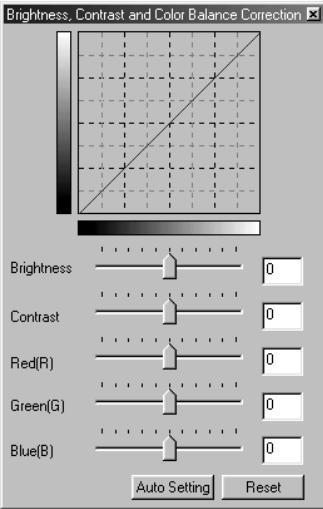
Drag the brightness, contrast, or color sliders, or enter specific values in the corresponding text box to make corrections. Dragging each slider to the right or inputting a positive number in the text box increases the brightness, contrast, and color.
Changes will be reflected in the displayed image and in the graph at the top of the palette. The horizontal axis of the chart indicates the original image values and the vertical axis the new values. Click the reset button to cancel all changes.
- Clicking the auto-setting button corrects the brightness and contrast automatically without affecting the color balance.
- Click the reset button to cancel the changes.
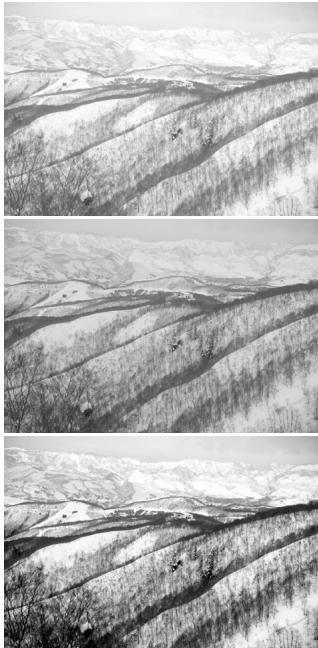
Is this picture too light? Adjusting brightness and contrast can be more difficult than it looks. The image on the right looks too bright, especially the mountains in the background.
Simply making everything darker with the brightness controls creates a muddy image - the snow and sky are a dull gray and there are no strong blacks.
By adding contrast to the image, the snow is brightened while the darker trees are accentuated. The extra contrast also gives the image the appearance of being sharper as well as revealing fine details.
An introduction to color
In photography, red, green, and blue are the primary colors. The secondary colors, cyan, magenta, and yellow, are made from combining the primary colors: cyan = blue + green, magenta = blue + red, and yellow = red + green. The primary and secondary colors are grouped in complementary pairs: red and cyan, green and magenta, and blue and yellow.
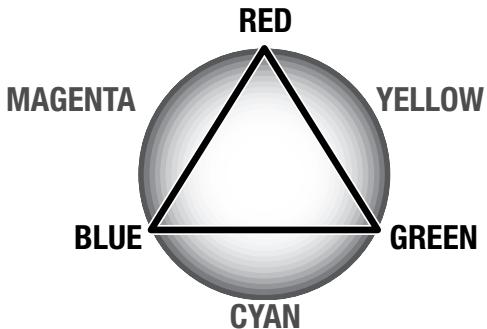
Knowing the complementary colors is very important in color balancing. If the image has a specific color cast, either subtracting the color or adding its complementary color will create a natural looking image.
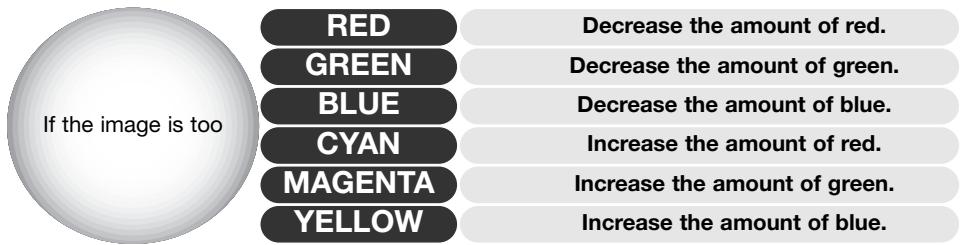
Adding or subtracting equal parts of red, green, and blue will have no effect on the color balance. However, it can change the overall image brightness and contrast. Usually, no more than two color channels are needed to color balance an image.
Color balancing is a skill that develops with practice. While the human eye is extremely sensitive in making comparative judgements, it is a poor tool when making absolute measurements of color. Initially, it can be very difficult to distinguish between blue and cyan, and red and magenta. However, adjusting the wrong color channel never improves an image; subtracting blue from an image that is too cyan will give a green cast to the image.
Comparing pre and post-correction images
Clicking the comparison display button divides the image display area in two. The original image is on the left and the corrected image is on the right. To display the corrected image only, click the comparison display button again.
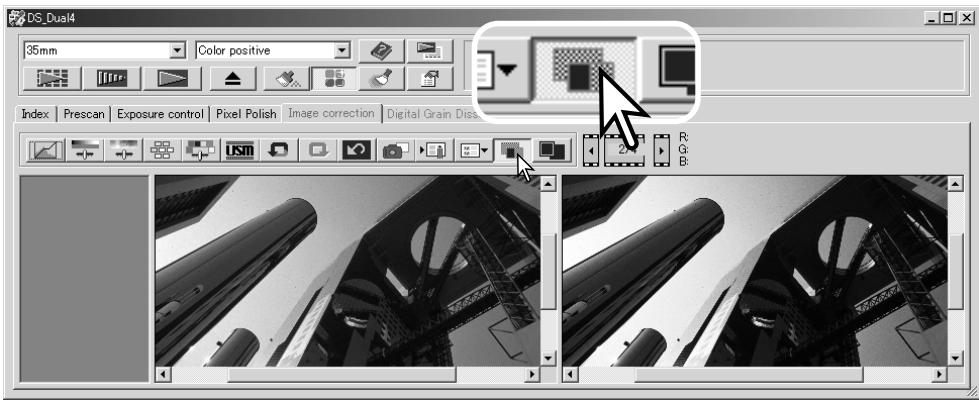
Original image
Corrected image
Changes made with the magnifying tool, grab tool, or scroll bars on one image will be applies to the other. Using the fit-to-window button automatically resize both images to fit the display area.
Undoing and redoing image corrections

The undo, redo, and reset-all buttons only affect tools used in the image-correction tab.

Click the undo button to cancel the last image correction applied to the image. The number of image corrections that can be undone depends on the computer memory capacity.

Click the redo button to reapply the last image correction canceled with the undo button.

Click the reset-all button to cancel all image corrections applied to the image.
Quitting the DiIMAGE Scan Utility
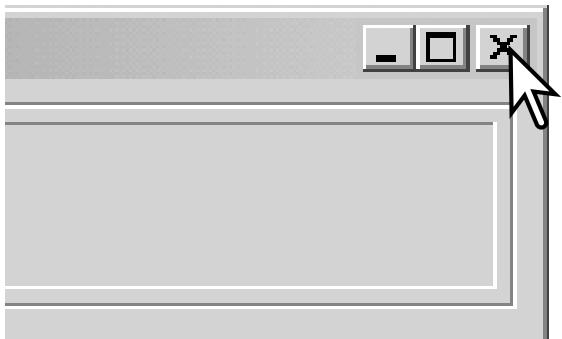
To close the DiMAGE Scan Utility, simply click the close button in the top right corner of the main window.
Advanced scanning
This section covers the advanced scanning tools in the DiIMAGE Scan Utility. The basic scanning section on pages 28 through 35 should be read before continuing.
Setting scanner preferences
Click the preferences button in the main window to open the preferences dialog box. Select preferences options to customize scanner operations.
Exposure control for negatives: autoexposure adjusts the scan to compensate for the density of the negative. The manual setting uses a fixed exposure regardless of the density of the film. Manual exposure can show the exposure difference in a bracket series. When using AE lock or AE area selection with negatives (p. 53), the auto function must be selected.
Auto-expose-for-slides check box: to use autoexposure when scanning slides. Since the density range of slides is relatively uniform, adjusting the exposure for each slide is usually unnecessary. However, when scanning an underexposed or overexposed slide, the autoexposure system can compensate for the unusual image density. When using AE lock or AE area selection with slide film (p. 53), the auto-expose
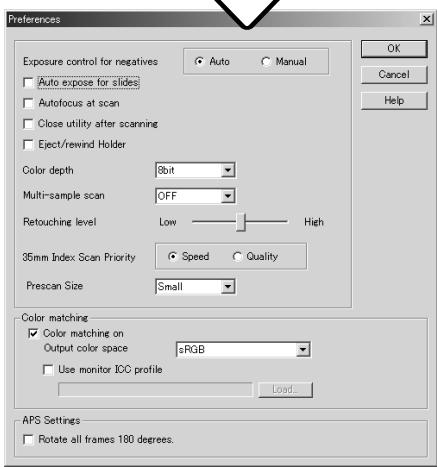
Autofocus-at-scan check box: this option activates the autofocus function during the prescan and final scan. When using Auto Dust Brush or Digital Grain Dissolver, the use of autofocus is recommended. The autofocus function increases the scanning time. When making an index scan with the APS holder or a quality index scan with the 35mm Film Holder, the scanner only focuses on the first frame.
Close-utility-after-scanning check box: this option closes the DiIMAGE Scan Utility after the final scan when using the scanner with an image-processing application. Activate this function when individual images will be scanned and then processed or retouched in another application. Uncheck the box when multiple images need to be scanned before retouching.
Eject/rewind holder check box: this option ejects the film holder or rewinds the optional APS adapter after the final scan.
Color-depth list box: this option specifies the color depth of the scanned image between 8 bit, 16 bit, and 16-bit linear for each RGB channel. Because 16-bit linear color depth does not make any gamma corrections, the scan of a negative will produce a negative image. 16-bit and 16-bit linear images can only be saved in the TIFF file format. Some image-processing application cannot open 16-bit image files.
Multi-sample list box: multi-sample scans reduce random noise in the image by analyzing the data of each sample scan; 2, 4, 8, and 16 samples can be made. The more samples taken, the less random noise in the image and the longer the scanning time.
Retouching level: to adjust the degree of Auto Dust Brush processing. See page 38.
35mm-index-scan-priority radio button: this option allows the selection of high-speed index scans or a quality index scans with prescans. Simply click the appropriate radio button.
| Speed | Only makes index thumbnails. Autofocus is disabled during the index scan. |
| Quality | Makes an index thumbnail and prescan of each image. Scanning time is increased. |
Prescan size: to change the size of the prescan image.
Color matching: this controls color reproduction on output devices such as monitors and printers. For detailed information, see the color matching section on page 80.
Rotate-frames-180-degrees check box: to rotate all APS thumbnails 180 degrees in the index scan tab.
OK button: to apply the preference settings and close the window.
Cancel button: to cancel any settings made and close the window.
Help button: to open the help window.
Exposure-control tab
The exposure-control tab allows the scanner's exposure system to be customized to specific films, lighting, or a personal exposure index based on the film, processing, lens, and shutter combination. This can also be used to compensate for badly exposed film.
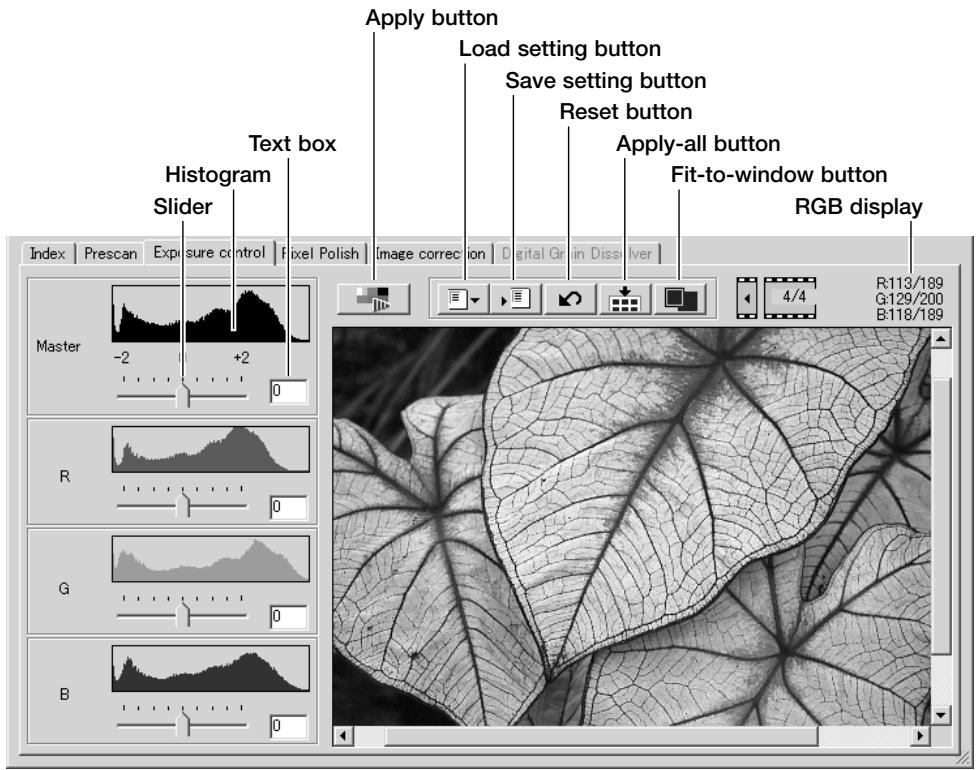
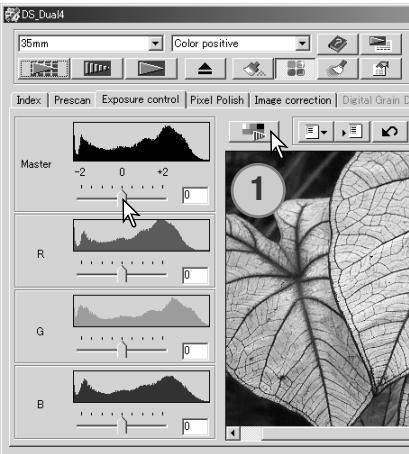
Simply click the exposure-control tab to display the selected image. If a prescan has not been made, the scanner will make one automatically. If any changes are made to exposure, the image-correction tab will turn red (Windows) or an asterisk will be displayed on the tab (Macintosh). The last exposure setting used for each film format is not reset when the utility is closed.
The RGB display will show the color values for any point in the image; simply place the mouse pointer in the image area to see the values of that point. Pressing the shift key (Windows) or command key (Macintosh) will display the CMY values.
The master slider and text box control the overall exposure. The R, G, and B sliders and text boxes are used to compensate for any color shift. No gamma or contrast changes can be made.
Adjust the sliders or enter values between ± 2 in 0.1 increments in the text boxes. Press the apply button (1) to view the effect on the preview image and the histograms. Repeat until the desired result is achieved. To cancel all settings, click the reset button and press the apply button to initialize the preview image.
When using autoexposure, adjustments are made in reference to the exposure determined by the AE system. To calibrate the scanner in reference to a standard exposure, turn the autoexposure functions off in the preference window (p. 44); set exposure control for negatives to manual or uncheck the auto-expose-for-slides check box. This is recommended when making settings for specific films.
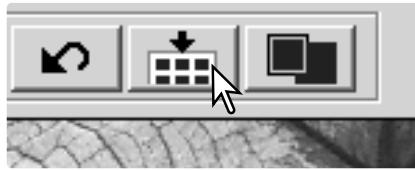
Click the apply-all button to use the exposure-control settings for all the images in the film holder. To cancel changes to exposure once the apply-all function has been used, click the reset button and then click the apply-all button again.
Saving exposure settings
Click the save setting button to open the save window.
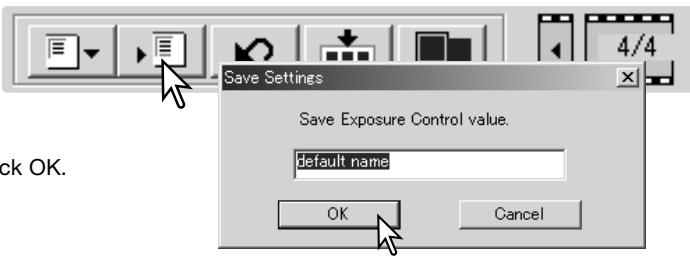
Enter the name for the setting file. Click OK.
Loading exposure settings
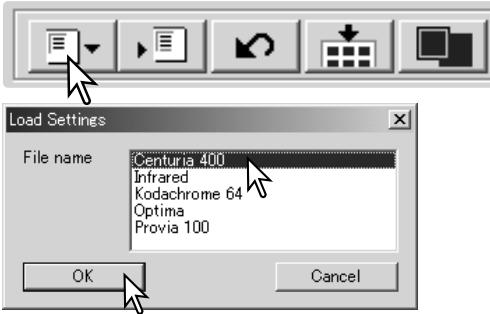
Click the load setting button to open the load window.
Click on the file name to highlight it. Click OK to apply the settings to the image displayed in the exposure-control tab. Confirm the autoexposure settings in the preferences window (p. 44).
To delete a setting file, open the load window and click on the file name to highlight it. Use the keyboard delete key to erase the file.
More index scan functions
Reverse frame order
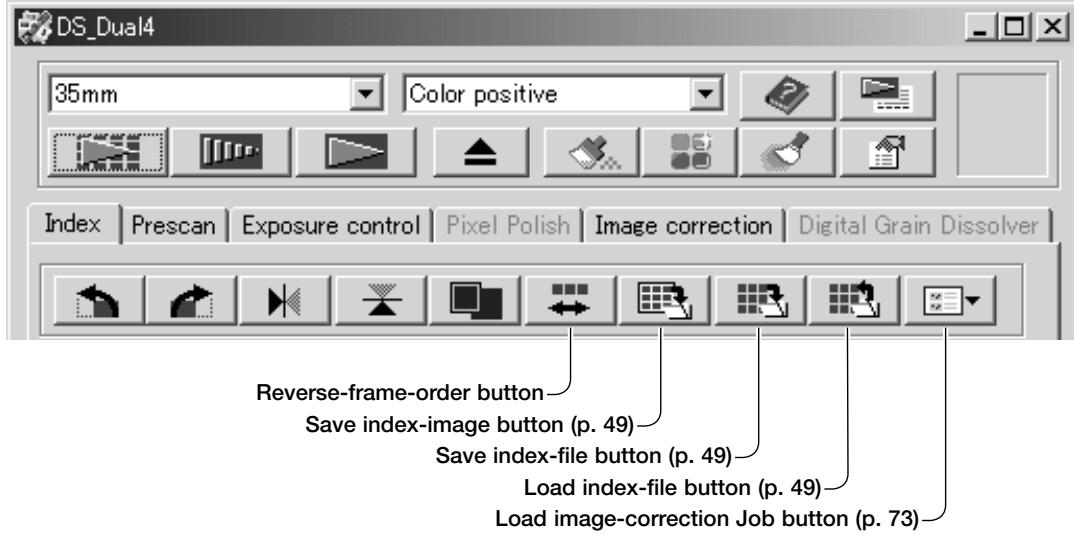
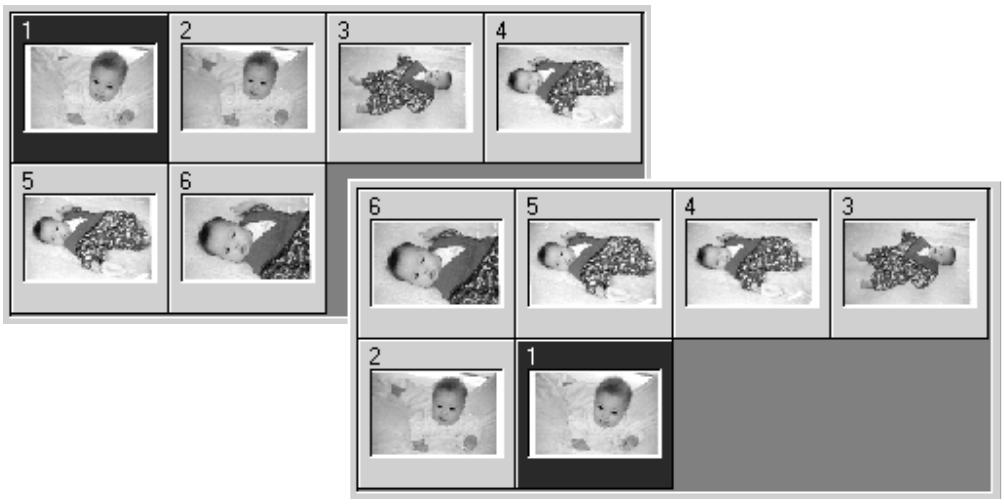
Some cameras reverse-wind the film so the last frame is exposed at the beginning of the roll. When scanning film strips, the order of the index thumbnails can be reversed to correct the chronology by simply clicking the reverse-frame-order button. When the reverse-frame-order button is clicked again, the frame order follows the film holder frame order.
Saving the index thumbnails
The displayed thumbnail images can be saved in one image file. All the frames in the film holder, including empty frames, must be scanned before the index thumbnails can be saved.
Click the save index-image button. The standard save-as dialog box will appear.
Enter the file name, and select the file destination and file format for the image data. Click the save button. File formats that can be selected with Windows operating systems are Bitmap (BTM) or JPEG, and with Macintosh, Pict or JPEG. The film holder does not have to be in the scanner to save the images.
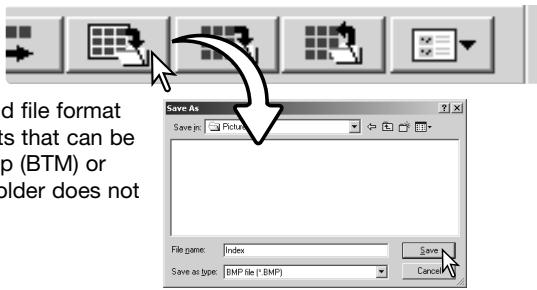
Saving an index file
The index thumbnails can be saved as an index file. The index file can be loaded into the scanner so that the index scan does not need to be made again. The index image file format is unique to this software. All the frames in the film holder, including empty frames, must be scanned before the index file can be saved.
Click the save index-file button. The standard save-as dialog box will appear.
Enter the file name and select the file destination. Click the save button. The film holder does not have to be in the scanner to save the file.
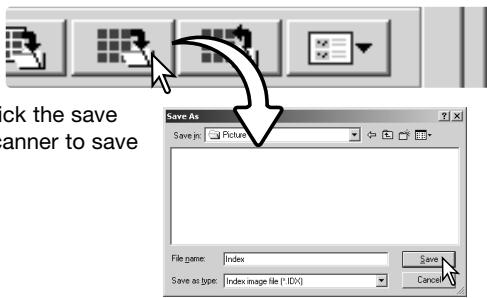
Loading an index file
An index file can be displayed in the index window of the utility software.
Click the load index-file button. The open dialog box will appear.
Select the index file to be loaded. Click the open button. The current index display will be replaced with the images in the new file.
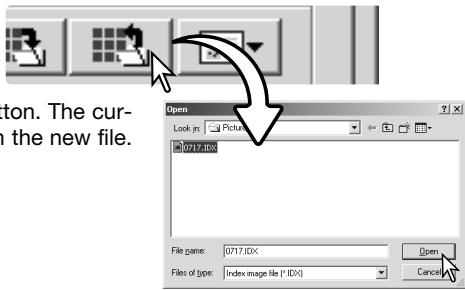
More prescan functions

DS Dual4
Scanner Notes
The DiIMAGE Scan autofocus system uses the CCD sensor to focus the scanner. When the autofocus-at-scan option is selected in the preferences window, the autofocus system uses the center of the image to determine focus. This normally results in an excellent scan when the film plane is flat. However, if the film is warped or curled, the scanner can be focused using point AF or manual focus.
Point AF (Autofocus)
For best results when using point AF, select an area within the image with contrast or detail. The point AF function cannot focus on a low-contrast area such as a cloudless or overcast sky.
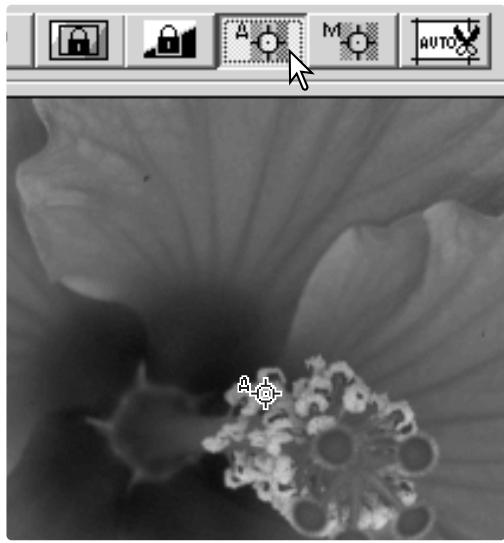
Click the point-AF button. The mouse pointer will change to the point-AF cursor. To cancel the function, click the point-AF button again.
Click on the area of image to be used for focus.
Autofocus will begin and a new prescan will be displayed.
Manual focus
The scanner can be focused manually using the focus meter. For best results, select an area within the image with contrast or detail. The manual focus function cannot focus on a low-contrast image such as a cloudless or overcast sky.
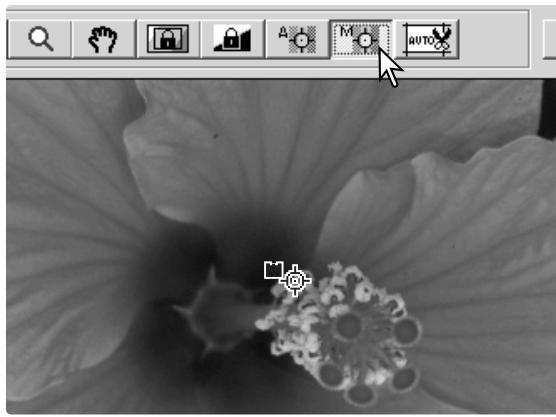
Click the manual-focus button. The mouse pointer will change to the manual-focus cursor. To cancel the function, click the manual-focus button again.
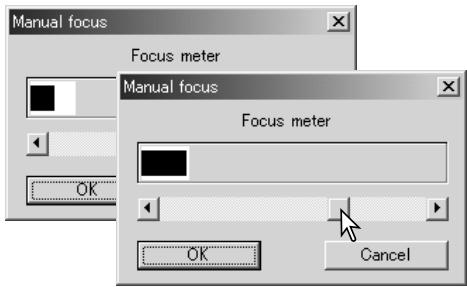
Click on the area of the image to be used for focus. The focus meter window will appear.
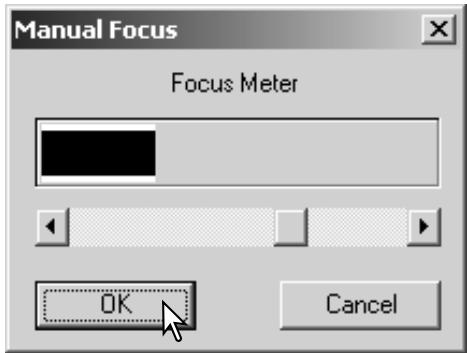
Adjust the slider using the mouse until the black and white bars are at their longest extension. The black bar indicates the change in focus. The white bar indicates the longest extent of the black bar and the point of sharpest focus.
Click OK to set the focus. A new prescan will start and replace the previous image.
Manual cropping
Cropping is a method of recomposing the image by eliminating unnecessary space around the subject. Many images are improved by cutting out distracting elements in the background.
Clicking the auto-cropping button to display the cropping frame marquee.
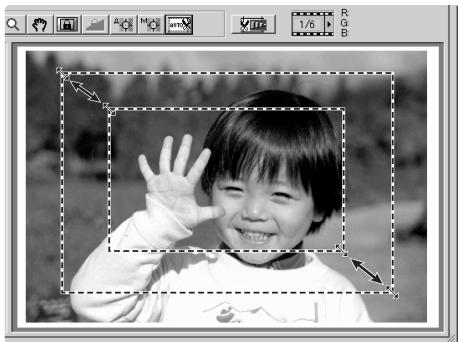
To enlarge or reduce the cropping frame, place the mouse pointer over the corners or sides of the cropping frame; the pointer will change to a double arrow. Simply click and drag the edge of the frame to adjust the cropping area.
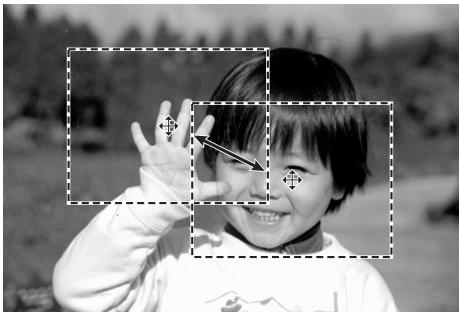
To move the cropping frame, place the mouse pointer in the center of the cropping frame; the pointer will change to a four-pointed arrow.
Simply click and drag the entire frame over the image area.
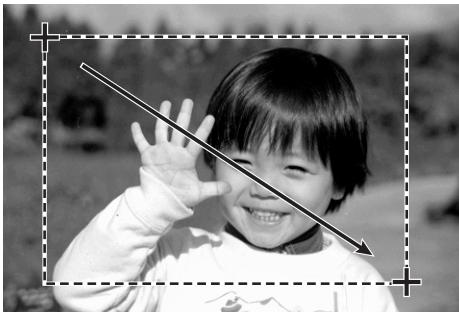
With the pointer outside the cropping frame, click and drag to define a new cropping frame.
Pressing the auto-cropping button again resets the cropping frame around the image area. The cropping frame can be reset to cover the full prescan area by pressing the control key (Windows) or the command key (Macintosh) and A key at the same time.
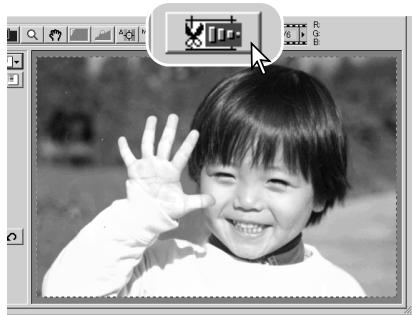
Click the crop-prescan button to make a prescan of the cropped area. To cancel the cropping, press the prescan button.
Autoexposure
When AE area selection or AE lock are used with slides, the auto-expose-for-slides option must be checked in the preferences box. When used with negatives, the exposure control for negatives must be set to auto in the preferences box (p. 44).
AE area selection
AE area selection allows the use of a small area within the image to determine the scan exposure. Use AE area selection with high or low-key images, or when the film has been badly exposed.
Click the AE-area-selection button after prescanning the image.
Pressing the shift key changes the dotted cropping frame to the solid AE area frame. While pressing the shift key, use the mouse to adjust and move the AE area. The methods used to manipulate the frame are the same as the cropping frame except that the shift key must be held, see facing page.
Place the AE area over the section of the image to be used to determine the exposure. Usually placing the area over the subject of the picture will produce excellent results. The area should represent on average the mid-tone of the image.
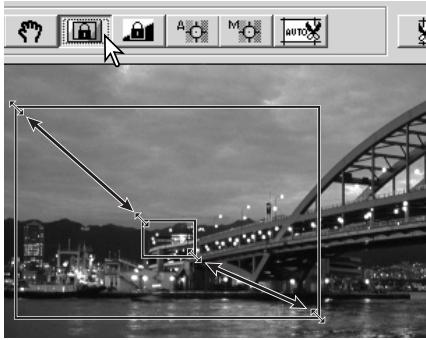
Click the prescan button to view the effect on the exposure. AE area selection is canceled by pressing the AE-area-selection button again, make a prescan to reset changes to the image.
AE lock
The AE lock function sets the scanner exposure based on the exposure determined for a specific prescan with or without the use of AE area selection. This exposure can be applied to scans of different images. This function is useful when scanning a series of high and low-key images that have consistent exposures. By locking the exposure on one frame when scanning a bracket series, the scans of the other frames will show the exposure difference in each frame of the series.
After making a prescan or setting the exposure of the reference image with the AE-area-selection
function, click the AE lock button to fix the scanner's exposure.
Select another image and click the prescan button to view the result with the set exposure. To cancel the AE lock, click the AE
lock button again. The prescan and final scan will be made with the locked exposure setting until the AE lock is canceled, the scanner is initialized, or the film type is changed.
Inputting scan settings manually
Settings for the final scan can be made in the index scan or prescan windows.
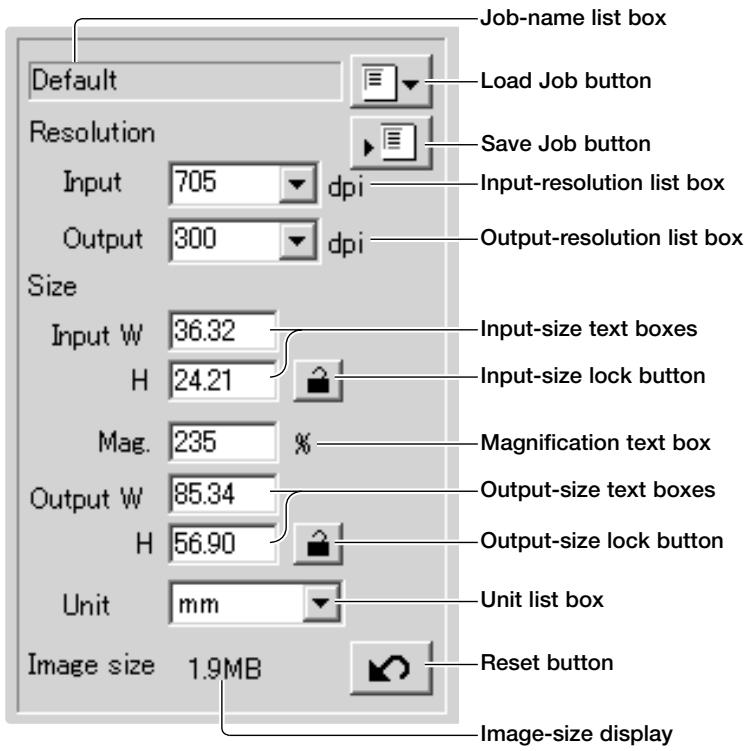
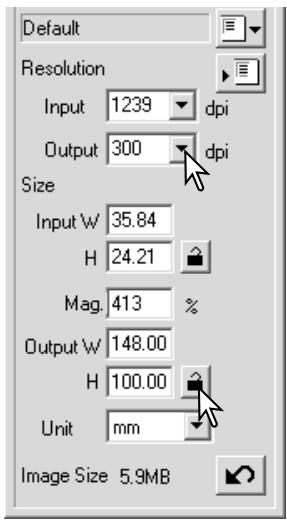
Input-resolution list box: values can be selected from the drop-down list or entered into the box directly. The input-resolution range is from 200 dpi to the maximum resolution of 3200 dpi.
Output-resolution list box: values can be selected from the drop-down list or entered into the box directly. Output-resolution cannot be entered if pixel is selected in the unit list box.
Input-size text box: input size is determined by either the cropping frame dimensions or the values entered in the width and height boxes. The cropping frame will adjust to any value entered. Input-size cannot be entered if pixel is selected in the unit list box.
Input-size lock button: to lock the input values. The cropping frame can be moved, but not resized while this button is clicked. Clicking the button again releases the lock. The input-size lock button cannot be used if pixel is selected in the unit list box.
Magnification text box: to set image magnification. This value is based on input and output resolution, or output and input size. The magnification text box cannot be used if pixel is selected in the unit list box.
When the input size and output size are unlocked, the input resolution and output size vary according to the entered magnification value. When the output size is locked, the input resolution and input size vary according to the entered magnification value. When the input size is locked, the input resolution and output size vary according to the entered magnification.
Output-size text box: output size is determined by either the cropping frame dimensions or the values entered in the width and height boxes. The width and height of the output image can be directly entered into the text boxes; the input resolution, input size, and cropping frame adjust according to the entered dimensions.
Output-size lock button: to lock the output size values.
Unit list box: the input and output size unit can be changed: pixels, millimeters, centimeters, inches, pica, and points.
Image size display: size based on the total number of pixels in the image and can be different from the size of the saved data depending on the file format selected.
Reset button: to initialize all current settings.
About resolution and output size
Resolution can be expressed in dpi (dots per inch). This refers to how many pixels are placed along one linear inch. A resolution of 350 dpi, which is commonly used in commercial printing, means that an area of one square inch would use 122,500 pixels. The larger the resolution, the greater the detail in the image. However, as the resolution increases, so does the file size.
The image resolution depends on the resolution of the output device. A printer with a resolution of 150 dpi will not be able to print a 300 dpi file any better than a 150 dpi file; the 300 dpi file will just be four-times larger. Once the output resolution is determined, the input resolution can be calculated from the magnification needed to match the output.
$$ \begin{array}{c c c} \text {I n p u t r e s o l u t i o n} & = & \frac {\text {O u t p u t s i z e}}{\text {I n p u t s i z e}} = \text {M a g n i f i c a t i o n f a c t o r} \ \hline \text {O u t p u t r e s o l u t i o n} & \end{array} $$
For example, to make a 144mm× 96mm print at a resolution of 150 dpi from 35mm film (image size: 36mm× 24mm ), the magnification can be calculated by dividing the print dimensions by the film dimensions: 96mm / 24mm = 4 times. The input resolution can then be determined from the magnification factor: 150dpiX4 = 600dpi .
When scanning an image to be displayed on a monitor, the only important factors are the pixel dimensions of the file and monitor. Although printers can print files with different resolutions at a given size, monitors cannot add or remove pixels to fit the display area. The image in the example above has a pixel dimension of 850 X 566, too large for a 800 X 600 pixel 15-inch monitor.
Scan setting examples
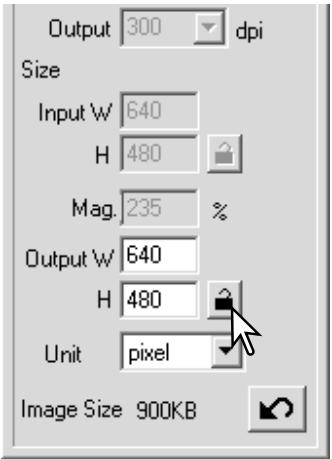
Example 1: setting the scanner output by pixels. This example creates an image with the pixel dimension of 640 × 480 to be displayed on a monitor.
Select pixel from the unit list box. The output-resolution and input-size boxes are deselected.
Enter the dpi resolution for the output size; 640 for the width and 480 for the height. Click the output-size lock button to fix the values; the output-size boxes will be deselected.
Use the mouse to adjust the cropping frame over the prescan image to define the final scanning area. Click on the frame of the cropping area to resize the box. The input resolution will adjust according to the cropping area. Click and drag the center of the area to move the frame.
The scan settings are complete and the final scan can be made (p. 34). Once made, scan settings remain in effect until changed.
Example 2: setting output by print size and output resolution. This example creates a 148mm X 100mm image to be printed on a 300 dpi printer.
Select millimeters from the unit list box.
Enter the output resolution of the printer in the output-resolution list box: 300.
Enter the output size; 148 for the width and 100 for the height. Click on the output-size lock button to fix the values.
Use the mouse to adjust the cropping frame over the prescan image to define the final scanning area. Click on the frame of the cropping area to resize the box; the input resolution will adjust according to the cropping area. Click and drag the center of the area to move the frame.
The scan settings are complete and the final scan can be made (p. 34). Once made, scan settings remain in effect until changed.
Saving scan settings as a Job
Frequently used scan settings can be saved.
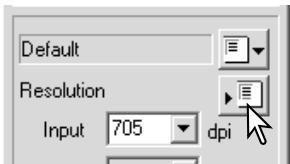
With the settings to be saved in the scan setting window, click the save Job button. The Job-registry dialog box will open.
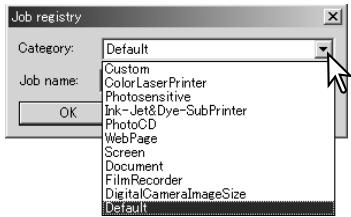
Select the category in which to save the settings from the drop-down menu.
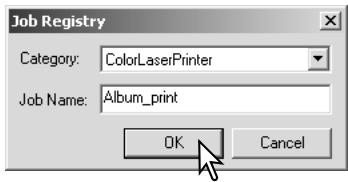
Enter the Job name. Click OK to save the settings. The Job file name can contain up to 24 characters. See page 34 to load a Job.
Deleting a Job
A Job file can be deleted. Once deleted, it cannot be recovered.
Click the load Job button.
Select the Job file to be deleted from the Job categories in the selection window. Use the keyboard delete key to erase the selected file.
Click the cancel button to close the window.

Advanced image processing
More image-processing tools
This section covers the advanced image-processing tools in the DiIMAGE Scan Utility as well as functions to view and save image corrections. The basic image-processing section on pages 36 through 43 should be read before continuing.
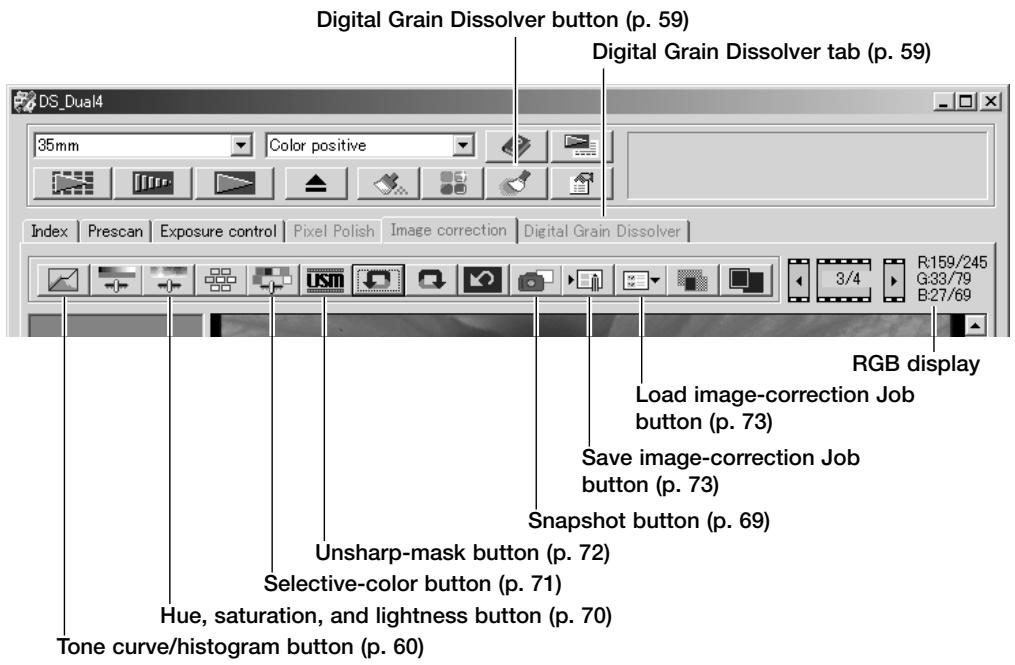
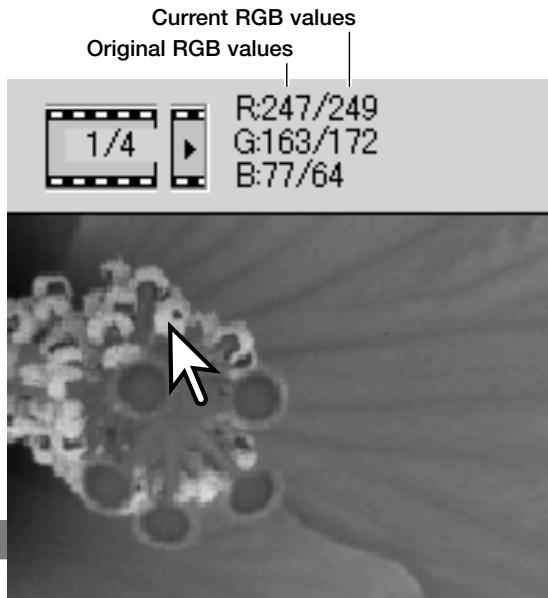
The RGB display will show the color values for any point on the image; the first numbers of each color channel indicate the original value of the prescanned image followed by the current value with any changes made through processing. Simply place the mouse pointer on the image area to see the RGB values of that point. Pressing the shift key (Windows) or command key (Macintosh) will display the CMY values.
Digital Grain Dissolver
Digital Grain Dissolver reduces the effect of film grain. Grain is a sandy texture that can sometimes be seen in smooth uniform areas of the image such as the sky. Grain is more pronounced in fast film. The results vary with the film. Scanning time increases.
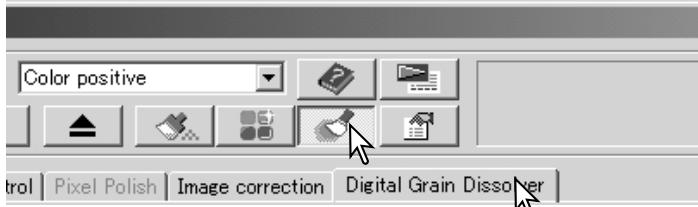
Select the image to be processed. Click the Digital Grain Dissolver button in the main window to activate the tab. Click the Digital Grain Dissolver tab.
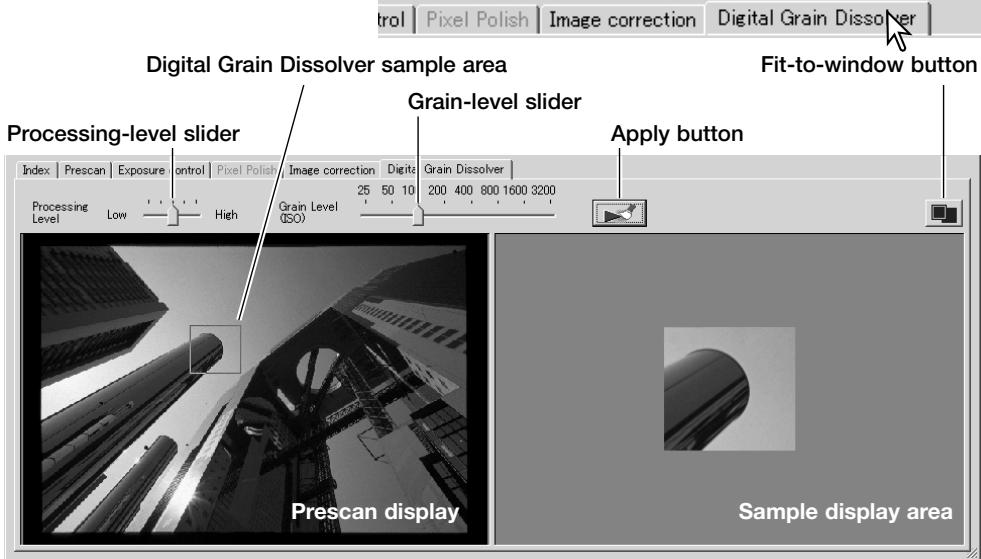
Set the grain-level slider to the approximate grain level of the film; the index uses an ISO scale for reference. The actual grain depends on the specific film. Set the processing level with the slider.
Adjust or move the Digital Grain Dissolver sample area to select the portion of the image to be used to evaluate the grain processing. Choose a smooth uniform area for the evaluation; skin or sky are good subjects. Click and drag the center of the area to move it. Click and drag on the frame to resize.
Click the apply button to preview the effect on the sample area. Every time the Digital-Grain Dissolver sample area is changed, or the degree of correction is adjusted, click the apply button to view the results. The sample image can be magnified by clicking the fit-to-window button.
Click the scan button to save the final image. To turn off the Digital Grain Dissolver, click the Digital Grain Dissolver button again.
Tone curve and histogram palette
Click the tone-curve/histogram button to display the palette.
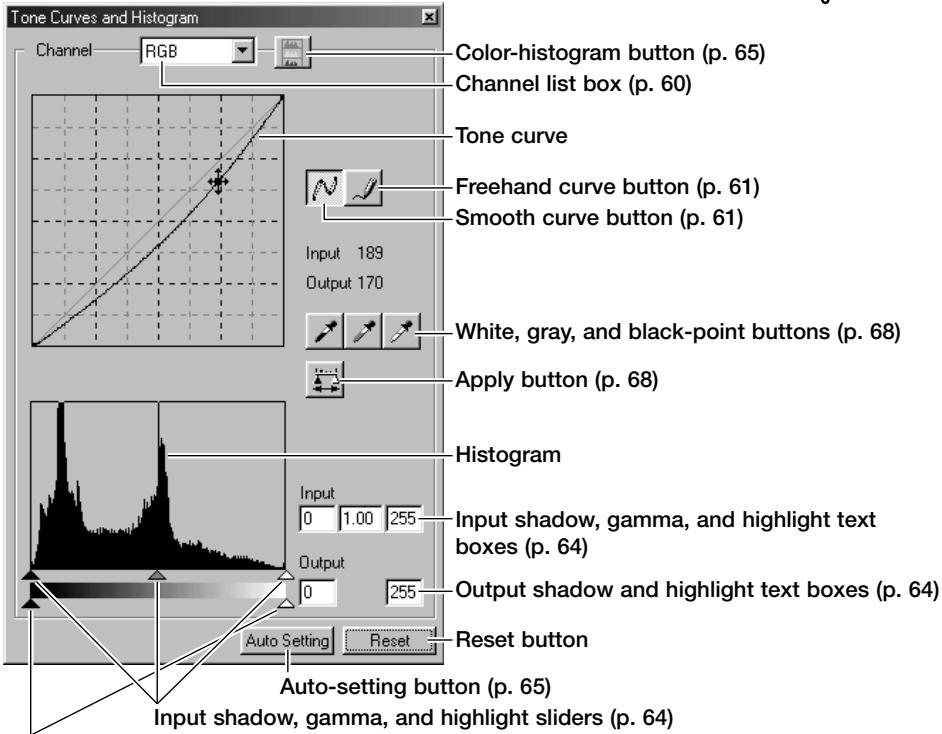
Output shadow and highlight sliders (p. 64)
Using tone curves
Click the arrow next to the channel box to select the channel from the drop-down menu.
To make adjustments to the color balance of the image, select the appropriate color channel. To adjust the contrast or brightness of the image without affecting the color, select the RGB channel.
The tone curves can be displayed with keyboard shortcuts. While holding the control key (Windows) or command key (Macintosh), press 0 (zero) to display the RGB channel, 1 to display the red channel, 2 to display the green channel, or 3 to display the blue channel.
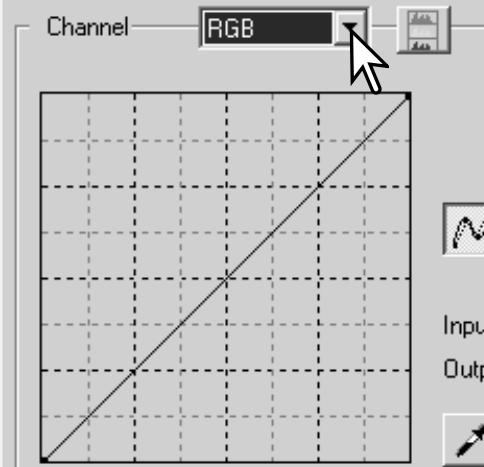
Tone Curves and Histogram
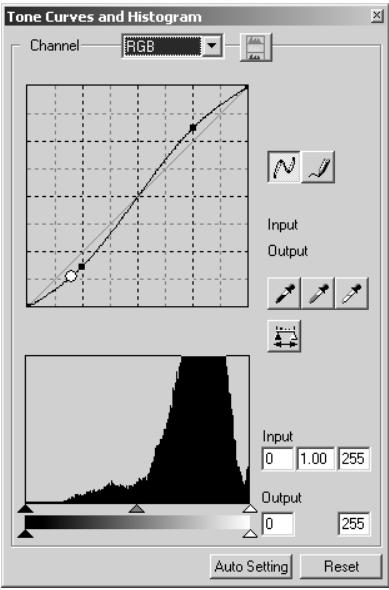
Place the mouse pointer over the tone curve. Click and drag the curve. Any corrections made on the tone curve are immediately applied to the displayed image.
Each time the tone curve is clicked, a node is attached to the curve. The nodes can be moved by clicking and dragging. The horizontal axis (input level) represents the brightness levels of the original image, and the vertical axis (output level) the change applied to the image.
By placing the mouse pointer on the display image, the grey or color level of that point will be indicated on the tone curve by a white circle.
The reset button cancels all corrections in all channels.
Drawing tone curves by freehand
Click the freehand-curve button (1). The mouse pointer changes to the pencil tool when placed on the tone curve.
Click and drag the pointer to draw a new curve. Extreme image manipulations are possible with the freehand curve tool.
To smooth a rough freehand curve, click the smooth-curve button (2). Nodes will be automatically placed on the curve and can be adjusted with the mouse.
With extreme freehand curves, the smooth curve button may significantly change the shape of the curve. Press the undo button to return to the original freehand curve.
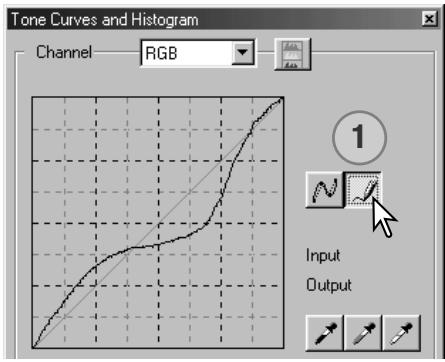
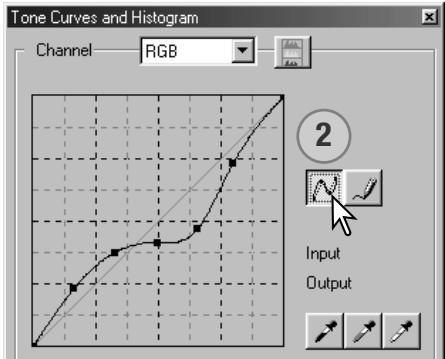
A short guide to tone curve corrections
Image processing is a highly specialized and difficult field that takes years of practice to master. This basic guide to using tone curves covers a few simple procedures to improve your pictures. For more about digital-image processing, consult your local book dealer about self-help guides on this subject.
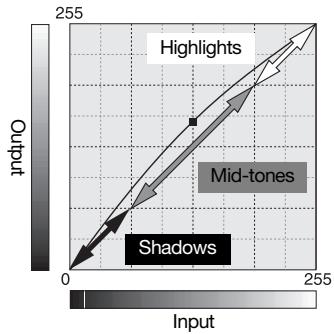
About the tone curve
The tone curve is a graphic representation of the brightness and color levels of the image. The bottom axis is the 256 levels of the original image (input data) from black to white. The vertical axis is the corrected image (output data) with the same scale from top to bottom.
The bottom left portion of the graph represents the dark colors and shadow areas of the image. The middle section represents the mid-tones: skin, grass, blue sky. The top right section is the highlights: clouds, lights. Changing the tone curve can affect the brightness, contrast, and color of the image.
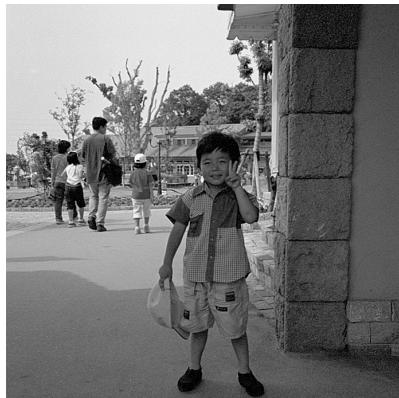
Bring out detail in the shadows
This is a simple technique to make a subject hidden in the shadows brighter. Unlike the brightness level control (p. 40), this method of correction will not lose details in the highlight areas of the image.
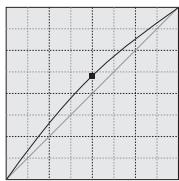
With the RGB channel selected, place the smooth-curve cursor on the center of the curve. Click and drag the curve up. Look at the displayed image to judge the result. The adjustment can be very small and still have a significant impact on the image. Moving the tone curve down will make the image darker.
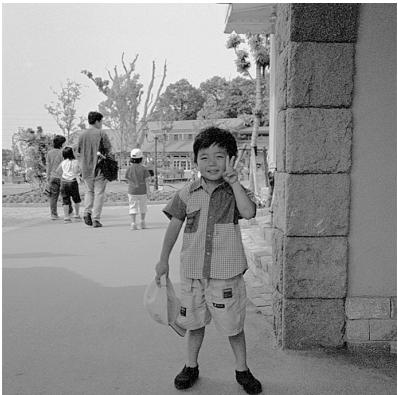
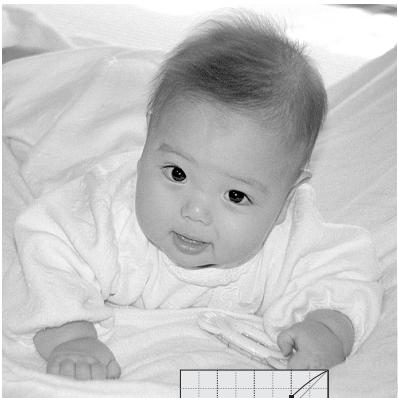
Increasing image contrast
The contrast of an image can be changed. The light blue 45^ line on the tone-curve graph represents the original contrast of the image. Making the angle of the tone curve greater than 45^ will increase the contrast. Making the angle less than 45^ will reduce the contrast.
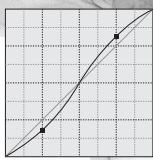
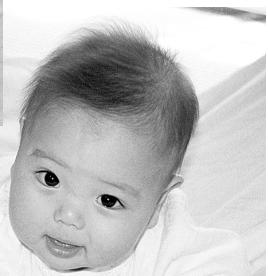
With the RGB channel selected, click on the tone curve near the top and bottom to add two nodes. Slightly move the top node up and the bottom node down. This will increase the angle of the central portion of the tone curve and increase the contrast of the image without making an overall change in image brightness.
Correcting color
By selecting individual color channels on the tone curve, adjustments to the overall color of an image can be made. This can be used to eliminate unnatural color casts or add warmth to a picture.
Tone Curves and Histogram
Channel
B


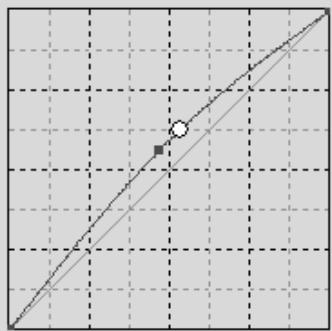

Input
Output


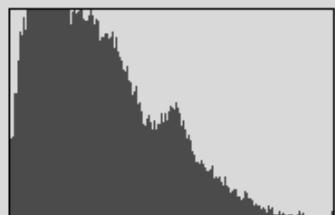
Input Level

1.00

Output Level
If the image is too red, green, or blue, simply drag the corresponding color-channel curve down until the color appears natural. If the color cast is predominantly one of the secondary colors, cyan, magenta, or yellow, move the curve of the complementary color up. For example, if the image is too yellow, move the blue curve up, see the color example on page 2. For more on complementary colors, see page 41.
Histogram corrections
The histogram indicates the distribution of pixels with specific brightness or color values in the image. Using the histogram can optimize the output of the image data. Changes made with the histogram are also displayed on the tone curve.
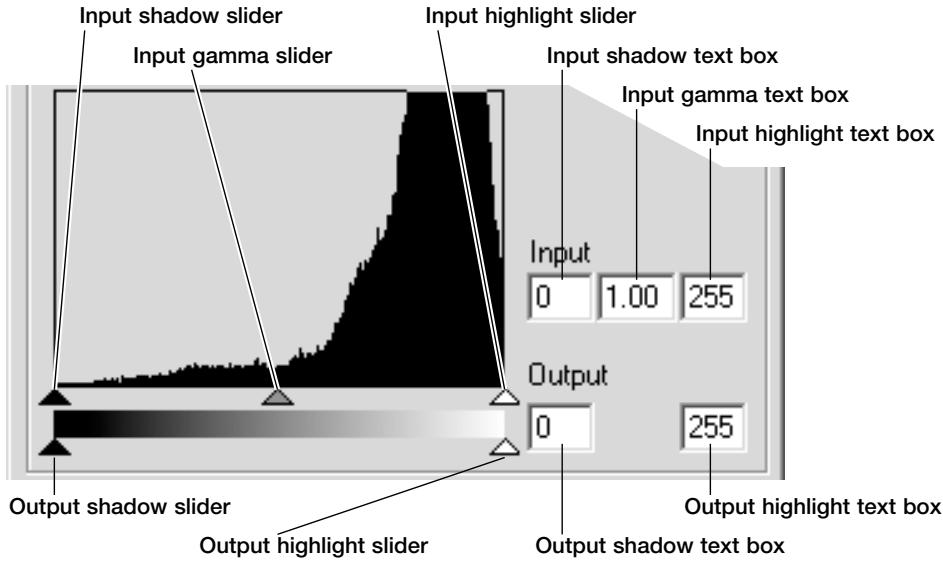
The color histograms can be displayed with the channel list box or with keyboard shortcuts. While holding the control key (Windows) or command key (Macintosh), press 0 (zero) to display the RGB channel, 1 to display the red channel, 2 to display the green channel, or 3 to display the blue channel.
The histogram can be used to optimise the distribution of the pixels in the image. The highlight level, shadow level, and gamma can be set manually with the sliders or text boxes.
The gamma slider defines the mid-tones of the image. Dragging the gamma slider to the right will darken the image, and dragging it to the left will brighten it. Similar to the tone-curve correction described on page 62, the gamma slider allows the brightness of the image to be adjusted without losing image information.
The input highlight slider sets the white level. As the slider is moved to the left, an apparent increase in contrast can be seen in the displayed image. All pixels to the right of the slider are set to 255 and any image detail they may contain will be lost. This can be an important tool for improving copy images of text on a white background. Uneven illumination, or faded or stained paper can be distracting when copying text or line art. By adjusting the white level, the imperfections of the white background can be eliminated leaving only the darker text visible.
The input shadow slider sets the black level. As the slider is moved to the right, an apparent increase in contrast can be seen in the displayed image. All pixels to the left of the slider are set to 0 and any image detail they may contain will be lost.
The black and white output levels can be adjusted. By moving the output highlight and shadow sliders, the contrast of the image can be reduced.
The black and white output levels can be adjusted. By moving the output highlight and shadow sliders, the contrast of the image can be reduced.
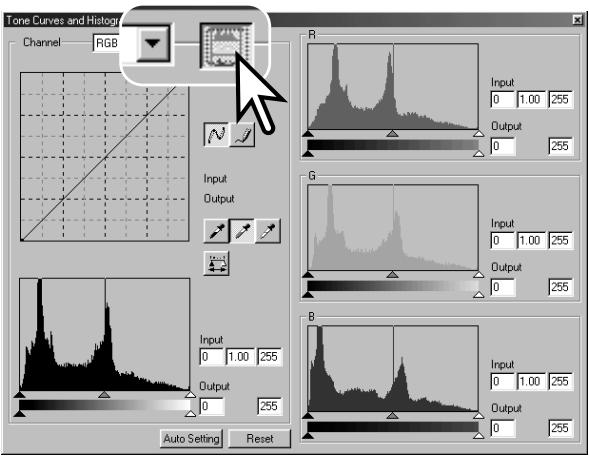
Click the color-histogram button to view the red, green, and blue histograms.
Click the histogram RGB display button again to close the color histogram display.
Tone curve / histogram auto setting
The auto-setting function automatically adjusts the tone curve and histogram to optimise image contrast and color. The darkest pixels in the image are set to a black level of 0, the brightest pixels are set to a white level of 255, and the rest of the pixels are distributed between them equally.
Click the auto-setting button. The change is immediately reflected in the displayed image. To view the change in the histogram, press the apply button. Click the reset button to cancel the auto setting.
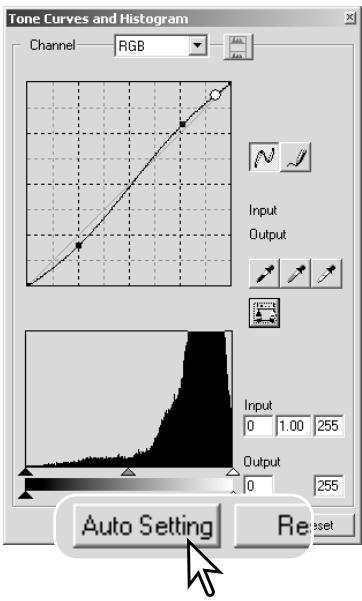
A short guide to histogram corrections
This guide shows simple corrections that can be made with a histogram. Unlike the tone curve, the histogram provides information on a specific image. This can be used to evaluate the image and make adjustments accordingly.
The histogram of the cherry blossoms shows a gap at the right and the flowers look a little grey. This is caused by slight underexposure when the image was captured.
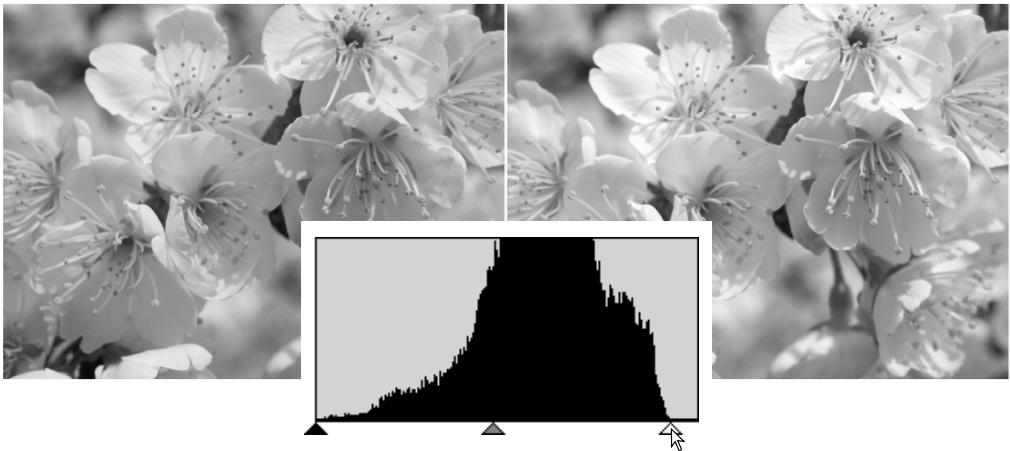
By moving the highlight slider to the left to set the white point to where the pixel distribution ends, the whites become more brilliant and the contrast increases.
Minolta History
On February 20th, 1962, John Glenn became the first American to orbit the Earth. On board his Friendship 7 spacecraft was a Minolta Hi-matic camera to record that historic event. The 4 hour, 55 minute, and 23 second flight orbited the Earth three times at an average
speed of 28,000 kph (17,500 mph).
Mr. Glenn visited our Sakai camera factory in Japan on May 24th, 1963 to plant a palm tree to celebrate the occasion. The palm tree is still in the courtyard of the factory and stands over eight meters tall (26ft).
The camera? It was not lost. It is on display at the Smithsonian Institution's National Air and Space Museum in Washington D.C. This and other objects from John Glenn's Friendship 7 Mercury flight can be found in galley 210, "Apollo to the Moon."
This image is flat. The pixel distribution in the histogram reflects the low-contrast scene. The lack of any strong shadows or dark tones is indicated by the absence of pixels on the left of the histogram. Most of the detail is concentrated in a narrow range in the mid-tones.
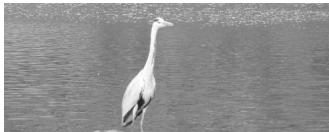
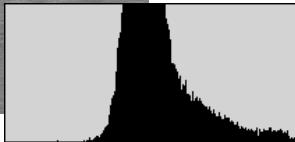
By moving the shadow slider to the right to set the black level to where the pixel distribution begins, image contrast is improved.
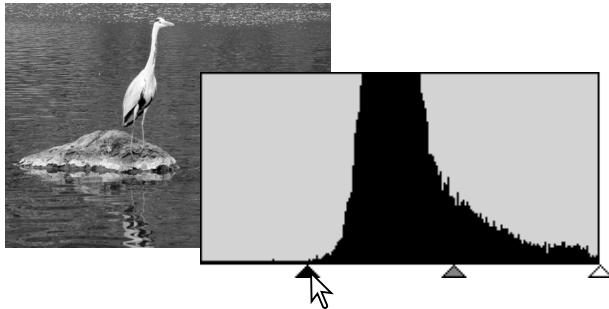
The gamma slider can be used to change the relative distribution of the tones in the image. By moving the gamma slider to the left toward the shadows, the image becomes lighter. By moving the gamma slider in the opposite direction, the image becomes darker. However, unlike the brightness control in the brightness, contrast, and color-balance palette (p. 40), details are not lost in the shadows or highlights.
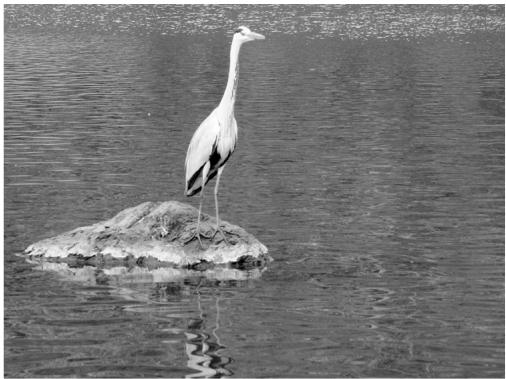
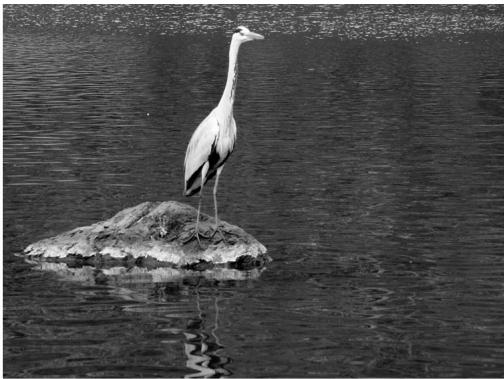
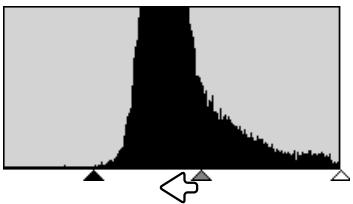
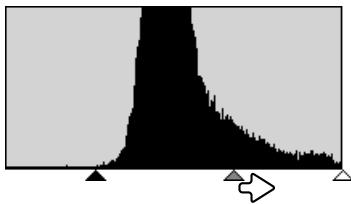
White, gray, and black point corrections
On the tone curve / histogram palette, corrections can be made by specifying a white, black, and gray point within the image. Locating an appropriate neutral area within the image is critical to correctly calibrate the software. When the dropper tool is selected, the RGB display is active and can be used to evaluate the image area. All changes are immediately reflected in the display image.
Click the white-point button; the mouse pointer changes to the white dropper tool.
With the dropper tool, click on the brightest neutral area of the image to define it as the white point. The values of the image will be adjusted based on the selected point. The default level for the white point is 255 for each RGB channel.
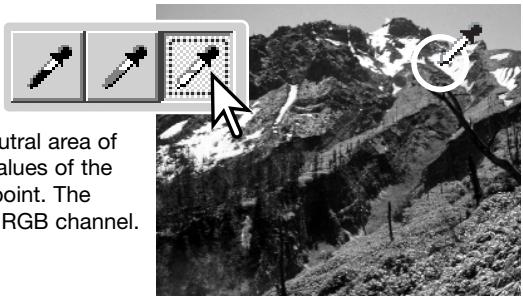
Click the black-point button.
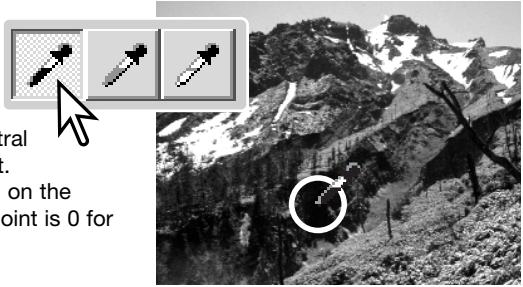
With the dropper tool, click on the darkest neutral area of the image to define it as the black point. The values of the image will be adjusted based on the selected point. The default level for the black point is 0 for each RGB channel.
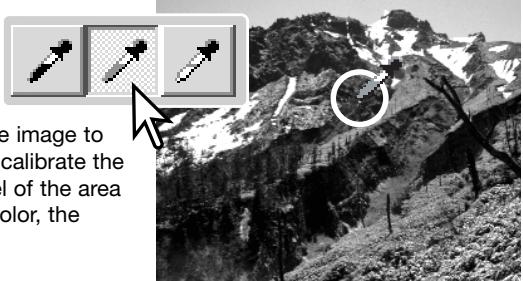
Click the gray-point button. The gray point controls the color of the image.
With the dropper tool, click a neutral area of the image to be defined as the gray point. The area used to calibrate the gray point must be neutral. The brightness level of the area is not important, but if the area has a definite color, the image will not be color balanced correctly.
Click and hold the apply button to show the change on the histogram. Click the reset button to cancel all corrections.
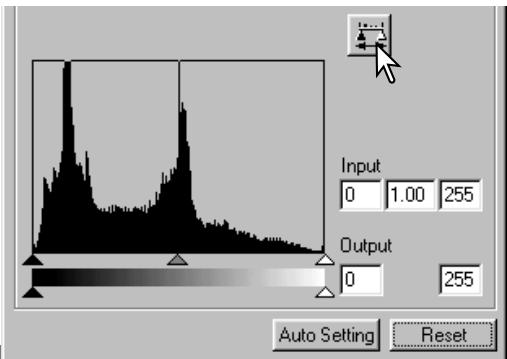
Setting the white and black-point values
The white and black-point values are set to 255 and 0 for each RGB level. Changing these values allow the calibration of an image with no true white or black.
Double-click on either the white-point or black-point button to activate the point-value-setting dialog box.
Enter the new white-point or black-point values. Click OK.
With the point-value-setting dialog box open, the mouse pointer can be used to measure the color of any point on the displayed image. The RGB display shows the original values for the image on the left and the current values for the image on the right.
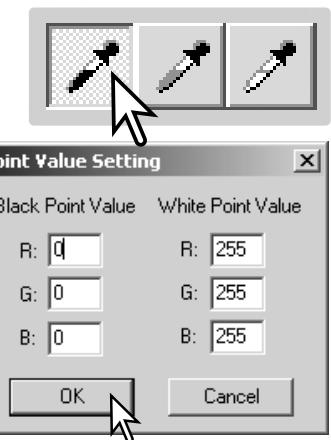
Calibrate the image as described in the white, black, and gray point corrections section.
Tracking image corrections - Snapshot button
Image corrections can be stored temporarily as a thumbnail next to the displayed image. Simply click the snapshot button on the tool bar to create a thumbnail with the current image corrections.
To return to a previous image correction, click on the corresponding snapshot thumbnail. The thumbnail image will replace the displayed image. The number of snapshots that can be made is only limited by the computer memory. To delete a snapshot, click on the thumbnail and press the keyboard delete key.
Snapshot display area
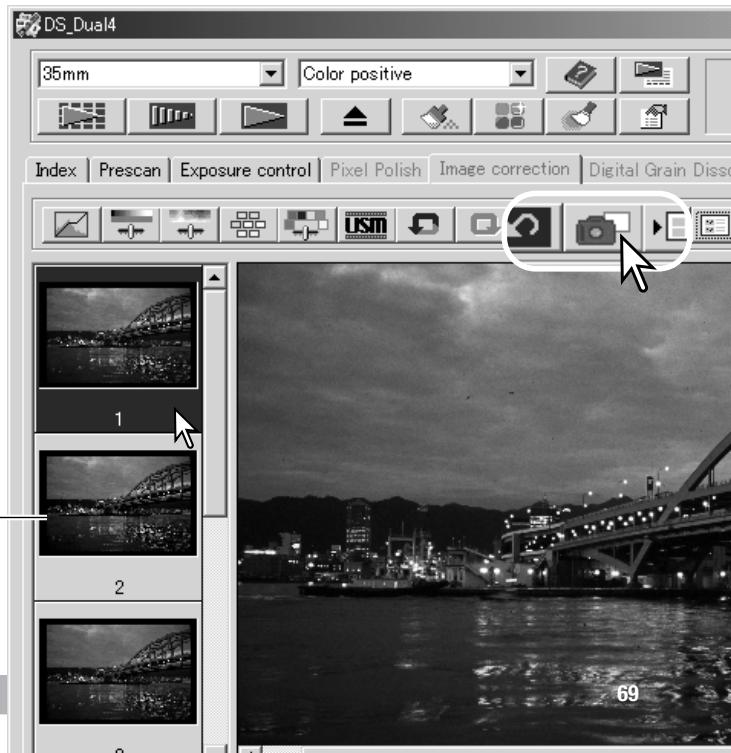
Hue, saturation, and lightness palette
This palette adjusts the image in reference to the HSB color model. These controls can be used to manipulate the color image rather than producing a realistic representation.
The HSB color model defines color based upon human perception rather than photographic processes. Hue refers to each separate color in the model. Saturation is how vivid each color is. Lightness describes how bright or dark a color is in the color space.
The hue control is not a color balancing tool. It is a creative tool. When changing hue in the palette, each color is assigned a new hue depending on the degree of rotation through the color space. For example, a very simple color space could have three colors: red, green, and blue. I have a red barn next to a green tree with a blue sky. Now I rotate the image in the color space; the colors are reassigned a new hue based on the position - the barn is green, the tree is blue, and the sky is red. The HSB color space is similar, but with many more hues; see the color example on page 99.
Unlike the brightness control in the brightness, contrast, color balance palette, the lightness control does not change the apparent density of the colors equally. For example, with an extreme increase in lightness, blue will not appear as light as yellow.
Click the hue, saturation, and lightness button to open the palette.
Drag the hue, saturation, or lightness slider, or enter specific values in the corresponding text box to make corrections; changes will be reflected in the display image. Dragging each slider to the right or inputting a positive number in the text box increases the saturation, and lightness. The hue slider rotates the colors in the image through the color space; the maximum position to the right (180^) is the same as the maximum position to the left (-180^) . Click the reset button to cancel any changes.
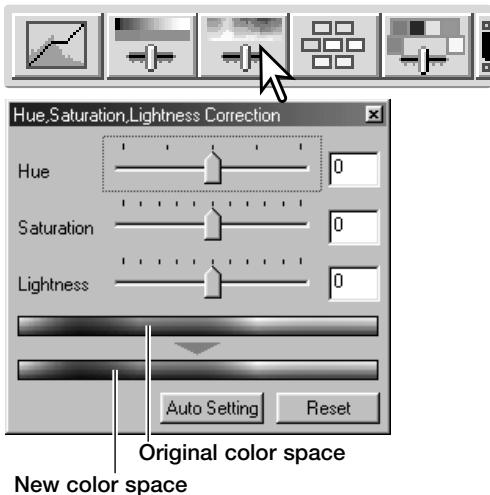
Two color samples are displayed at the bottom of the palette. The top bar indicates the color space of the original image. The bottom bar displays the relative changes to the color space.
Clicking the auto-setting button adjusts the saturation automatically without affecting the hue or lightness. Click the reset button to cancel any changes.
Selective-color palette
Selective-color correction is an advanced technique to refine the colors in the image. A cyan, magenta, yellow, and black channel can be used to adjust the six separate color groups in the image: red, green, blue, cyan, magenta, and yellow. The black-level slider controls the brightness of the selected color group. This type of correction is effective in changing a specific color without influencing any of the other colors in the image. For example, if the sky looks purplish instead of blue, magenta can be reduced in the blue color group. See page 2 for a selective-color example.
Click the selective-color button to open the palette.
Select the color group to be corrected from the drop-down menu at the top of the window.
Drag a slider or enter a value in a text box to adjust the selected color group. More than one slider can be used to adjust the selected color. Changes will be reflected in the display image. Click the reset button to cancel any changes.

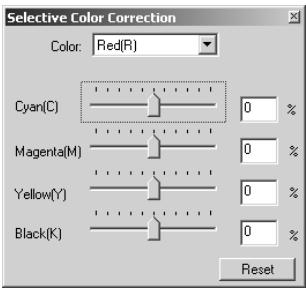
About RGB and CMY
The RGB color model is an additive process that uses the primary colors of light: red, green, and blue. An additive color system mixes the three colors to recreate the entire spectrum of light. If all three colors are mixed, white light is produced. Television sets and computer monitors use RGB to create images.
The CMY color model is a subtractive process that uses the secondary colors: cyan, magenta, and yellow. A subtractive color system recreates color with pigments and dyes to absorb unwanted color. If all three colors are mixed, black is produced. Film-based photography is a subtractive process. Printing technology is also a subtractive process, but, unlike photographic systems, it requires a black channel (K). Because of the imperfections of printing inks, cyan, magenta, and yellow cannot produce a true black when mixed. Printers use what is called a four-color process (CMYK) to reproduce images.
Unsharp mask
The unsharp mask sharpens edges in the image without affecting overall image contrast. This mask can be used with soft or slightly out-of-focus images. The effect of the unsharp mask is very subtle, but makes a significant improvement to the overall appearance of the image.
Click the unsharp-mask button to open the unsharp-mask dialog box.
Drag the sliders or enter values in the text boxes to adjust the parameters of the mask. The full effect of the unsharp mask cannot be evaluated in the pre-scan image. It can only be judged in the final scan.
The result of the unsharp mask differs with image resolution. Make several scans with slight changes to the output resolution until the intended result is produced. Clicking the reset button restores the default settings.
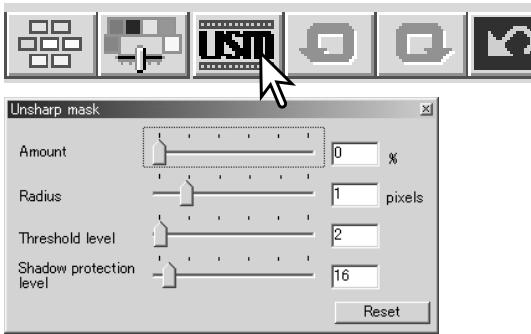
Amount: to adjust the contrast of the mask between 0% and 500% . If the value is too high, pixilation will be apparent; the image becomes noticeably rough or grainy. 150% to 200% is recommended for high-quality printed images.
Radius: to increase the edge sharpness of the pixels. The radius can be adjusted between 0.1 and 5. The default setting is 1. Changes to the radius are more apparent on printed images than images displayed on a monitor. A level of 1 to 2 is recommended for high-quality printed images.
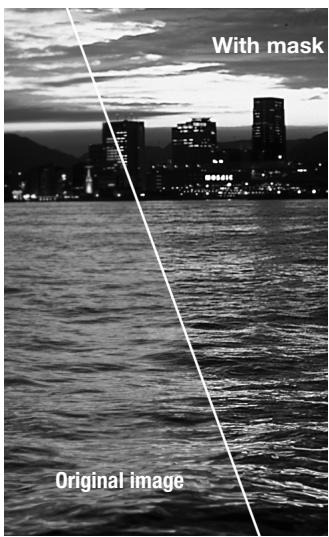
Threshold level: adjusted in integers between 0 and 255. The default setting is 2. If the difference between the surrounding pixels is greater than the threshold level, that pixel is recognized as a sharp subject pixel. When the level is set to 0, the whole image is corrected. The threshold level can separate smooth or even areas from edges and detailed areas to be sharpened.
Shadow protection level: to limit the sharp subject pixels in the shadows. The level can be adjusted in integers between 0 and 255. The default setting is 16. When the luminance level is greater than the shadow protection level, that pixel is recognized as a sharp pixel.
Saving image corrections
All corrections applied to an image can be saved as an image-correction Job. The Job can be loaded into the utility at any time and applied to different images. This is a time-saving function when a large number of images need to be processed with the same correction settings.
Click the save image-correction Job button to save the current image-correction settings.
Enter the Job name. Click OK to save the settings.
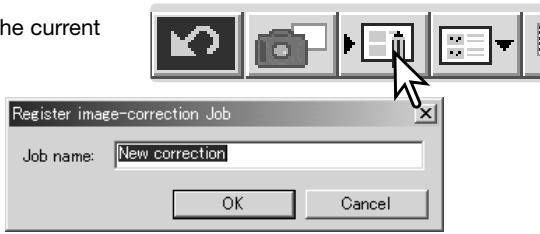
Loading image-correction Jobs
Display the image to be corrected in the image-correction tab. Click the load image-correction Job button to load the saved image-correction settings.
Click on an image-correction Job thumbnail to select it. Click OK to apply the Job to the displayed image. Jobs are loaded into the snapshot display area; simply click on the thumbnail to apply the image-correction Job. Multiple Jobs can be loaded.
To delete a Job, open the load window and highlight the Job to be deleted. Press the keyboard delete button to erase the file.

DS Dual4
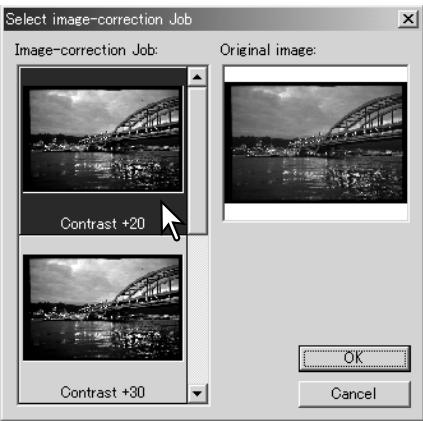
Index
Prescan
Exposure control
Pixel Polish
Image correction
Digital Grain Dissolver
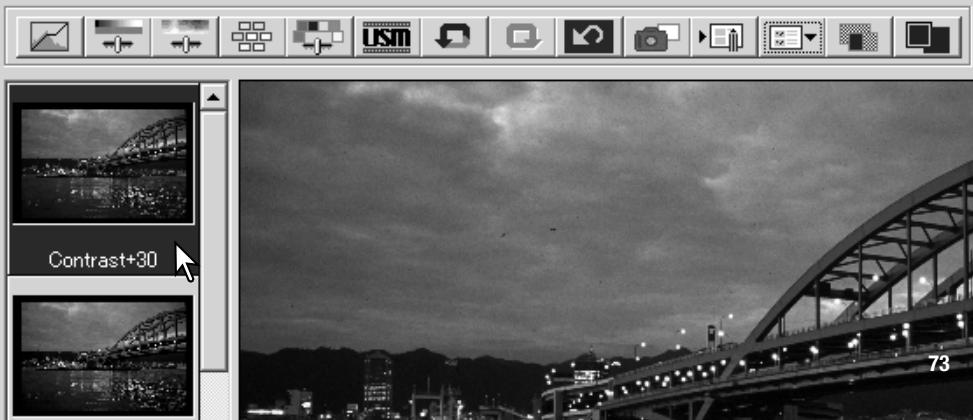
Custom wizard
The Custom Wizard is an automated scanning routine. Screens vary with scanner model.
Insert a film holder into the scanner. Click the Custom Wizard button.
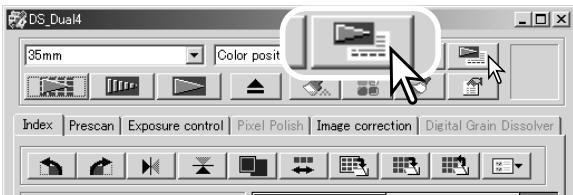
On the Custom-Wizard-setting dialog box, select New from the Custom Wizard settings. Click the next button.
If previous Custom Wizard settings have been saved, they will be displayed in this window. To use any setting, simply select it with the mouse. The delete button erases the selected setting.
Set up the dialog box for the film and holder in use. Select the frame number(s) of the images to be scanned. The frame number refers to the frame number of the holder or, in the case of the optional APS adapter, the film frame numbers.
Click the next button to continue.
Select scanning preferences in the dialog box. Click the next button to continue.
For information on the preference settings, see page 44. For information on color matching, refer to page 80.
Enter scan settings. Click the next button to continue.
See pages 34 and 54 for details on Jobs and manual scan settings. See page 33 for information on auto-cropping. The auto-cropping function will take priority over any scan settings entered.
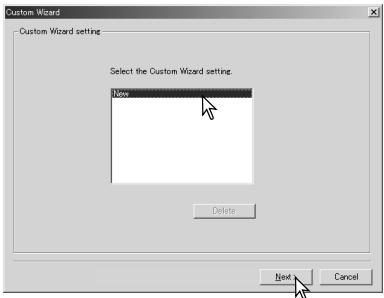
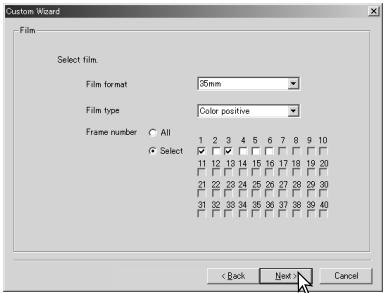
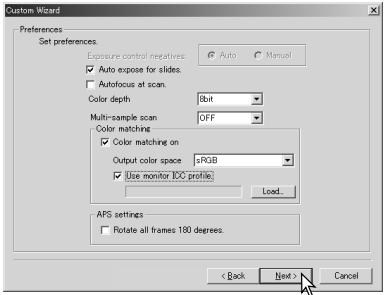
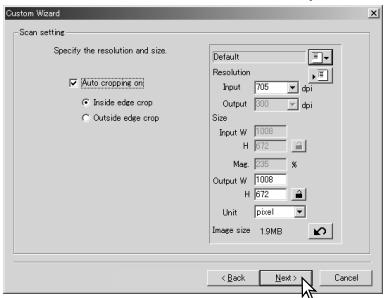
Make any adjustments to the scanner exposure. Previously saved settings can be loaded. See page 46 for more information. Click the next button to continue.
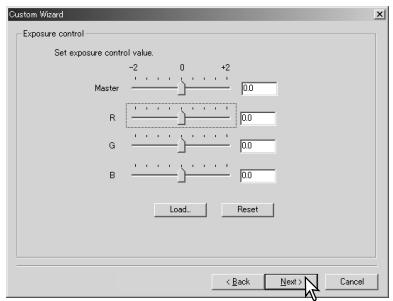
Select specific image processing. Pixel Polish cannot be used with black and white film. Click the next button to continue.
For more on Auto Dust Brush (p. 38), Digital Grain Dissolver (p. 59), and Pixel Polish (p. 37) refer to the descriptions in the manual.
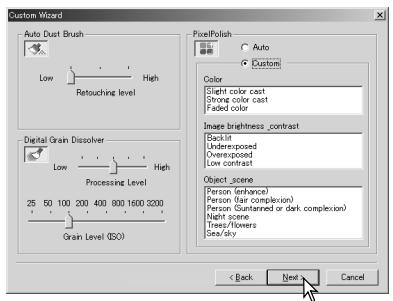
Select image-correction settings. Click the next button to continue.
Image corrections can be made by loading an image-correction Job (p. 73). The auto-setting functions make automatic corrections: the tone curve and histogram setting improves color and contrast: the brightness, contrast, and color-balance setting improves contrast and brightness: the hue, saturation, and lightness setting improves saturation.
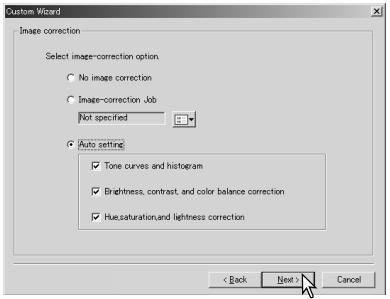
Click the save button to save the Custom Wizard settings. Enter the file name in the save window and click OK. The next time the Custom Wizard is used, those settings can be selected in the Custom Wizard setting dialog box.
Click the start button to begin automatic scanning. When scanning multiple images, a serial number is added automatically.
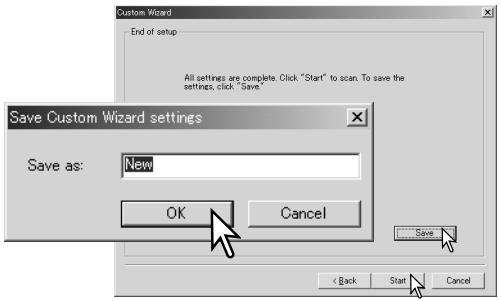
Batch scan utility
The Batch Scan Utility is for scanning a large volume of images. This utility automatically scans, processes, and saves all the images in a film holder. The Batch Scan Utility is opened with the DiIMAGE Scan launcher, see page 22.
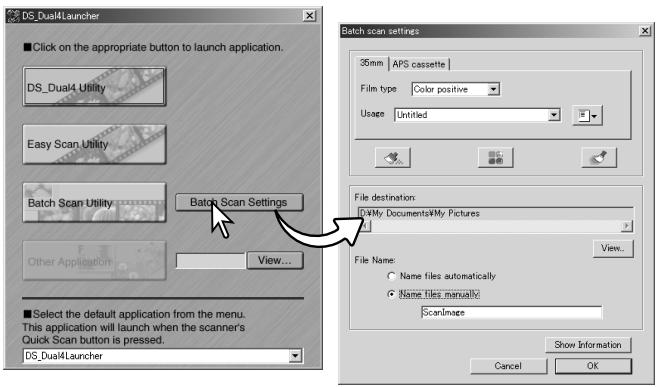
To set up the batch scan, click the Batch Scan Settings button in the launcher window.
Confirm the scanner front door is closed and there is no holder inserted, as the scanner will initialize.

Select the 35mm or APS cassette tab. The film type is selected with the drop-down menu. When making Batch Scans, different film types cannot be mixed.
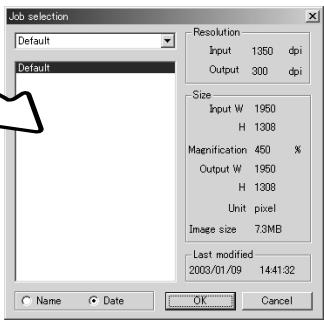
From the usage drop-down list, select the appropriate option. The output size and resolution can also be specified using a Job. Click the Job load button to open the Job selection dialog box. For more on Jobs, see page 34.

To select Auto Dust Brush, Pixel Polish, and Digital Grain Dissolver image processing, click the appropriate buttons. Refer to the appropriate sections in the manual for information on Auto Dust Brush (p. 38), Pixel Polish (p. 37), and Digital Grain Dissolver (p. 59). The parameters of this functions can be changed with the Batch Scan setup dialog box, see page 78.
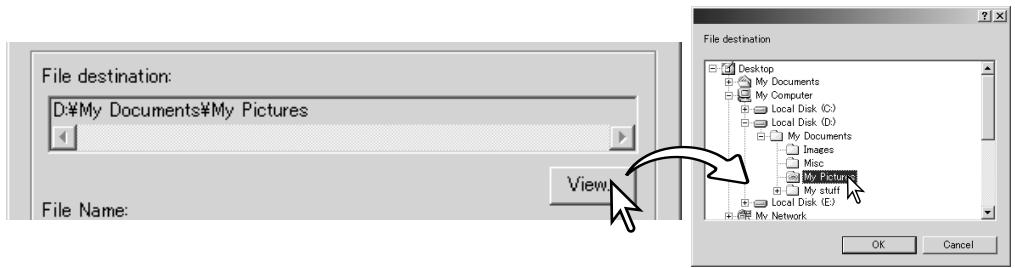
To select the destination of the scanned images. Click the view button to open the file-destination dialog box. Use the folder tree to locate the folder in which to save the files. Click the folder to select it. Click the OK button to complete the operation. The destination will be displayed in the setting window.
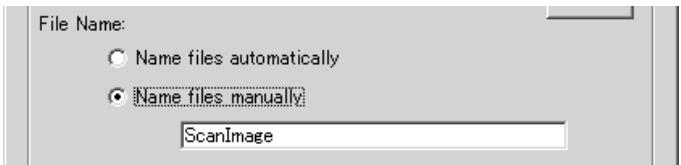
To select file names. The automatic option names files based on the date and time of the scan; the file name begins with DS followed sets of two registers to indicate the year, month, day, hour, minute, and second. DS040523134510 was scanned in 2004 on May 23rd at 1:45pm and 10 seconds. The hour registers are based on a 24-hour clock. The manual option uses the name entered in the text box plus a four digit serial number which is automatically added.
Click the OK button to complete the operation. For advanced Batch Scan setup, see the following page.
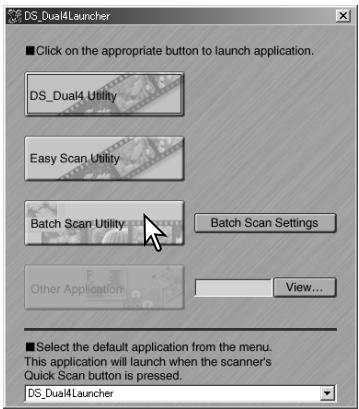
When the Batch Scan Utility button in the launcher window is clicked, the scanner will initialize. When the set-holder message appears, insert the holder into the scanner; all the frames in the holder will be scanned and saved, and the holder will be ejected automatically.
To scan another batch, change the film in the holder and reinsert it into the scanner. Click the Batch Scan Utility button to begin scanning. The scanner only initializes before the first holder is scanned.
If the Batch Scan Utility is allocated to the Quick Scan button with the drop-down menu at the bottom of the launcher, the first time the Quick Scan button is pressed the scanner initializes and then the message to insert the holder is displayed. To scan subsequent holders, simply insert the holder and press the Quick Scan button.
Advanced Batch Scan setup
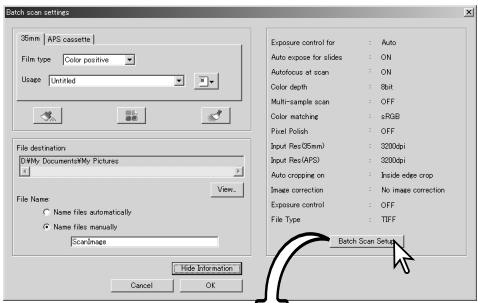
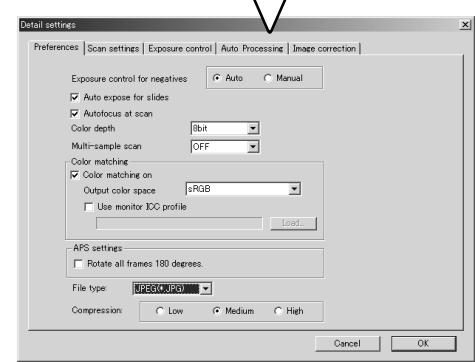
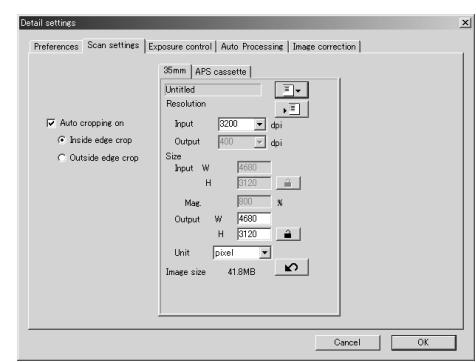
Click the show information button in the Batch Scan settings dialog box to view the current status. Click the button again to hide the display.
To change the advanced settings, click the Batch Scan setup button to open the setup dialog box.
To change scanner preferences.
For more on the preferences dialog box, see page 44. For information on color matching, see page 80.
To crop the image automatically and to set the output size and resolution. Select the 35mm or APS cassette tab to make settings.
See page 33 for information on auto cropping. See page 54 through 57 on how to make and save scan settings.
Scanner notes
When saving Batch Scan images in the JPEG format, if the file width exceeds 4096 pixels, the file will be saved in the TIFF format automatically.
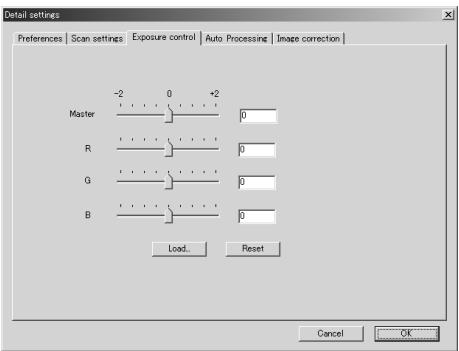
To control the scanner exposure.
See page 46 on how to make and save exposure settings.
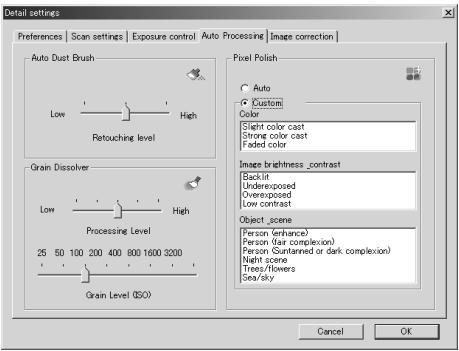
To set the parameters for Auto Dust Brush (p. 38), Pixel Polish (p. 37), and Digital Grain Dissolver (p. 59) image processing.
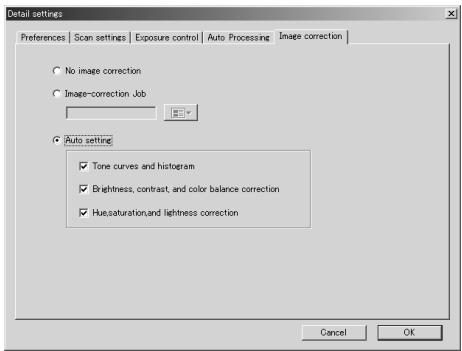
To apply image processing to the scanned images.
See page 73 on image-correction Jobs.
The auto-setting functions automatically correct the scanned image: the tone curve and histogram setting improves color and contrast: the brightness, contrast, and color-balance setting improves contrast and brightness: the hue, saturation, and lightness setting improves saturation.
Color matching
Each output device (monitor or printer) defines color and contrast differently. To ensure the reproduction of the image on the monitor matches the reproduction of the image from the printer, the color space for both devices must be defined. Color matching is activated in the preferences box. Color matching increases the scanning time.
The DiIMAGE Scan color matching function matches the scanned color with specified color spaces. The color matching system can use the monitor's ICC profile to display the image as accurately as possible.
Click the preferences button to access the color-matching function.
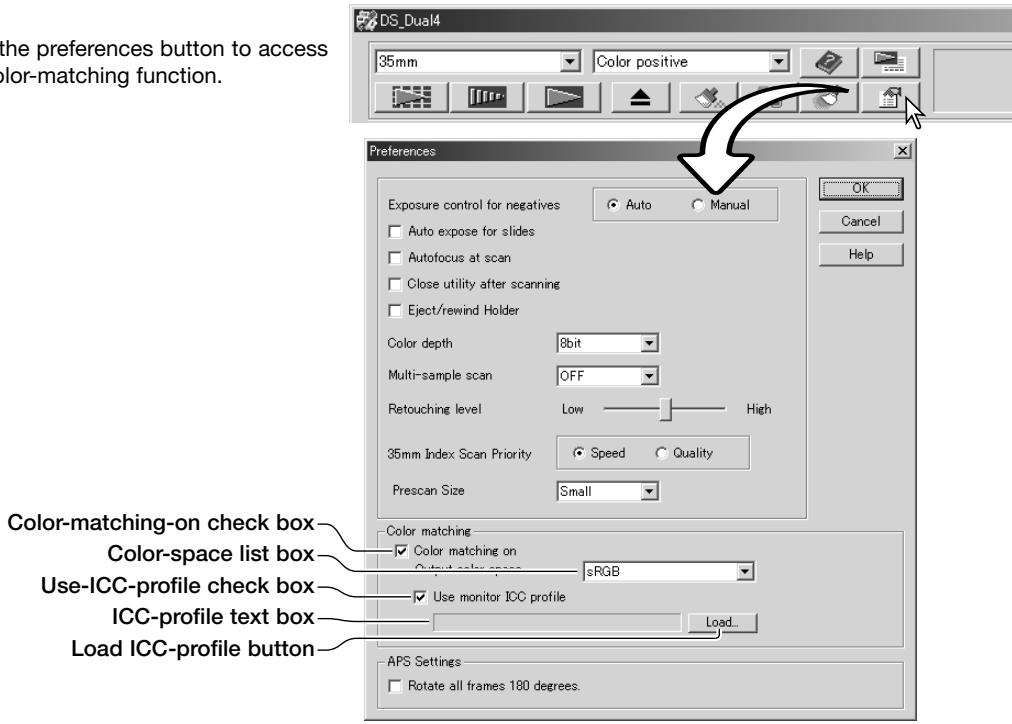
Setting the output color space
Click the color-matching-on check box.
Select the output color space from the color-space drop-down menu. See the following page for descriptions of the color spaces.
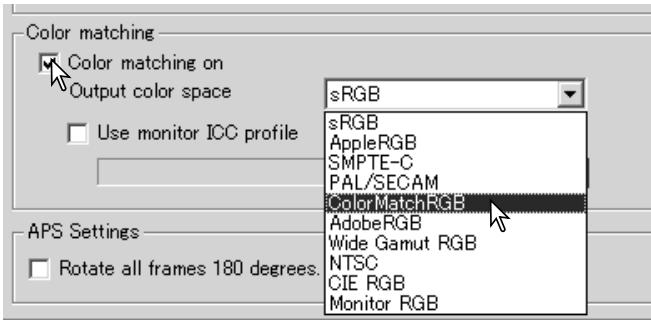
Output color spaces
The choice of output color space depends on how the image will be reproduced. For most personal use where the image is displayed on a monitor or printed with a small printer, sRGB color space is adequate. Other color spaces have been included for professional and technical applications. For recommendations for color space use, see page 83.
| sRGB | This color space reflects the average PC monitor characteristics, and is considered the standard for multi-media and Internet usage. sRGB is not suitable for professional prepress applications because of its narrow reproduction range. |
| Apple RGB | Widely used in DTP and is the standard color space in many common graphic arts and design applications: Adobe Illustrator, Photoshop, etc. |
| SMPTE-C | The current television broadcasting standard used in the United States. |
| PAL/SECAM | The current television broadcasting standard used in Europe. |
| ColorMatch RGB | This standard has a wide gamut and is ideal for use with Radius Press View monitors, which are commonly used in prepress production. |
| Adobe RGB | This color space is wider than ColorMatch RGB. The extensive color range makes it ideal for prepress use. However, the range is so great that it includes many colors that cannot be printed with a four-color printing process. |
| Wide-gamut RGB | Utilizing the color coordinates of the spectrum, this standard offers an extreme range of colors. However, most of the colors that can be generated cannot be reproduced on standard computer monitors or by printing technology. |
| NTSC | The current television broadcasting standard used in Japan. |
| CIE RGB | This color space is defined by the CIE (Commission Internationale d'Eclairage). |
| Monitor RGB | This color space is defined by the monitor's ICC profile. See setting the monitor ICC profile section on page 82. |
Setting the monitor ICC profile
The ICC profile for a specific monitor can be specified in the color-matching section of the Preferences dialog box. Refer to the monitor instruction manual for the profile name.
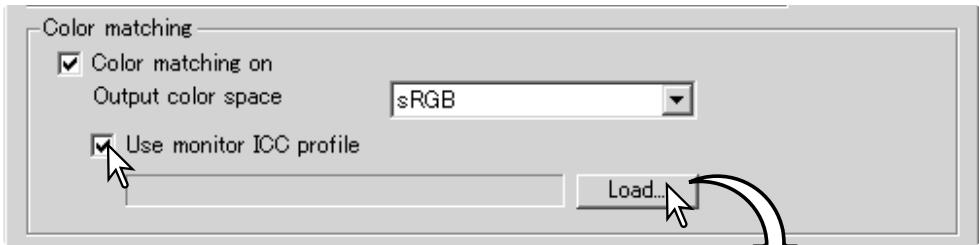
Click the use-monitor-ICC-profile check box.
Click the load ICC-profile button. The operating system's file-open dialog box will open.
Locate and open the ICC profile for the monitor in use. The selected profile will be displayed in the preferences window. Click OK in the preferences window to set the ICC profile.
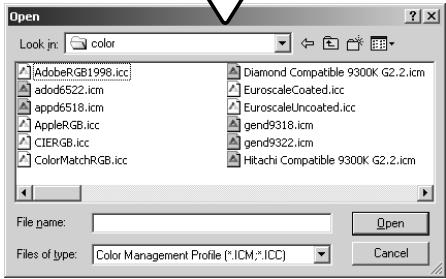
Monitor ICC profiles are located in the same folder as the scanner color profiles, see below. When using Mac OS X, the monitor profiles are in the following location: [Library] -> [ColorSync] -> [Profiles] -> [Displays].
Scanner color profiles
When installing the DiIMAGE Scan Utility software, scanner color profiles will be automatically installed. These profiles have been included for advanced color matching with profile-to-profile conversions in sophisticated image-processing or DTP applications. Refer to the scanner notes section of the hardware manual for the profile for a specific scanner model.
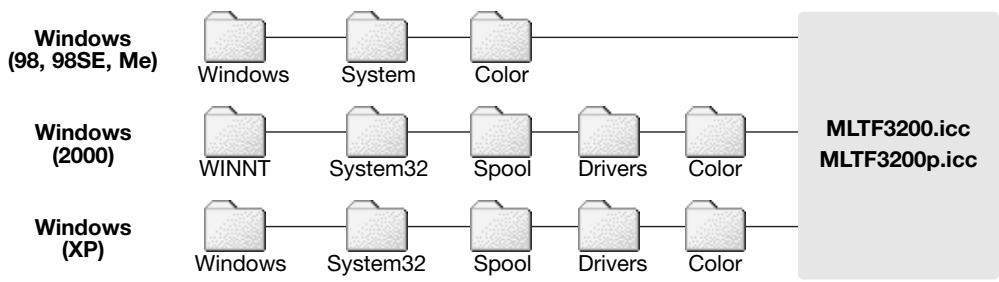
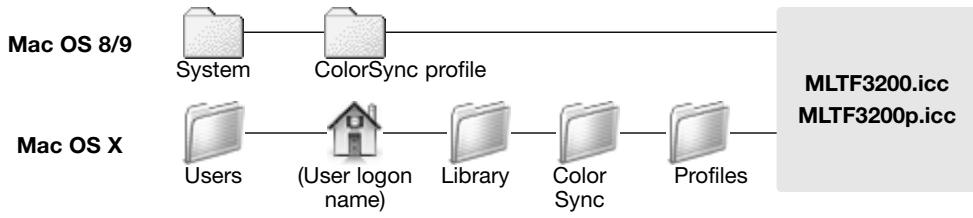
Color matching recommendations
The following are recommendations for output color space and monitor ICC-profile settings with image-processing applications. Some applications, such as Adobe Photoshop 5 or later, have a monitor correction display function which automatically corrects the monitor display to a specific color space.
Output Color Space: select the same color space as set in the application. With Photoshop 5.0 or later, look in the color-setting option in the file menu for the profile setup window.
ICC Profile: Use the profile for the monitor in use.
When using an application without a monitor correction display function such as Photoshop Elements, or when the function is disabled:
Output Color Space: Monitor RGB
ICC Profile: Use the profile for the monitor in use.
The ICC profile for a specific monitor should be available from the manufacturer. These may be downloaded from the manufacturer's web site. See the monitor's instruction manual on how to install the ICC profile.
Color monitor ICC profiles can be created with one of the profile creation tools on the market. They can also be created with the monitor-adjustment-assistant function installed in a Macintosh operating system, or with Adobe gamma included in Adobe Photoshop 5 or later for Windows.
Auto Dust Brush Plug-in
Before installing the plug-in
Install the scanner utility software and then open one of the applications with the scanner unit attached to the computer and scan an image. This procedure allows the Auto Dust Brush plug-in to be used.
If the plug-in is to be used with Adobe Photoshop Elements 2.0, install the software before installing the plug-in.
When using the plug-in with Windows or Mac OS 8.6 ~ 9.2.2 operating systems, the memory allocated to the host software must at least three times the size of the scanned image file. When using Mac OS, this memory is in addition to the memory requirements for the software and operating system.
Installation - Windows
Insert the DiIMAGE Scan Dual IV CD-ROM into the CD-ROM drive. The DiIMAGE Scan Dual IV setup screen will open.
Click the "Starting up the Auto Dust Brush Plug-in installer" button. The program decompression screen appears briefly. The Install Shield Wizard starts automatically.
The opening screen of the InstallShield Wizard appears. Click the next button to continue.
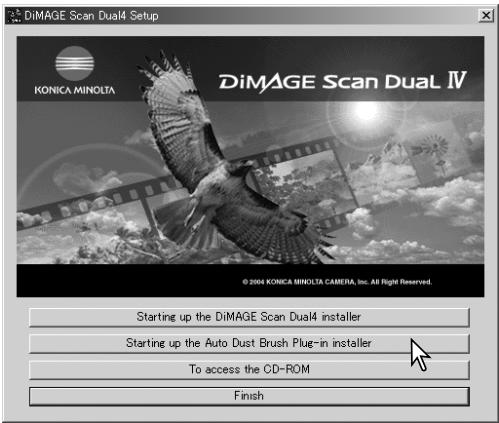
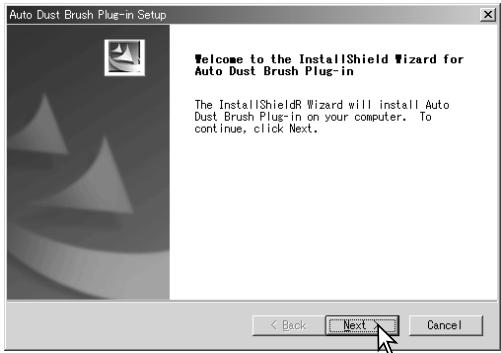
Click the yes button to accept the agreement and continue. Read the entire agreement carefully before continuing. If you do not agree to the terms of the license agreement, click the no button to exit the setup program.
To install the plug-in in the displayed destination folder, click Next.
To install the software in another folder, click the browse button to display the folder selection window. Specify the directory in which to install the software, then click OK.
The InstallShield Wizard will indicate that installation was successful.
To use the plug-in, see page 88.
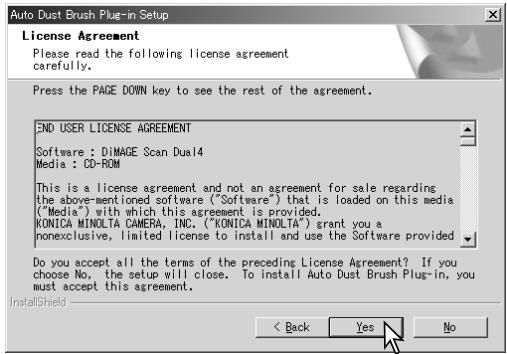
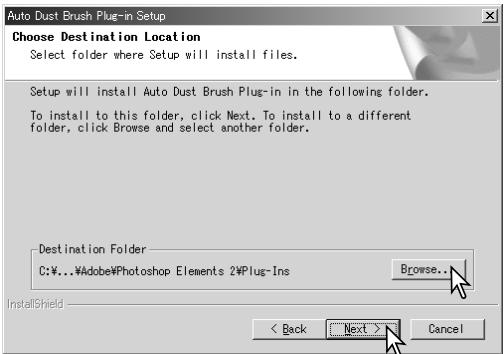
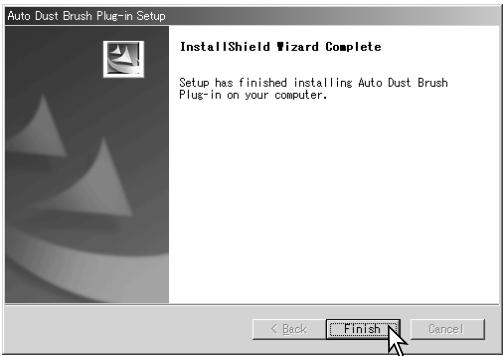
Installation - Macintosh
If the Auto Dust Brush plug-in was installed, simply drag and drop the plug-in file into an image-processing application's plug-in filter folder. This will allow the plug-in to be used in that application. To use the plug-in, see page 88.
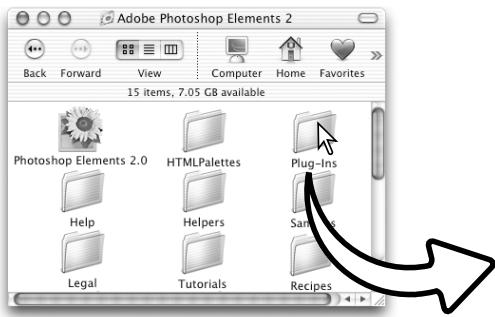
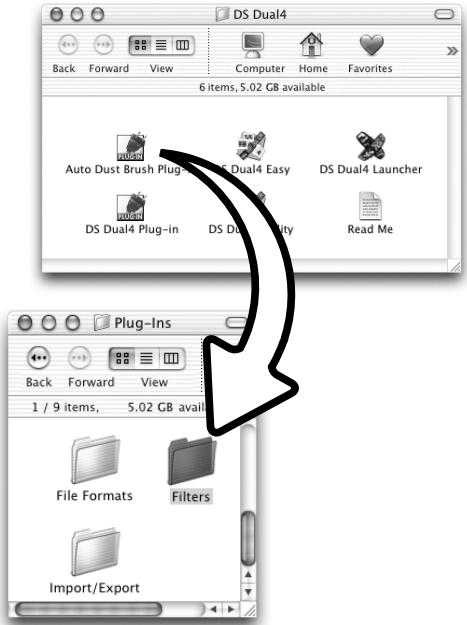
If the plug-in was not installed with the scanner software, repeat the installation procedure on page 14. In the custom install screen, only select the Auto Dust Brush plug-in for installation.
The location to install the plug-in can be specified, but it will be placed in a folder titled, "DS Dual4."
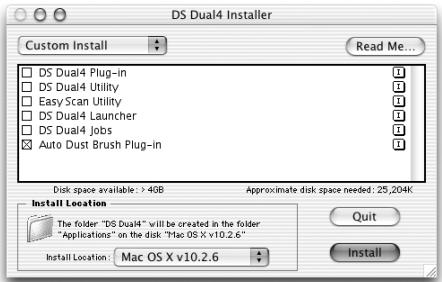
Using the Auto Dust Brush plug-in
Open an image in the application with the Auto Dust Brush plug-in. Only RGB and grayscale images can be processed.
Using the area marquee, select the area within the image to be retouched. If no area is selected, the Auto Dust Brush is applied to the entire image. Processing time is proportional to the size of the selected area.
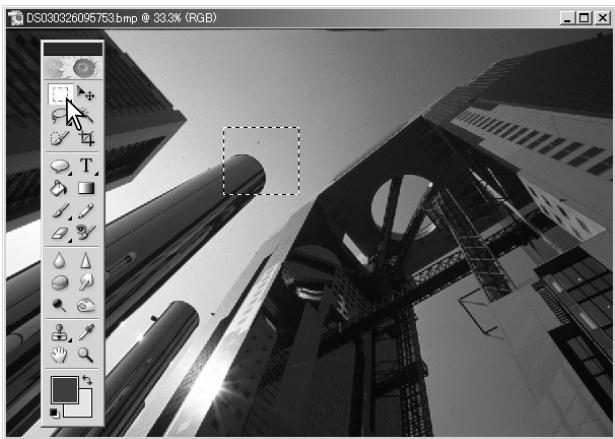
Select Auto dust Brush from the DiIMAGE Scan option in the filter menu.
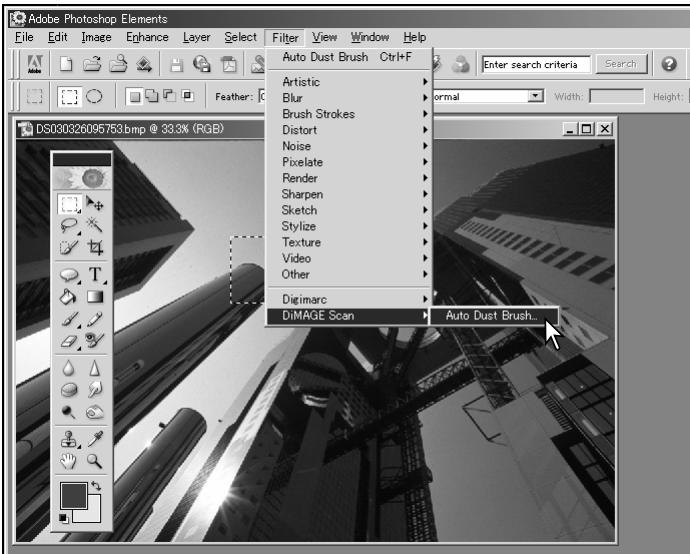
The selected image area is displayed in the preview display. Adjust the Auto Dust Brush parameters to retouch the image.
See the following page for a description of the plug-in controls.
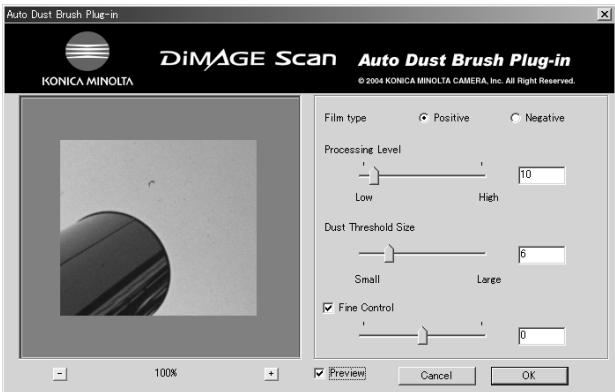
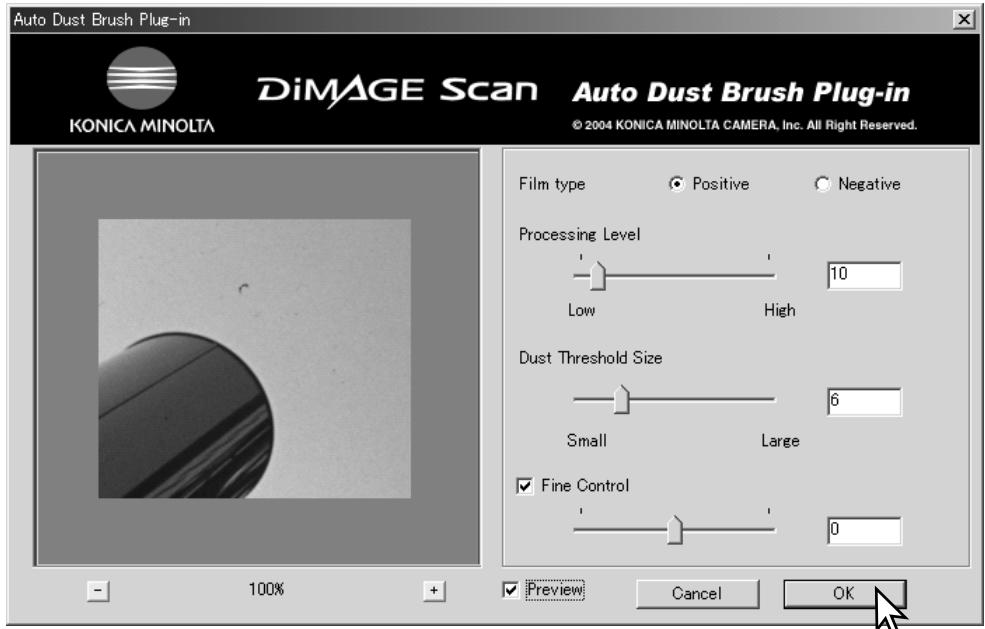
Film type: the type of film scanned must be specified. Dust on positive or slide film is shown as dark spots. On negative or print film, the dust is seen as white spots.
Processing level: the degree of processing can be specified.
Dust threshold size: the processing can be limited to a certain size of image artifacts caused by dust. The value displayed in the text box is in pixels. Processing is not applied to image elements larger than the specified value.
Fine control: by clicking on the check box, the slider and text box can be used to make fine adjustments to the current settings.
Preview: click the check box to display the effect of Auto Dust Brush processing on the preview image.
Magnification buttons: to enlarge or reduce the preview image. Click and drag on the image to scroll.
Click the OK button to apply the settings to the image. The cancel button closes the window without apply the changes.
Appendix
Glossary of common terms
| Contrast | Contrast adjusts the relationship between the light and dark areas of the image. Increasing the contrast will make the highlights brighter and the shadows darker. Increasing the contrast can also increase the apparent sharpness of the image. |
| Grain | Film uses tiny silver-halide crystals to record light. When developed, these crystals create a subtle texture to the image known as grain. The degree of grain depends on the film, image density, and image detail. |
| Highlights | Highlights refer to the bright tones in the image. If the highlights are too bright, image detail is lost. If the highlights are too dark, the image looks flat and dull. |
| Hue | A hue is a specific color. |
| Mid-tones | Mid-tones are the range of tones between the highlights and shadows. |
| Pixels | Pixel derives from the words picture element. A pixel is the smallest point used to create an image. |
| Resolution | Resolution indicates the number of pixels used in an image. Print resolutions are usually given in dpi (dots per inch). Monitor resolution indicates the maximum horizontal and vertical dimensions in pixels of the display. |
| Saturation | Saturation refers to how vivid the colors of an image are. |
| Shadows | Shadows refer to the dark tones in the image. If the shadows are too light, the dark areas look smokey and flat. If the shadows are too dark, image details are lost. |
Uninstalling the DiIMAGE Scan Software
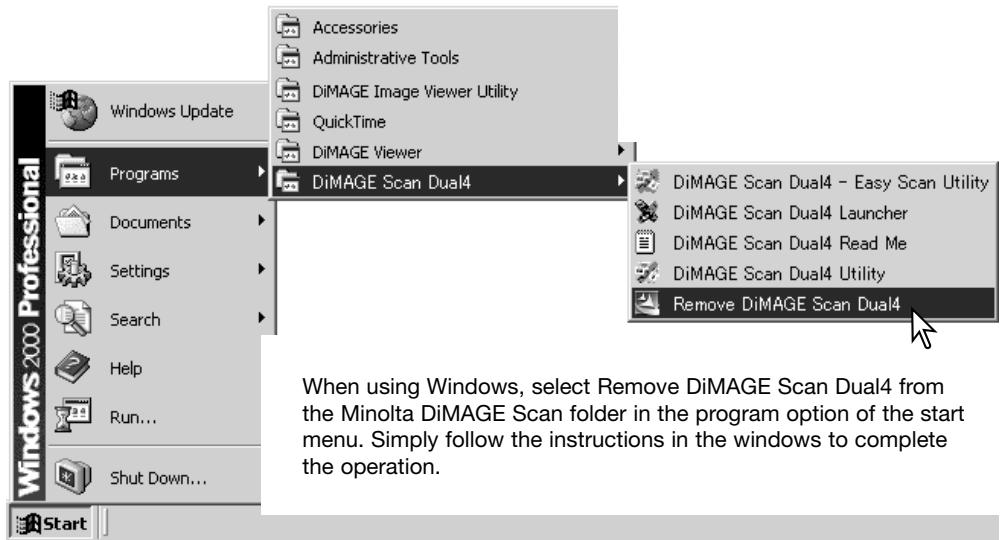
To uninstall the DiIMAGE Scan software from a Macintosh computer, place the DiIMAGE Scan CD-ROM in the CD-ROM drive, repeat the installation procedure, but select uninstall from the pop-up menu in the installer dialog box. Confirm the location of the software. Click the uninstall button to remove the software from the computer.
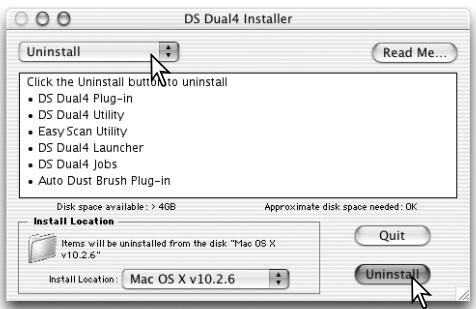
Installed files and folders
The following files and folders are installed in the computer system at the same time as the DiIMAGE Scan Utility application software. For the location and names of the installed scanner profiles, see page 82.
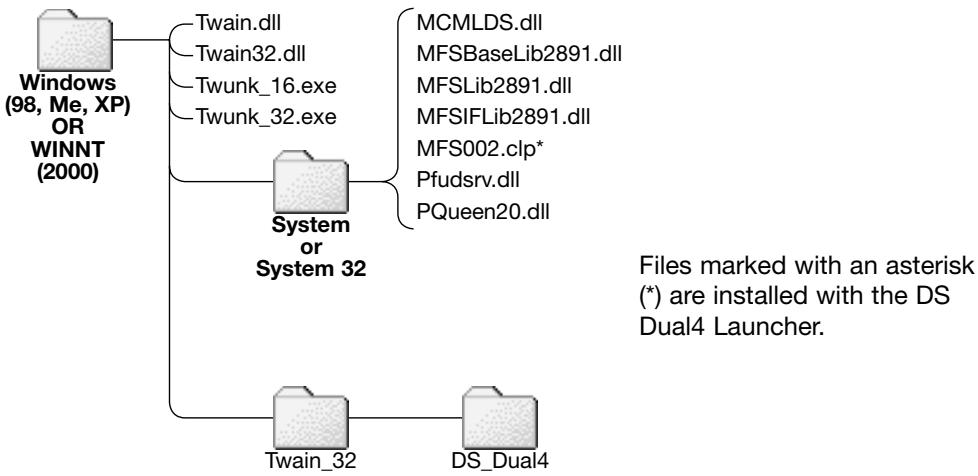
Windows
Mac OS 8/9
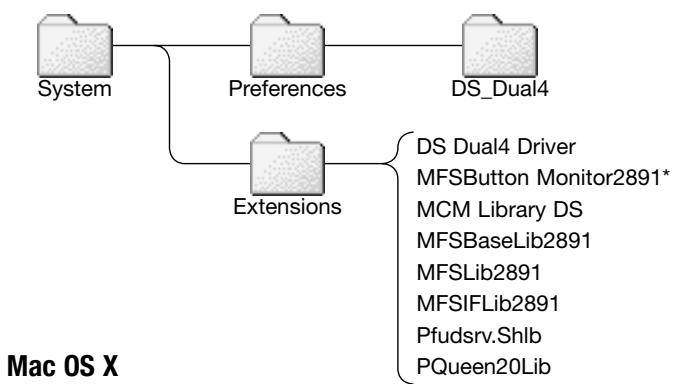
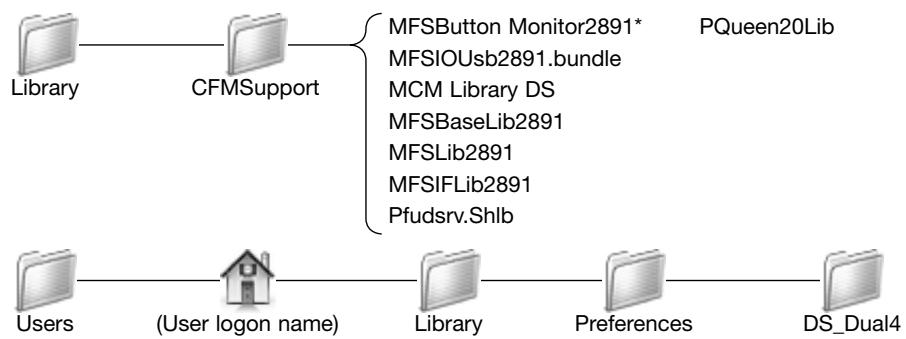
Job file list
Jobs can be used to make scan settings based on the final use of the image. See making-the-final-scan section on page 34. The following charts list the parameters of the scanner's Job files:
APS
| CATEGORY | JOB NAME | INPUT RES. | OUTPUT RES. | MAG. | UNIT | INPUT SIZE | INPUT LOCK | OUTPUT SIZE | OUTPUT LOCK | ||
| Default | Default | 800 | 300 | 266 | pixel | 948 | 546 | OFF | 948 | 546 | OFF |
| ColorLaserPrinter | A4Eighth | 2578 | 600 | 429 | mm | 24.48 | 17.37 | OFF | 105 | 74.5 | ON |
| LetterEighth | 2779 | 600 | 463 | inch | 0.87 | 0.68 | OFF | 4.05 | 3.16 | ON | |
| Photosensitive | A5Full | 3200 | 400 | 800 | mm | 26.25 | 17.35 | OFF | 210 | 138.68 | ON |
| LetterHalf | 3195 | 400 | 798 | inch | 1.07 | 0.68 | OFF | 8.5 | 5.45 | ON | |
| LetterQuarter | 2491 | 400 | 622 | inch | 0.88 | 0.68 | OFF | 5.45 | 4.25 | ON | |
| 2L | 2931 | 400 | 732 | mm | 24.32 | 17.35 | OFF | 178 | 127 | ON | |
| PostCard4x6 | 2345 | 400 | 586 | inch | 1.02 | 0.68 | OFF | 6 | 4 | ON | |
| Ink-Jet & Dye-SubPrinter | A4Full | 3200 | 300 | 1066 | mm | 27.86 | 17.35 | OFF | 297 | 184.91 | ON |
| A4Half | 2562 | 300 | 854 | mm | 24.59 | 17.33 | OFF | 210 | 148 | ON | |
| A4Quarter | 1817 | 300 | 605 | mm | 24.46 | 17.36 | OFF | 148 | 105 | ON | |
| A4Eighth | 1288 | 300 | 429 | mm | 24.48 | 17.37 | OFF | 105 | 74.5 | ON | |
| LetterFull | 3200 | 300 | 1066 | inch | 1.02 | 0.68 | OFF | 10.9 | 7.28 | ON | |
| LetterHalf | 2396 | 300 | 798 | inch | 1.07 | 0.68 | OFF | 8.5 | 5.45 | ON | |
| LetterQuarter | 1869 | 300 | 623 | inch | 0.87 | 0.68 | OFF | 5.45 | 4.25 | ON | |
| LetterEighth | 1390 | 300 | 463 | inch | 0.87 | 0.68 | OFF | 4.05 | 3.16 | ON | |
| Photo4x6 | 1731 | 300 | 577 | mm | -26 | 17.33 | OFF | 150 | 100 | ON | |
| Photo3x5 | 1540 | 300 | 513 | mm | 24.76 | 17.35 | OFF | 127 | 89 | ON | |
| 2L | 2198 | 300 | 732 | mm | 24.32 | 17.35 | OFF | 178 | 127 | ON | |
| WebPage | 1240x836 | 1225 | 72 | 1701 | pixel | 1240 | 836 | OFF | 1240 | 836 | ON |
| 1112x750 | 1099 | 72 | 1526 | pixel | 1112 | 750 | OFF | 1112 | 750 | ON | |
| 984x663 | 972 | 72 | 1350 | pixel | 984 | 663 | OFF | 984 | 663 | ON | |
| 792x534 | 783 | 72 | 1087 | pixel | 792 | 534 | OFF | 792 | 534 | ON | |
| 760x512 | 751 | 72 | 1043 | pixel | 760 | 512 | OFF | 760 | 512 | ON | |
| 600x404 | 592 | 72 | 822 | pixel | 600 | 404 | OFF | 600 | 404 | ON | |
| 320x240 | 352 | 72 | 488 | pixel | 320 | 240 | OFF | 320 | 240 | ON | |
| PhotoCD | PhotoCD2048x3072 | 3001 | 300 | 1000 | pixel | 3072 | 2048 | OFF | 3072 | 2048 | ON |
| PhotoCD1024x1536 | 1501 | 300 | 500 | pixel | 1536 | 1024 | OFF | 1536 | 1024 | ON | |
| PhotoCD512x768 | 751 | 300 | 250 | pixel | 768 | 512 | OFF | 768 | 512 | ON | |
| Screen | 1920x1200 | 1759 | 72 | 2443 | pixel | 1920 | 1200 | OFF | 1920 | 1200 | ON |
| 1600x1200 | 1759 | 72 | 2443 | pixel | 1600 | 1200 | OFF | 1600 | 1200 | ON | |
| 1280x1024 | 1501 | 72 | 2084 | pixel | 1280 | 1024 | OFF | 1280 | 1024 | ON | |
| 1280x960 | 1407 | 72 | 1954 | pixel | 1280 | 960 | OFF | 1280 | 960 | ON | |
| 1152x870 | 1275 | 72 | 1770 | pixel | 1152 | 870 | OFF | 1152 | 870 | ON | |
| 1024x768 | 1126 | 72 | 1563 | pixel | 1024 | 768 | OFF | 1024 | 768 | ON | |
| 832x624 | 915 | 72 | 1270 | pixel | 832 | 624 | OFF | 832 | 624 | ON | |
| 800x600 | 880 | 72 | 1222 | pixel | 800 | 600 | OFF | 800 | 600 | ON | |
| 640x480 | 704 | 72 | 977 | pixel | 640 | 480 | OFF | 640 | 480 | ON | |
| Document | A4Half | 614 | 72 | 852 | mm | 24.65 | 17.37 | OFF | 210 | 148 | ON |
| A4Quarter | 436 | 72 | 605 | mm | 24.46 | 17.36 | OFF | 148 | 105 | ON | |
| A4Eighth | 307 | 72 | 426 | mm | 24.65 | 17.37 | OFF | 105 | 74 | ON | |
| LetterHalf | 575 | 72 | 798 | inch | 1.07 | 0.68 | OFF | 8.5 | 5.45 | ON | |
| LetterQuater | 449 | 72 | 623 | inch | 0.87 | 0.68 | OFF | 5.45 | 4.25 | ON | |
| LetterEighth | 286 | 72 | 397 | inch | 1.07 | 0.69 | OFF | 4.25 | 2.72 | ON | |
| FilmRecorder | 2K | 2000 | 2400 | 83 | pixel | 2048 | 1365 | OFF | 2048 | 1365 | ON |
| DigitalCamera | 0.3-Megapixel Image | 704 | 72 | 977 | pixel | 640 | 480 | OFF | 640 | 480 | ON |
| 0.8-Megapixel Image | 1126 | 72 | 1563 | pixel | 1024 | 768 | OFF | 1024 | 768 | ON | |
| 1.3-Megapixel Image | 1501 | 72 | 2084 | pixel | 1280 | 1024 | OFF | 1280 | 1024 | ON | |
| 2-Megapixel Image | 1759 | 72 | 2443 | pixel | 1600 | 1200 | OFF | 1600 | 1200 | ON | |
| 3-Megapixel Image | 2251 | 72 | 3126 | pixel | 2048 | 1536 | OFF | 2048 | 1536 | ON | |
| 4-Megapixel Image | 2497 | 72 | 3468 | pixel | 2272 | 1704 | OFF | 2272 | 1704 | ON | |
| 5-Megapixel Image | 2814 | 72 | 3908 | pixel | 2560 | 1920 | OFF | 2560 | 1920 | ON | |
35mm
| CATEGORY | JOB NAME | INPUT RES. | OUTPUT RES. | MAG. | UNIT | INPUT SIZE | INPUT LOCK | OUTPUT SIZE | OUTPUT LOCK | ||
| W | H | W | H | ||||||||
| Default | Default | 800 | 300 | 266 | pixel | 1170 | 780 | OFF | 1170 | 780 | OFF |
| ColorLaserPrinter | A4Quarter | 2544 | 600 | 424 | mm | 34.91 | 24.76 | OFF | 148 | 105 | ON |
| A4Eighth | 1805 | 600 | 300 | mm | 35 | 24.83 | OFF | 105 | 74.5 | ON | |
| LetterQuarter | 2616 | 600 | 436 | inch | 1.25 | 0.97 | OFF | 5.45 | 4.25 | ON | |
| LetterEighth | 1945 | 600 | 324 | inch | 1.25 | 0.98 | OFF | 4.05 | 3.16 | ON | |
| Photosensitive | A4Full | 3200 | 400 | 800 | mm | 37.13 | 24.77 | OFF | 297 | 198.12 | ON |
| A5Full | 2390 | 400 | 597 | mm | 35.18 | 24.79 | OFF | 210 | 148 | ON | |
| LetterFull | 3200 | 400 | 800 | inch | 1.36 | 0.98 | OFF | 10.9 | 7.8 | ON | |
| LetterHalf | 2325 | 400 | 581 | inch | 1.46 | 0.94 | OFF | 8.5 | 5.45 | ON | |
| LetterQuarter | 1744 | 400 | 436 | inch | 1.25 | 0.97 | OFF | 5.45 | 4.25 | ON | |
| 2L | 2052 | 400 | 513 | mm | 34.7 | 24.76 | OFF | 178 | 127 | ON | |
| PostCard4x6 | 1642 | 400 | 410 | inch | 1.46 | 0.98 | OFF | 6 | 4 | ON | |
| Ink-Jet & Dye-SubPrinter | A4Full | 2544 | 300 | 848 | mm | 35.02 | 24.76 | OFF | 297 | 210 | ON |
| A4Half | 1793 | 300 | 597 | mm | 35.18 | 24.79 | OFF | 210 | 148 | ON | |
| A4Quarter | 1272 | 300 | 424 | mm | 34.91 | 24.76 | OFF | 148 | 105 | ON | |
| A4Eighth | 902 | 300 | 300 | mm | 35 | 24.83 | OFF | 105 | 74.5 | ON | |
| LetterFull | 2616 | 300 | 872 | inch | 1.25 | 0.97 | OFF | 10.9 | 8.5 | ON | |
| LetterHalf | 1744 | 300 | 581 | inch | 1.46 | 0.94 | OFF | 8.5 | 5.45 | ON | |
| LetterQuarter | 1308 | 300 | 436 | inch | 1.25 | 0.97 | OFF | 5.45 | 4.25 | ON | |
| LetterEighth | 973 | 300 | 324 | inch | 1.25 | 0.98 | OFF | 4.05 | 3.16 | ON | |
| Photo4x6 | 1212 | 300 | 404 | mm | 37.13 | 24.75 | OFF | 150 | 100 | ON | |
| Photo3x5 | 1078 | 300 | 359 | mm | 35.38 | 24.79 | OFF | 127 | 89 | ON | |
| 2L | 1539 | 300 | 513 | mm | 34.7 | 24.76 | OFF | 178 | 127 | ON | |
| WebPage | 1240x836 | 858 | 72 | 1191 | pixel | 1240 | 836 | OFF | 1240 | 836 | ON |
| 1112x750 | 770 | 72 | 1069 | pixel | 1112 | 750 | OFF | 1112 | 750 | ON | |
| 984x663 | 680 | 72 | 944 | pixel | 984 | 663 | OFF | 984 | 663 | ON | |
| 792x534 | 548 | 72 | 761 | pixel | 792 | 534 | OFF | 792 | 534 | ON | |
| 760x512 | 526 | 72 | 730 | pixel | 760 | 512 | OFF | 760 | 512 | ON | |
| 600x404 | 415 | 72 | 576 | pixel | 600 | 404 | OFF | 600 | 404 | ON | |
| 320x240 | 247 | 72 | 343 | pixel | 320 | 240 | OFF | 320 | 240 | ON | |
| PhotoCD | PhotoCD2048x3072 | 2101 | 300 | 700 | pixel | 3072 | 2048 | OFF | 3072 | 2048 | ON |
| PhotoCD1024x1536 | 1051 | 300 | 350 | pixel | 1536 | 1024 | OFF | 1536 | 1024 | ON | |
| PhotoCD512x768 | 526 | 300 | 175 | pixel | 768 | 512 | OFF | 768 | 512 | ON | |
| Screen | 1920x1200 | 1313 | 72 | 1823 | pixel | 1920 | 1200 | OFF | 1920 | 1200 | ON |
| 1600x1200 | 1231 | 72 | 1709 | pixel | 1600 | 1200 | OFF | 1600 | 1200 | ON | |
| 1280x1024 | 1051 | 72 | 1459 | pixel | 1280 | 1024 | OFF | 1280 | 1024 | ON | |
| 1280x960 | 985 | 72 | 1368 | pixel | 1280 | 960 | OFF | 1280 | 960 | ON | |
| 1152x870 | 893 | 72 | 1240 | pixel | 1152 | 870 | OFF | 1152 | 870 | ON | |
| 1024x768 | 788 | 72 | 1094 | pixel | 1024 | 768 | OFF | 1024 | 768 | ON | |
| 832x624 | 640 | 72 | 888 | pixel | 832 | 624 | OFF | 832 | 624 | ON | |
| 800x600 | 616 | 72 | 855 | pixel | 800 | 600 | OFF | 800 | 600 | ON | |
| 640x480 | 493 | 72 | 684 | pixel | 640 | 480 | OFF | 640 | 480 | ON | |
| Document | A4Half | 430 | 72 | 597 | mm | 35.18 | 24.79 | OFF | 210 | 148 | ON |
| A4Quarter | 305 | 72 | 423 | mm | 34.99 | 24.82 | OFF | 148 | 105 | ON | |
| A4Eighth | 215 | 72 | 298 | mm | 35.23 | 24.83 | OFF | 105 | 74 | ON | |
| LetterHalf | 419 | 72 | 581 | inch | 1.46 | 0.94 | OFF | 8.5 | 5.45 | ON | |
| LetterQuater | 314 | 72 | 436 | inch | 1.25 | 0.97 | OFF | 5.45 | 4.25 | ON | |
| LetterEighth | 210 | 72 | 291 | inch | 1.46 | 0.93 | OFF | 4.25 | 2.72 | ON | |
| FilmRecorder | 4K | 2802 | 2400 | 116 | pixel | 4096 | 2731 | OFF | 4096 | 2731 | ON |
| 2K | 1401 | 2400 | 58 | pixel | 2048 | 1365 | OFF | 2048 | 1365 | ON | |
| DigitalCamera | 0.3-Megapixel Image | 493 | 72 | 684 | pixel | 640 | 480 | OFF | 640 | 480 | ON |
| 0.8-Megapixel Image | 788 | 72 | 1094 | pixel | 1024 | 768 | OFF | 1024 | 768 | ON | |
| 1.3-Megapixel Image | 1051 | 72 | 1459 | pixel | 1280 | 1024 | OFF | 1280 | 1024 | ON | |
| 2-Megapixel Image | 1231 | 72 | 1709 | pixel | 1600 | 1200 | OFF | 1600 | 1200 | ON | |
| 3-Megapixel Image | 1576 | 72 | 2188 | pixel | 2048 | 1536 | OFF | 2048 | 1536 | ON | |
| 4-Megapixel Image | 1748 | 72 | 2427 | pixel | 2272 | 1704 | OFF | 2272 | 1704 | ON | |
| 5-Megapixel Image | 1970 | 72 | 2736 | pixel | 2560 | 1920 | OFF | 2560 | 1920 | ON | |
| 10-Megapixel Image | 2924 | 72 | 4061 | pixel | 3800 | 2850 | OFF | 3800 | 2850 | ON | |
| 14-Megapixel Image | 3200 | 72 | 4444 | pixel | 4680 | 3120 | OFF | 4680 | 3120 | OFF | |
Troubleshooting
This section covers minor problems with scanner operation. For major problems or damage, or if a problem continues to reoccur frequently, contact your dealer or a Konica Minolta service facility.
| SYMPTOM orMESSAGE | SOLUTION |
| When starting up the utility software, could-not-verify-the-crawler-or-detect-on message appears. | Confirm the cable is securely connected between the computer and scanner. Turn the scanner off and on. Click OK to continue. |
| When starting up the utility software, close-scanner-door message appears. | Close the scanner door. Click OK to continue. |
| • The utility software freezes. • The scanning time increases. | Turn off the scanner. Shut down the image-processing application and increase its memory allocation. Restart the computer and scanner. |
| Unusual image color when scanning color negative film. | Confirm color negative film is selected in the main window, and rescan the image, or color balance the image using the DiIMAGE Scan's image-processing tools. If the problem is not solved, reinstall the DiIMAGE Scan Utility. |
| The scanned image is not sharp. | Select an autofocus option in the preference dialog box, or use point AF or manual focus. |
| Cannot-verify-home-position message appears during scanning. | The film holder was hindered during the scan. Turn off the scanner, and restart the computer. |
| The scanner indicator lamp blinks rapidly. | The scanner door was opened during setup. Close the door, and shut down and restart the scanner and DiIMAGE Scan Utility. |
| The set-holder message appears. | Reload the holder into the scanner. |
| The holder-does-not-match-selected-film message appears. | Set the correct film format in the DiIMAGE Scan Utility or insert the correct holder into the scanner. |
| The insufficient-memory message appears. | Increase the memory requirements for the host application. If multiple images have been scanned, close and relaunch the host application. |
| The DiIMAGE Scan preview image displays unusual color reproduction. | Remove the film holder and close the scanner door. Press shift+control+I (Windows) or command+control+I (Macintosh) to initialize the scanner. |
Checking software installation - Windows
If the scanner was connected to the computer before the DiIMAGE Scan Utility was installed, the computer may not recognize the scanner unit. Use the following instructions to confirm the driver was installed correctly:
- Windows 98, 2000, Me: right click on the My-computer icon. Select "properties" from the drop-down menu.
Windows XP: from the start menu go to the control panel. Click on the performance and maintenance category. Click the system button to open the system properties window.
- Windows 2000 and XP: select the hardware tab in the properties window and click the device-manager button.
Windows 98 and Me: click the device-manager tab in the properties window.
- The driver file should be located in the imaging-device location of the device manager. Click on the location to display the files. DS_Dual4 should be listed as the imaging device.
If the file are not located in the imaging-device location, open the other-devices location of the device manager. If DS_Dual4 is listed, use the following instructions to delete the driver:
-
Click on the driver to select it for deletion.
-
Windows 2000 and XP: click on the action button to display the drop-down menu. Select uninstall. A confirmation screen will appear. Clicking the yes button will remove the driver from the system.
Windows 98 and Me: click the remove button. A confirmation screen will appear. Clicking the yes button will remove the driver from the system.
- Restart the computer. Confirm the driver is in the proper location using the instructions at the top of the page.
When the scanner is initially connected to a computer with a Windows 98, 98SE, or 2000 Professional operating system, the found-new-hardware wizard will appear briefly. No action is required. With Windows 2000, the "Digital Signature Not Found..." message may appear. Click the yes button to complete the scanner installation.
When the scanner is initially connected to a computer with a Windows XP operating system, the found-new-hardware wizard will appear. Click the next button. The "not passed Windows Logo testing" message appears. Click the continue-Anyway button to complete the scanner installation.
Technical specifications
Scan type:
Film type:
Film formats:
Scanning dimensions:
Optical input resolution:
Image sensor:
A/D conversion:
Color depth:
Dynamic range:
Light source:
Focusing:
Interface:
Power consumption:
Dimensions (W× H× D)
Weight (approx.):
Operating environment:
Storage environment:
Scan times (approx.):
Test conditions:
Moving film, fixed sensor, single-pass scan
Negative and positive, color and monochrome
35mm and APS film.
35mm - 24.76 x 37.14mm (3120 x 4680 pixels)
APS - 17.33 x 30.09mm (2184 x 3782 pixels)
3200 dpi
3-line primary-color CCD with 5340 pixels/line
16 bit
8 bit and 16 bit per color channel
3.6
3-wavelength cold cathode fluorescent tube
Autofocus, point AF, and manual focus
USB 2.0 (USB 1.1 compatible)
Max. 30 W
145 × 100 × 326 mm
5.7 × 3.9 × 12.8 in
1.5 kg / 3.3 lb
10^ - 35^ (50^ - 95^) , 15-80% humidity without condensation
-20° - 60°C (-4° - 140°F), 15-80% humidity without condensation
Prescan: 6 sec. (Windows), 8 sec. (Macintosh)
Scan: 21 seconds
Scanning time changes according to the preferences used.
Scanning time can be longer for negative film than positive film.
Slide Mount Holder, Color positive film, no autoexposure, no image correction, 3200dpi 8-bit scan.
Windows: Pentium IV 3.2 GHz, Windows XP Professional, 1.0GB RAM, 86GB hard disk space, built-in USB 2.0 port, Adobe Photoshop ver. 7.0.1.
Macintosh: PowerPC G5 1.8 GHz, Mac OS X 10.3.1, 512MB
RAM, 16GB hard disk space, Apple USB 2.0 port, Adobe
Photoshop ver. 7.0.1.
Specifications are based on the latest information available at the time of printing and are subject to change without notice.
Technical support
Please contact your dealer for information regarding installation, USB interface recommendations, or application compatibility. If your dealer is unable to help you, contact an authorized Konica Minolta service facility. Please have the following information ready when calling Konica Minolta technical support:
- The name and model of your computer and operating system.
- The available application RAM and hard disk space.
- Other connected USB devices.
- DiIMAGE Scan Utility version number. The version number is displayed by placing the mouse pointer on the status bar in the main window.
- A description of the problem.
- Any message that appears on the screen when the problem occurs.
- The frequency of occurrence.
Warranty and product registration
Please take the time to fill in the warranty and product registration card. Technical support, scanner software upgrades, and product information is available when the product is registered.
Record keeping
Keeping records when scanning is important. It allows for results to be reproduced as well as a good reference for settings when new images are scanned. Records are also a useful learning tool; they document both successes and failures.
The data sheet on the following page may be copied and used to record scanner settings. Details on the film, exposure, and any special filters or processing used can be noted.
Image Data Sheet
| Image: | Date: | ||||
| Film: | Exposure: | Filtration: | Processing: | ||
| Image processing | Image-correction Job: | ||||
| Brightness, contrast, & color balance palette | Hue, saturation & lightness palette | Unsharp mask | Selective-color palette | ||
| Brightness: | Hue: | Amount: | Cyan: R/ G/ B/ C/ M/ Y/ | ||
| Contrast: | Saturation: | Radius: | Magenta: R/ G/ B/ C/ M/ Y/ | ||
| Red: | Lightness: | Threshold: | Yellow R/ G/ B/ C/ M/ Y/ | ||
| Green: | Shadow: | Black: R/ G/ B/ C/ M/ Y/ | |||
| Blue: | Auto Dust Brush: | Pixel Polish: | Digital Grain Dissolver: | ||
| Exposure control | Exposure-control setting file: | ||||
| Master: | Red: | Green: | Blue: | ||
| Scan settings | Job name: | ||||
| Input resolution: | Input size (W): | Input size (H): | Magnification: | ||
| Output resolution: | Output size (W): | Output size (H): | Unit: | ||
| Color matching | Color space: | ICC profile: | |||
| Preferences | Auto exposure: | Color depth: | Multi-sample scan: | ||
| Notes:Konica Minolta | |||||
Hue corrections
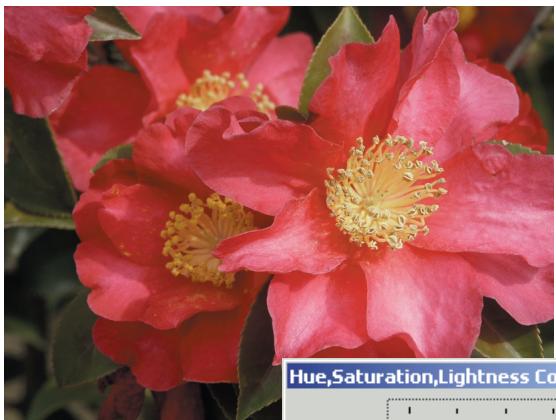
Changes in hue rotate the original color values though a color space and reassigns a new hue based on the new position in that space. In this example, the original image was rotated 180^ . For more on the hue, saturation, and brightness palette, see page 70.
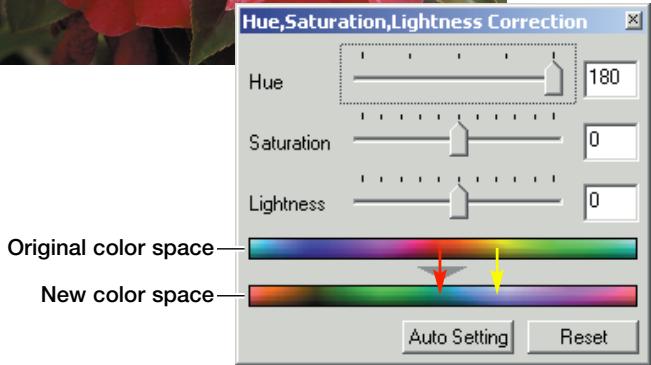
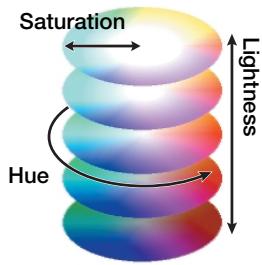
Two color spaces are displayed at the bottom of the palette. The top bar indicates the color space of the original image. The bottom bar displays the relative shift to the Original color space. In the example, the reds have been shifted to green and the yellows to lavender.
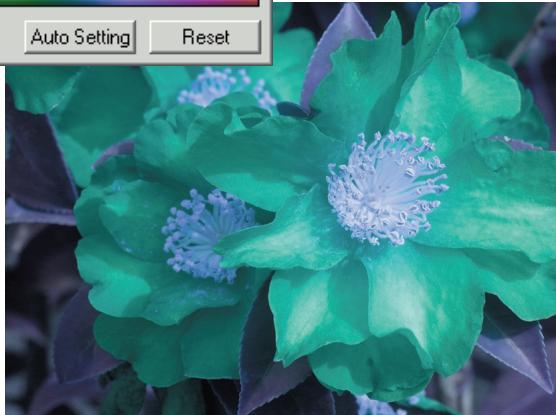

KONICA MINOLTA
KONICA MINOLTA CAMERA, INC.
© 2003 Konica Minolta Camera, Inc. under the Berne Convention and the Universal Copyright Convention.
0-43325-53291-7
9222-2891-11 AV-A312/KME-0312
Printed in Germany
- DiMAGE Scan Dual IV
- Tone-curve corrections
- Selective-color palette
- Before you begin
- For proper and safe use
- WARNING
- CAUTION
- Table of contents
- Names of parts
- Installation
- Before installing the DiIMAGE Scan Utility
- DiIMAGE Scan system requirements
- Adobe Photoshop Elements 2.0
- Windows
- Macintosh
- Scanner setup
- Before connecting the scanner to a computer
- Before connecting the scanner to a computer, the DiMAGE Scan Utility must first be installed. See pages 9 through 15 for the installation procedure.
- Connecting the USB cable
- Connecting the AC adapter
- Turning on the scanner
- Disconnecting the scanner
- Never disconnect the scanner when the indicator lamp is blinking.
- Loading the film holders
- Handling film
- Where is the emulsion?
- Loading 35mm film strips
- Loading mounted slides
- Loading a film holder into the scanner
- Using the APS Adapter AD-10 (sold separately)
- Ejecting a film holder
- DiIMAGE Scan Launcher
- Easy scan utility
- Launching the Easy Scan Utility
- Using the Easy Scan Utility
- Scanner Notes (Macintosh)
- Basic scanning
- Launching the DiIMAGE Scan Utility
- Scanning basics
- Making an index scan
- Selecting index thumbnails
- Flip and rotate images
- Fit-to-window button
- Main window and prescan tab
- Making a prescan
- Grab tool
- Magnifying tool
- Auto cropping
- CHP button (APS film)
- Making the final scan
- Basic image processing
- Main window and image-correction tab
- Auto Dust Brush retouching level
- Variation palette
- Brightness, contrast, and color balance palette
- An introduction to color
- Comparing pre and post-correction images
- Undoing and redoing image corrections
- Quitting the DiIMAGE Scan Utility
- Advanced scanning
- Setting scanner preferences
- Exposure-control tab
- Saving exposure settings
- Loading exposure settings
- Reverse frame order
- Saving the index thumbnails
- Saving an index file
- Loading an index file
- More prescan functions
- Scanner Notes
- Point AF (Autofocus)
- Manual focus
- Manual cropping
- Autoexposure
- AE area selection
- AE lock
- Inputting scan settings manually
- About resolution and output size
- Scan setting examples
- Saving scan settings as a Job
- Deleting a Job
- Advanced image processing
- More image-processing tools
- Digital Grain Dissolver
- Tone curve and histogram palette
- Using tone curves
- Drawing tone curves by freehand
- A short guide to tone curve corrections
- Increasing image contrast
- Correcting color
- Tone Curves and Histogram
- Histogram corrections
- Tone curve / histogram auto setting
- A short guide to histogram corrections
- Minolta History
- White, gray, and black point corrections
- Setting the white and black-point values
- Tracking image corrections - Snapshot button
- Hue, saturation, and lightness palette
- About RGB and CMY
- Unsharp mask
- Saving image corrections
- Loading image-correction Jobs
- Custom wizard
- Batch scan utility
- Advanced Batch Scan setup
- Color matching
- Setting the output color space
- Output color spaces
- Setting the monitor ICC profile
- Scanner color profiles
- Color matching recommendations
- Auto Dust Brush Plug-in
- Before installing the plug-in
- Installation - Windows
- Installation - Macintosh
- Using the Auto Dust Brush plug-in
- Appendix
- Glossary of common terms
- Uninstalling the DiIMAGE Scan Software
- Installed files and folders
- Job file list
- Troubleshooting
- Checking software installation - Windows
- Technical specifications
- Technical support
- Warranty and product registration
- Record keeping
- Hue corrections
- KONICA MINOLTA
Marque : KONICA MINOLTA
Modèle : SCAN DUAL IV
Catégorie : Scanner